Nothing matches that. Try a different word.
Rin Chat Troubleshooting and FAQ
Troubleshooting & FAQ#
The questions that come up most, and what to check first.
I have a ChatGPT / Claude subscription — can I use that? No. A consumer subscription only covers those companies' own apps. Rin Chat needs API access, which is billed separately: you sign up with a provider, create an API key (a long secret string you paste into Settings → LLM Providers), and pay per message instead of monthly. Providers that resell many models behind one key — OpenRouter, NanoGPT — are the easiest start. The alternative is free: run a model on your own machine with LM Studio, Ollama or KoboldCpp, where there is no key and no bill.
Where is everything stored? By default in Documents/rin-chat/<your account name>/. You can move it in Settings → Data & Backup.
The model returns nothing, or only thinking. A reasoning model spends its token budget thinking before it writes. Extra headroom is only added when you pick an explicit effort tier — on Auto there is none. Set an effort level in the config's Reasoning section, or raise Max response tokens — both in Settings → Generation Configs.
The developer gave me a fix code. Paste it into Settings → Diagnostics → Apply a settings fix and press Check the fix. A window lists every change beside what is set now; untick any you want to keep, then apply. Undo in the same place puts them all back. Only codes signed by Rin Chat's developer are accepted, and a fix can only change generation and chat display settings, never keys, providers or your data, so a code posted by anyone else will not work.
The update offer comes back every time I open the app (Windows). Rin Chat is installed in two folders. Updates go to the folder the installer last used, but your shortcut opens the other, older copy, so each launch is the old version asking to update again. The app says so in a strip at the top and lists every copy in Settings → Updates, with a button to show each one in its folder. Open Rin Chat from the updated copy and uninstall the others in Windows Settings → Apps, leaving delete app data unticked: your characters and chats are stored apart from the app and are not touched.
Updating asks for administrator access (Windows). Rin Chat is installed in a folder only an administrator can change, so Windows asks for approval when an update installs. Settings → Updates shows the folder and a Fix permissions button that gives your account permission to change that folder, after one administrator prompt, so later updates install without asking. In Program Files or another system folder, the prompt is expected and stays.
Replies get cut off mid-sentence. Raise Max response tokens in your generation config, or turn on Continue truncated replies (Settings → Automation, off by default), which carries on a reply that hit the technical token cap. It only runs while Length is set to Auto — with Short/Medium/Long, hitting the cap is treated as the limit you asked for. Either switch Length to Auto, or raise the cap.
An error number came back:
- 401 / 403: the API key is missing, wrong, or lacks access to that model.
- 404: the model id doesn't exist on that endpoint. The model field is free text; check the spelling against the provider's list.
- 402: out of credit. A brand-new key with no money on the account returns this.
- 429: rate-limited, or too many requests too quickly.
- 400: often the prompt is longer than the model's context window; lower Max context tokens in Settings → Generation Configs.
- Connection refused / failed to fetch: a local server (LM Studio, Ollama, KoboldCpp) isn't running, or the URL/port is wrong.
My lorebook entry never triggers. Keyword scanning reads only the last 4 messages by default — a keyword mentioned earlier has already scrolled out of the scan window. Give the entry a keyword that keeps recurring, raise that entry's own scan depth, or set it to always-on. Check what actually fired in Session info → Lorebook.
Keyboard shortcuts do nothing. Shortcuts with no modifier (E, C, ←, →, /, ?) are deliberately ignored while your cursor is in a text box, so typing can't fire them. Click outside the message box first.
There's no Regenerate button on an older reply. Regenerate, swipes and Continue act on the last message only — rewriting an older one would strand every reply written against it. Delete back to it (Shift-click Delete removes that message and everything after), or branch from it.
Where is my data, and can I move it? Everything lives in the app's data folder, which you can relocate in Settings → Data & Backup. To move to another computer, export a full backup there and restore it on the other machine — see Export, import & backup for what the file does and does not protect.
I forgot my password. There's no master reset — the vault key is derived from your password. Two things can get you back in, and both must exist before you're locked out: your recovery kit, or an AICC account linked while unlocked. With neither, the data cannot be decrypted by anyone, including us. Set one up now if you haven't: Account & security.
My browser says the connection isn't private (phone remote). Expected — the desktop serves HTTPS with a certificate it generated itself, which no public authority has signed. The traffic is still encrypted. Compare the fingerprint shown in Settings → Remote Access and continue. Phone remote access covers pairing problems.
Something looks wrong / I want to report a bug. Session info → Exchanges shows the exact request and response (your API key redacted) — that, and what you expected instead, is almost always enough to diagnose it.
Diagnostics & usage#
Two pages for checking on the app itself: Settings → Diagnostics and Settings → Usage. Both are desktop only.
Diagnostics holds these cards:
- Card health check: the tips at the top of the card editor. Show health check tips turns them on or off, and Dismissed tips brings back the ones you hid.
- Debug log: records the last ~300 exchanges with your AI provider, plus errors, and expires them after 24 hours. Export the log writes a plain-text file that includes your prompts and chat content (keys redacted), so only share it with someone you trust. Clear the log discards everything recorded, and Get help opens the community Discord, which is the support channel. More in Export, import & backup.
- Apply a settings fix: for a fix code from the developer; see Troubleshooting & FAQ.
- Models that fit this computer: measures this computer's RAM and graphics memory, lists GGUF models on Hugging Face (search them with the box), and shows the largest version of each one that fits: Fits on the graphics card, Partly in RAM, slower, or Too big. Sizes include about 1.5 GB for the conversation, so treat the verdict as a guide. Rin Chat runs none of these itself; each row hands the model to an app that does.
- Guided tours: Tour of the app (the title bar, the library, lorebooks, and how providers and generation configs fit together) starts straight away; Tour of the chat starts the next time you open a chat.
On a row of the model finder: Download in Ollama while Ollama is running (otherwise Copy Ollama command), Open in LM Studio, Open on Hugging Face, and Run with KoboldCpp once Rin Chat has a KoboldCpp of its own, which downloads that file into your models folder. To set one of the apps up as a provider, see the Local app card in Providers & the LLM API.
Usage counts every model call made on this device: chats, Card Forge, summaries, titles and every other helper, including ones made with no chat open and those from a phone using remote access. Each chat's own count is under Statistics in Session info.
- Totals: requests, tokens sent and tokens received for today, the last 30 days and all time, plus what was served from or written to the provider's cache, and the cost where the provider reports one. Its line says whether the counts came from the provider or are estimates.
- Last 30 days: tokens sent and received per day.
- By model, By provider and By purpose (replies, swipes, chat memory, the story director, Card Forge and so on): the same numbers broken down.
- History: Clear usage history forgets every recorded request on this device. Chats keep their own counts.
Usage statistics#
Rin Chat sends anonymous counts about how it's used, to api.aicharactercards.com. This page lists every field and what it's for, because "anonymous statistics" is a phrase that has been used to mean almost anything.
Never collected, at all: your characters, chats, prompts, personas or lorebooks — not their text, and not their names, tags or creators. Not your API keys, file paths, folder names, usernames, or the addresses of the AI providers you connect to.
Always sent — part of the terms of use, and not switchable:
- That the app was installed and launched, and once a day that it was used: the first click or key press of a day it was left open sends one more ping. Nothing about what was clicked, only that the app was in use that day. It goes with a random identifier generated on this device. It isn't derived from your hardware, means nothing anywhere else, and resets if you clear the app's data. This is simply how we know how many people use Rin Chat.
- App version, operating system and version, CPU architecture, system language, and which package you installed (installer,
.deb, AppImage,.dmg). This decides where the work goes: whether a Linux build is worth maintaining, whether translations are worth doing, and when it's safe to stop supporting an old system rather than carrying workarounds for one nobody runs.
Optional: four switches in the Anonymous usage statistics card of Settings → Data & Backup, all on unless you turn them off. There's a Turn all off button there (and a Turn off everything optional one on the last screen of setup):
- Link these reports to my aicharactercards.com account: so one person on a laptop and a desktop counts as one person, not two. Off, the report carries only the random device identifier.
- Which AI providers and models I use: the provider's preset name and up to eight model ids, never an address. A self-hosted endpoint reports only whether it's on your own machine or out on the internet, which is why a private URL or an embedded API key can't travel with it.
- How big my card library is: six numbers: cards, favorites, unfiled, missing art, never chatted, and how many distinct creators. Performance work is aimed at real libraries, and this is how we know whether a thousand cards is common or rare.
- Which features I've set up: how many personas and lorebooks you have, how many chats in total, and whether image generation is configured (which kind, never an address). It stops us polishing something nobody uses while a popular feature waits.
Session info (debug inspector)#
The Session info button in the chat topbar opens the inspector. Clicking it goes straight to Exchanges; hovering it gives a menu that jumps to any of the views below (Generators isn't on that menu — it's a tab once the panel is open):
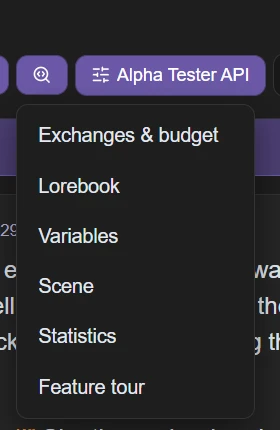
- Exchanges & budget: the exact request/response sent to the model (with your API key redacted), and a token breakdown of what's filling the context window.
- Lorebook: which world-info entries are active right now.
- Variables: the chat's local and global macro variables, with a 🎲 to reroll one — or Reroll all.
- Generators: what the card's inline
[Create …]generators rolled, and what they produced. - Scene: the scene tracker (edit / update / clear) — only shown when the scene tracker is enabled in Settings → Memory & Context.
- Statistics: turn balance, word counts, average and longest reply, a rough token total for the whole chat, and the tokens this chat has actually used. What every chat, Card Forge session and helper call adds up to, per day, model and provider, is in Settings → Usage.
- Playground: paste text and see side by side what the model would be sent and what the chat would show; nothing is saved. With As set to the character's reply, type values like
gold = 3, has_key = trueinto Test variables and the choices lock, hide and open as a chat with those values would. Macros such as{{getvar::gold}}still read the chat's real variables. - Feature tour: replays the guided first-run tour of the chat controls, any time.
Above the message box, the context meter breaks the window into one segment per thing filling it — hover a segment for its share. When older turns start being dropped it says trimming and shows which messages are still being sent, and dividers appear in the transcript at the cut-off points. Its count starts as an estimate; once your provider reports how many tokens a request really used, the meter scales to match and its breakdown shows that last reported count.