Nothing matches that. Try a different word.
Getting started
Rin Chat is a local-first roleplay chat app. Your characters, chats and API keys are stored encrypted on this device and are never uploaded. What does leave your machine: the requests you send to your AI provider; anonymous usage counts (Usage statistics lists every field); a version check against rin.chat at launch; and — only when you use the feature that needs it — card downloads from aicharactercards.com (importing by ID or link); with a linked aicharactercards.com account and your yes, a daily check of the cards you got from there (card IDs and a fingerprint of each card's name, description, personality and scenario) for updates, ratings and reviews; voice runtime files from rin.chat and voice/embedding models from huggingface.co (first time you enable text-to-speech or vector memory), and the webpage you paste into the forge's attach-a-page. None of these carry your chats, cards or keys. You set up a local account with a password at first run; see Account & security.
The app at a glance. Everything is reached from the title bar: Characters (your library, and where chats start — its Personas row is who you are), Lorebooks (reusable lore), Card Forge (build a character, a lorebook, a generator or a document style by talking it through), and Guide (this page). To their right: the ☰ menu, the gear for Settings, a phone icon for reading chats on your phone, and a search button — Ctrl+K from anywhere.
▶ Take the app tour — the two-minute look around, whenever you want it.
Three steps to your first chat:
- Add a provider in Settings → LLM Providers — an OpenAI-compatible endpoint (LM Studio, Ollama, KoboldCpp, OpenRouter, NanoGPT, etc.) with its URL and API key. Then pick your model in Settings → Generation Configs, which is where a provider and a model are paired up.
- Go to Characters. Two characters are already there to try — Jinx Wilder and the Adventure Mode Narrator. Add your own by importing a card (drag in a
.json/.png, or use Import) or creating one with + New. - Open the character → New chat → type a message and press Enter.
Questions, bug reports, or just want to hang out? Join the community Discord: discord.rin.chat.
Troubleshooting & FAQ
The questions that come up most, and what to check first.
I have a ChatGPT / Claude subscription — can I use that? No. A consumer subscription only covers those companies' own apps. Rin Chat needs API access, which is billed separately: you sign up with a provider, create an API key (a long secret string you paste into Settings → LLM Providers), and pay per message instead of monthly. Providers that resell many models behind one key — OpenRouter, NanoGPT — are the easiest start. The alternative is free: run a model on your own machine with LM Studio, Ollama or KoboldCpp, where there is no key and no bill.
Where is everything stored? By default in Documents/rin-chat/<your account name>/. You can move it in Settings → Data & Backup.
The model returns nothing, or only thinking. A reasoning model spends its token budget thinking before it writes. Extra headroom is only added when you pick an explicit effort tier — on Auto there is none. Set an effort level in the config's Reasoning section, or raise Max response tokens — both in Settings → Generation Configs.
Replies get cut off mid-sentence. Auto-continue rescues a reply that hit the technical token cap, but it only runs while Length is set to Auto — with Short/Medium/Long, hitting the cap is treated as the limit you asked for. Either switch Length to Auto, or raise the cap.
An error number came back:
- 401 / 403: the API key is missing, wrong, or lacks access to that model.
- 404: the model id doesn't exist on that endpoint. The model field is free text; check the spelling against the provider's list.
- 402: out of credit. A brand-new key with no money on the account returns this.
- 429: rate-limited, or too many requests too quickly.
- 400: often the prompt is longer than the model's context window; lower Max context tokens in Settings → Generation Configs.
- Connection refused / failed to fetch: a local server (LM Studio, Ollama, KoboldCpp) isn't running, or the URL/port is wrong.
My lorebook entry never triggers. Keyword scanning reads only the last 4 messages by default — a keyword mentioned earlier has already scrolled out of the scan window. Give the entry a keyword that keeps recurring, raise that entry's own scan depth, or set it to always-on. Check what actually fired in Session info → Lorebook.
Keyboard shortcuts do nothing. Shortcuts with no modifier (E, C, ←, →, /, ?) are deliberately ignored while your cursor is in a text box, so typing can't fire them. Click outside the message box first.
There's no Regenerate button on an older reply. Regenerate, swipes and Continue act on the last message only — rewriting an older one would strand every reply written against it. Delete back to it (Shift-click Delete removes that message and everything after), or branch from it.
Where is my data, and can I move it? Everything lives in the app's data folder, which you can relocate in Settings → Data & Backup. To move to another computer, export a full backup there and restore it on the other machine — see Export, import & backup for what the file does and does not protect.
I forgot my password. There's no master reset — the vault key is derived from your password. Two things can get you back in, and both must exist before you're locked out: your recovery kit, or an AICC account linked while unlocked. With neither, the data cannot be decrypted by anyone, including us. Set one up now if you haven't: Account & security.
My browser says the connection isn't private (phone remote). Expected — the desktop serves HTTPS with a certificate it generated itself, which no public authority has signed. The traffic is still encrypted. Compare the fingerprint shown in Settings → Remote access and continue. Phone remote access covers pairing problems.
Something looks wrong / I want to report a bug. Session info → Exchanges shows the exact request and response (your API key redacted) — that, and what you expected instead, is almost always enough to diagnose it.
Characters & the library
The Characters page is your card library. Click a card to open its editor, or use its Chat ▾ button to start or resume a chat without leaving the grid.

Getting cards in. Drag .json or .png files anywhere onto the page, or use the Import button (the arrow-into-tray icon):
- Import file(s)…: one or many cards at once.
- From URL or card ID…: paste an AICC card ID (
AICC/###/###), anaicharactercards.com/cards/…link, a bare card number, or any direct link to a card file. - Import folder…: scans a folder (and its subfolders) and imports every card in it.
SillyTavern V1/V2/V3 cards convert to the app's format on import; native Rin Chat cards come back in unchanged. Imports land in whichever folder you're currently viewing. Above 50 files the import runs as a locked, full-screen wizard so it isn't interleaved with the rest of the app.
Sharing a card you made. With an aicharactercards.com account linked (Settings → Account & Security), the card editor's Import / Export → Upload saves you the round trip of exporting a file and finding it again in a browser. It sends the card to the site and opens the site's submit form with it already attached — you write the title, summary and description there and submit it, exactly as you would on the site. Nothing is posted until you do, and then it goes to the moderators like any other submission.
Do it again with the same card later and the app opens the edit form for the listing you already have instead of a blank submit form — so you update that card rather than posting a second one, and you can revise the listing text at the same time. Your ratings, reviews and download count carry over. One thing worth knowing: once you submit that edit, the card comes off the site until a moderator approves the new version. That's how edits work there, and the app says so before it opens the form. Anyone who already downloaded it keeps their copy.
My listings (in the ☰ menu) is where you see what you've posted and where each card stands — waiting on a moderator, published, or sent back needing changes, with the reason when a moderator has shared one. A card you upload appears there as soon as you submit the form, and the character itself picks up an In review badge in its editor.
Duplicates are caught for you. A card whose content already exists is skipped (you can still Import anyway). A card that matches an existing one by name + creator but differs is listed next to the card it matched, with its art and folder — Open or Compare them, choose Replace (overwrites the existing card with the imported one, content and art, and keeps its folder, tags, notes and chats), New or Skip for each card, then Apply. A placeholder creator such as "anonymous" or "unknown" isn't treated as a match. Tags that differ only by case, spacing or dashes are folded onto the spelling you already use. The import menu's Import log records what happened to every card you've imported.
Organizing.
- Folders: create, rename, nest (up to four levels), and drag cards or whole folders between them. A folder's count includes its subfolders. Right-click a folder for Move to top level, Rename, New subfolder and Delete folder — deleting a folder deletes its subfolders but never its cards; they just become unfiled.
- Hide a folder: with a folder open, the eye button toggles Hidden from All cards. Its cards (and its subfolders') stay reachable in the folder itself but disappear from All cards — handy for archives and NSFW shelves. A hidden folder shows a small crossed-out eye in the sidebar, and its cards still appear in the Personas view, the global search (Ctrl+K), and All chats.
- Folder chips: in views that aren't a folder (Personas, search results), a card filed somewhere shows a small 📁 chip naming its folder; click it to jump there.
- Show nested cards: with a folder open, this also lists its subfolders' cards, in a second section below its own.
- Tags: click a tag chip to filter by it, Shift-click to exclude it. With two or more included tags, the ALL of / ANY of toggle switches between AND and OR. Manage tags (sidebar) renames, merges, re-cases, colors and bulk-assigns tags across the whole library — including suggested merges for near-duplicate spellings.
- Favorites: the ★ on a card. Bulk Organize (sidebar) moves, exports or deletes many cards at once, by hand-picking them or by tag.
Finding things.
- Search matches name, creator and tags. Prefix with
f:to search inside the card instead — display name, name, creator, tags, general description, appearance, core personality, behavior rules, background/history, world/setting, creator notes and your private card note. It does not reach greetings, example dialogue, prompts or the lorebook. Ctrl+K opens the same search from anywhere, including inside a chat. - Sort: Recently updated · Recently chatted · Newest imported · Name (A–Z) · Largest (tokens) · Least complete. The last two have to read every card in the current view before they can rank it, so a big library shows a Measuring N more cards… line for a moment; after that it's instant.
- Quick filters in the same dropdown:
# Untagged onlyandMissing art only(which also counts cards wearing the app's own placeholder). - Views: grid, list, or field checklist — the checklist shows n/m fields filled per card and which fields those are. Pair it with Least complete to find the half-empty cards in a big import.
- Saved views: the bookmark button saves the current search + filters + sort under a name; it appears as a chip you can click to re-apply, or
×to delete. - Default view: right-click any sidebar row (All cards, Favorites or a folder) → Set as default view. A pin marks it and the library opens there.
- All chats lists every chat across all of your characters, newest first — the search box filters it by chat title or character name, and a click opens the chat.
Right-click a card for New chat, Edit, Edit in Card Forge, New card image (with an image provider set up), Duplicate, the four export formats, and Delete.
Working on many cards at once. The select button (top right) turns on selection mode: click cards to select, Shift-click for a range, then Assign Tag, Assign Folder, Compare (2–3 cards, field by field), or Delete.
Library tools (wrench) run over whatever you're currently viewing — the open folder and its subfolders, Favorites, Not in Folder, or everything:
- Find duplicate cards…: groups cards by content. Identical means byte-for-byte the same, so keeping one is safe; Versions share a name and creator but differ, so compare them first. Each row shows when the card was added and how many chats it has. Compare → Merge into one card keeps the card you pick: choose which version of each differing field (and the image) goes into it, and the other card's chats move over before it's deleted. Imported a batch of updated cards as new by mistake? Replace older versions does every pair at once: the card added first takes the newer one's content and image and keeps its chats, folder and notes. Open a card from the results and Back returns you to them.
- Find placeholder artwork…: finds cards wearing a stock avatar or sharing a picture. Nothing is ticked for you, because a cast of characters sharing one image is normal. Clearing artwork can't be undone; the cards fall back to the app placeholder and show up under Missing art, ready to generate.
Library statistics (chart icon) counts favorites, unfiled, missing art, never chatted, creators and top tags — and each underlined number is a link that applies that filter.
The AICC-Chat card format
Internally, every card uses the app's own AICC-Chat format (spec_version "1.0", metadata.card_format "AICC-Chat"). Instead of a few large text blobs like SillyTavern, it splits the character into focused fields. This gives the model cleaner, more consistent context and lets you edit one aspect without disturbing the rest.
The fields, and what to put in each:
- Name: the character's identity; this is what the model sees as
{{char}}. - Display name (
char_ui_name) — an optional label shown in the library, search, and chat. It's never sent to the model (falls back to Name), so it can be a tagline or a shorter nickname. It's also what the library's plain search matches, and what Duplicate appends(copy)to. - General description: the high-level concept of who they are (role, premise) — not their looks.
- Appearance: physical traits, clothing, body language, notable visual details.
- Personality: split into: Core (traits + how they act toward you), Behavior rules (explicit "always/never" rules, shown as a bulleted list), and Speech style (tone, verbosity, format, and recurring patterns — how they talk).
- Background / history: backstory, past events, relationships, motivations.
- World / setting: the world, setting, and current situation.
- Dialogue: Greetings (the first is the opening message; the rest are swipeable alternates), Example dialogue (sample exchanges that teach the voice — used more while the chat is short), and Group-only greetings.
- Prompts: the card's own System prompt, Post-history instructions (the "jailbreak", placed after the chat), and a Depth prompt (a note injected a set number of messages from the end, as a chosen role).
- Lorebook: the card's own lore (keyword-triggered entries; same engine as the shared ones — see Lorebooks).
- Generators: AICC-native. Embedded
[Create …]randomizers the card carries with it (see Generators). - Metadata: creator, creator notes/tips, version, tags, and the two image prefixes that keep generated art on-model. Card art (assets) is carried along verbatim. Metadata also holds Spoiler mode: for story and game cards whose fields give the plot away. With it on, anyone who opens the card finds every section folded (except Metadata) and is asked before one opens. The name, image, tags and notes stay visible, and it never changes what the model receives.
- Features (
metadata.features) — AICC-native app-feature flags the card carries, likecard_type(set via the editor's Card type dropdown and the Adventure character sheet checkbox under Metadata). Not a SillyTavern field: ST exports round-trip it in a namespacedextensions.aiccspot that ST tools ignore, and ST's own extensions data is never read as flags.
{{appearance}}, {{corePersonality}}, {{behaviorRules}}, {{speechStyle}}, {{backgroundHistory}}, {{worldSetting}}, {{dialogueExamples}}.Clickable choices and interactive replies — buttons, inputs, timers, locked options and documents — are their own section: Choices & interactive replies. They work on any card, not just Adventure Mode.
How it differs from SillyTavern
- ST is flat: description, personality, and scenario are each single blobs. AICC pulls Appearance, Behavior rules, Speech style, Background/history, and World/setting into their own fields.
- Display name, Generators, the image prefixes and Features are AICC-only.
- Everything else maps one-to-one: greetings, example dialogue, system prompt, post-history, depth prompt, the character lorebook, tags, creator, version, and card art.
Importing / conversion
- Any card you import (ST V1/V2/V3, JSON or PNG) is converted to this shape on load. ST's flat fields map straight in — description → general description, personality → personality core, scenario → world/setting, first message + alternates → greetings, example messages → example dialogue, and the character lorebook, prompts, depth prompt, tags, creator, and art all carry over. (A
nicknamebecomes the display name if present.) - The fields ST doesn't separate — Appearance, Background/history, Behavior rules, Speech style — start empty. That's exactly what AI Restructure fills.
- Re-importing is safe: a card that's already in the native AICC format passes through unchanged.
AI Restructure
- In the editor, it takes the card's current prose (usually a flat import where everything's dumped into description/personality/setting) and, using your active provider, redistributes it into the structured fields — pulling looks into Appearance, backstory into Background, and behavior rules + speech style out of the personality blob.
- It only moves and lightly rephrases existing content — it never invents facts, leaves unsupported fields empty, and preserves
{{user}}/{{char}}macros. - It touches only the prose fields; greetings, example dialogue, prompts, and the lorebook are left as-is. You review it section by section and tick what to take.
Images
- The editor's Images section holds the card's own pictures in three kinds: Expressions (sprites named after a feeling —
joy,anger,neutral;joy-2is a second picture for joy), Pictures (with a description of what each shows) and Backgrounds. - Import sprite pack takes a sprite pack — a zip, or images named
joy.png,anger.png… — and replaces expressions of the same name. Export sprite pack saves them back out the same way. A sprite pack dropped on the library asks which card it's for. - Add from link downloads the picture into the card straight away, so the card carries it rather than pointing at the website — you can also paste an image into that box.
- Every image is converted to WebP and scaled down to at most 2048 pixels (backgrounds 1920) as it's added, so a card stays light; animated images are kept as they are. There's no limit, but past 25 MB the card can't go into a bundle.
- They travel with the card in a bundle (
.aicc/.charx) — not in a PNG or JSON export. - In chat, a card with expressions shows the character's current one in a panel beside the chat (in a group, everyone with sprites; whoever spoke last stands out). The buttons under it switch this chat to visual novel style — a stage across the top with the sprites and the card's background, and the chat below it — or hide them. The default is in Settings → Chat display → Character expressions.
- The expression is picked from each reply: offline by default, or with an emotion classifier (a one-time ~70 MB download), set in Choosing the expression. A line
[[expression: joy]]in a reply or a greeting always wins and isn't shown. When nothing is clear the card showsneutral, or its first expression. [[img: name]](or[[img: name | caption]]) shows one of the card's pictures in the message — the first one in a reply, and not the same one again within a few messages.[[background: name]]switches the chat background to one of the card's. Card authors can write them in greetings and lorebook entries, or with the macros{{img::name}},{{background::name}}and{{expression::name}}.- Tick Tell the AI about these images in the Images section and the AI learns the names and descriptions, and uses the pictures, backgrounds and expressions itself.
- A lorebook entry can carry a Picture (in the entry's settings): whenever the entry fires, that picture opens the reply. A choice can show one too —
[[choice: Play the tarot | img tarot]]makes a picture tile — and a picture inside a[[reveal:]]stays hidden until it's opened. - Generate in each group of the Images section makes one with your image provider, using the card's image prompt prefix; keep it or try again.
- An imported card whose images are links to a website shows a button instead of loading them: click it and they're saved into the card (converted, kept offline), and nothing is loaded from that site again.
Exporting
- Rin Chat Format (JSON or PNG card) keeps every character field, including the ones SillyTavern has nowhere to put. The PNG re-imports losslessly, so it's the format to share with other Rin Chat users. It deliberately leaves behind the things that are about your copy rather than the character: your private card notes, its folder and its favorite flag. Tags do travel.
- Bundle (.aicc / .charx) is one file holding the card, its art and — if you tick them — the document styles it uses and your shared lorebooks. (A card's own lorebook is always inside the card.) Select several cards in the library and Export bundle to send a whole cast as one file; importing it puts them in a new folder named after the bundle. A one-card bundle can be saved as
.charx, which SillyTavern and RisuAI also open. Chats are never included, and a bundle can be at most 25 MB. Double-click an.aiccfile to import it. - SillyTavern Format is lossy — ST has nowhere to put the extra fields, so each flat ST field is rebuilt with the split-out fields merged back in under labels:
- ST
description= General description + (labeled) Appearance - ST
personality= Personality core + (labeled) Behavior rules + (labeled) Speech style - ST
scenario= World / setting + (labeled) Background / history
- ST
- Greetings, example dialogue, prompts, depth prompt, the lorebook, tags, creator, version, and art map straight across. Dropped by the ST export: embedded generators, both image prefixes, and the display name — unless the card originally came from an ST card that used
nickname, in which case it's written back there.
Choices & interactive replies
Any card can give the player buttons, inputs and other interactive bits in a reply — not just Adventure Mode cards. These are a Rin Chat feature written into the card's text (part of the AICC format); in other apps the lines just show as plain text. Each element goes on a line of its own.
Clickable choices
A line that holds only [[choice: …]] shows as a button right where you wrote it, and clicking it sends that text as the player's message. Put a few in your greeting and example dialogues and the model picks up the pattern; you can group them under headings to make a menu:
*The innkeeper wipes the bar and waits.*

**Explore**
[[choice: Search the cellar]]
[[choice: Climb to the attic]]
**Talk**
[[choice: Ask about the missing map]]
- Only the latest reply's buttons work. Earlier ones stay visible, grayed out, as a record of what was offered.
- A choice has to be on a line of its own.
[[choice: …]]in the middle of a sentence stays as text, so you can still write about the syntax. - A choice can roll one of the card's generators when it's picked:
[[choice: Draw a card | gen Tarot]]. Stat changes and dice need an Adventure Mode card (Writing an adventure card).
More interactive elements — same rule, each on a line of its own, on any card:
- Timed choice:
[[choice: Freeze | timer 15]]puts a countdown under the reply; if you don't pick in time, that choice is sent for you. The clock only starts once the choices are on screen, adds time for how long the reply is to read, and pauses while you type or with its Pause button. Don't want it? Settings → Chat Display → Timed choices. - Ask:
[[ask: What do you name the dragon? | as dragon]]shows a text box; your answer is sent as your message, and withasit's also saved, so the card can use{{getvar::dragon}}from then on. - Choices that remember:
[[choice: Take the brass key | set has_key = true]]saves a story variable when it's picked (+=and-=count up and down:set coins -= 5; several at once:set a = 1, b = 2). The model is told what changed, and the card can read it with{{getvar::has_key}}. - Choices you finish yourself:
[[choice: Ask about the map | insert I catch up and ask about ]]puts its text in your message box instead of sending it, so you can complete the sentence before you send. The button shows a pencil. Everything afterinsertis dropped in exactly as written. - Locked choices:
[[choice: Open the chest | if has_key | hint You need a key]]shows with a lock, and the hint, until the condition holds — then it opens by itself. Conditions:has_key,!has_key,coins >= 5,door == open,inventory contains rope, joined with&&or||. Add| hideto keep a choice secret until it's available. On an Adventure card, a condition can read the character sheet too (if gold >= 10). - The story can change variables too: a reply line
[[set: door = open]]is applied by the app and never shown — for when the character hands something over or a door opens without a choice. Regenerating, swiping or deleting that reply puts the variables back. - Tip for game cards: build progress from what the player does, not from the model remembering a rule. A vault that opens on
if shard_ember && password == whiskers && shard_echo— each part set by the player's own choice or answer — works however loosely the model plays along. - Pick several:
[[pick 2: Sword | Shield | Bow | Lantern]]lets you tick exactly two, then Confirm. Leave out the number to allow any amount. - Reveal: a folded note you click open. Nothing is sent, and the model isn't asked anything — good for letters, clues and item descriptions:
[[reveal: Read the letter]]
*The ink is smudged.* Meet me at the old mill at midnight. Come alone.
[[/reveal]]
Documents show a block as a real object: paper, newspaper, terminal or sms, with an optional title after a |. In sms, write one Name: message per line; your own lines appear on the right.
[[doc: sms | Kisa]]
Kisa: you up?
{{user}}: now I am
Kisa: come outside. look up.
[[/doc]]
You can make your own document styles in Settings → Document Styles: HTML with placeholders for where the text goes ({{title}}, {{content}}, and a line template for message threads), plus CSS for that style alone. Duplicate a built-in to start from its real template. A card can carry its own styles too, in the card editor's Document styles section, and they work in its chats. A style nobody has shows plain. Reveal and documents also work in your own messages; the other elements only in replies.
Status bars
A small gauge, drawn wherever you write it. It's the only element that doesn't need a line of its own, so it can sit in a sentence or at the end of a status line. Either side can be a number or the name of a story variable, so both ends can move as the story goes:
Hunger: [[bar: hunger / 10]]
Rations: [[bar: rations / capacity]]      reads both from variables
Heat:    [[bar: heat / 10 | 20]]          20 cells wide instead of 10
Fever:   [[bar: fever / 10 | invert]]     full is the BAD end
- What fills it is the first number over the second. Past the top it's simply full, and below zero it's empty. A variable that isn't set yet draws an empty bar, so turn one looks right; a second number that can't be read is a mistake in the card, so the line stays on screen as written for you to spot.
- What drives the color is that same fraction, not the variable's name: over 60% draws in the theme's accent, 60% or under turns orange, 25% or under turns red. That assumes full is the good news: health, fuel, trust.
- For a bar you want low (infection, suspicion, heat), add
| invertand the colors read from the other end, so 9 out of 10 shows nine lit cells in red. It only changes the color; the fill still follows the value. The width andinvertcan come in either order. - The bar itself is never sent to the model: the app draws it from the text. The text around it is sent, though, so to keep a status line out of the model's view entirely, wrap it in
[co]…[/co]or add it with a display-only regex script.
For a status line under every reply rather than one the card writes by hand, the card editor's Regex section has Add text to every message. It builds the pattern and ends it with a [co]…[/co] pair, with the caret between the tags: what you write there is in the chat and out of the model's view. It writes into the message as it arrives, so you can edit it with the ordinary Edit action, and writing the sides as macros, [[bar: {{.hunger}} / 10]], freezes the numbers to that turn instead of following the variables afterwards (Regex scripts).
{{if}}, {{calc}}, {{switch}} and meters — see Variables & macros.The card editor
The editor uses the app's structured card format — separate fields for appearance, core personality, behavior rules, speech style, background, world, greetings, example dialogue and prompts instead of one big blob (see the card format). Edits auto-save; leaving the editor flushes anything still pending.
A brand-new character from + New is a draft — it isn't written to your library until you actually change something (or set an image, or open a chat/the Forge from it).
The header block holds the card's identity: artwork (click it to replace, or ✨ Generate image), Name (what the model sees as {{char}}), Display name (shown in the library, search and chat — the model still gets the plain Name), Private Card Notes, Character version, Folder, and Tags.
Two kinds of notes, and they behave differently: Private Card Notes are yours — never sent to the model, never included in an export. Public Creator Notes (under Metadata) travel with the card, so whoever you share it with sees them. Which one your library tiles show is a setting in Settings → Chat Display.
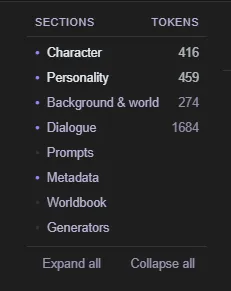
The section rail down the side lists every section with a filled or hollow dot and its token cost; click one to jump to it, or use Expand all / Collapse all. The number at the right of the bar above the buttons is the card's size, counted with the tokenizer of the model you're using: the total, then — lighter — how much of it is permanent: the name, description, personality, scenario and character's note, which stay in the prompt for the whole chat. The rest of the total is the first message, the system prompt, post-history instructions and example dialogue. If the card has always-on lorebook entries, +N lore follows: they're sent every turn, but aren't part of the total. Hover it for the breakdown field by field. A model's tokenizer downloads once, the first time it's needed — until it's ready the number is an estimate and starts with ~. Sections always open on the same defaults; that's deliberate, not a forgotten setting.
Every long field shows its own token estimate and carries two buttons: ✨ Edit with AI (describe a change, review the proposal, accept or retry — with one-tap quick prompts you can manage) and ⤢ for a full-screen editor. Highlight text inside any field and right-click for formatting plus Edit selection with AI, which rewrites just that passage. List fields (greetings, behavior rules, speech patterns, example dialogue) can be reordered by dragging or with ▲/▼ — the first greeting is the one a new chat opens with, so reordering is how you change the opener.
Metadata also holds Image prompt prefix and Image negative prefix — fixed visual traits (or a LoRA tag) added to every picture generated for this character, which is what makes two images look like the same person — and the Adventure character sheet checkbox for persona cards. The Card type dropdown in the header (Character / User Persona / Adventure Mode Game Master) travels with the card; Adventure Mode Game Master starts its chats in Adventure mode automatically.
Lorebook and Generators are the card's own lore entries and [Create …] randomizers. Attaching a generator embeds a copy that travels with the card. Edit changes that copy only; use Save a copy to library to add it to your Generators library.
Tools ▾ is where the heavy machinery lives:
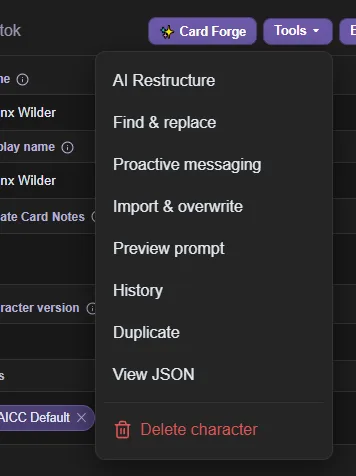
- AI Restructure: splits a flat import's merged prose into the structured fields: appearance out of the description, background out of the setting, behavior rules and speech style out of the personality. It only moves and lightly rephrases what's already there. You get a before/after review with a checkbox per section; unticked sections keep their current text, and greetings, example dialogue, prompts and the lorebook are never touched. This calls your active provider, so on a paid API it costs tokens.
- History: version history, and the app's undo for card edits. A checkpoint is saved when you start editing, periodically while you work, when you leave, and before anything that rewrites a lot at once. Restore opens a before/after review where you pick which fields come back — and your current state is checkpointed first, so a restore is itself undoable.
- Find & replace: literal text (not a pattern) across every field of this card plus your private notes, with a live match count and optional case sensitivity. Undo via History.
- Import & overwrite: load a newer
.png/.jsonof this same character and pick, field by field, what to take from it. Changed fields start ticked; a PNG can also bring its artwork. - Preview prompt: exactly what the model receives for this card, and what it costs.
- Duplicate: a full copy with a new id and its art.
(copy)is appended to the display name only, so the model still sees the plain name. - View JSON: read-only, including unsaved edits, with a Copy button.
- Delete character: asks whether to delete its chats too.
Export ▾ writes the card as it is on screen. Use Rin Chat Format to keep everything; SillyTavern Format for other apps (see the card format section for what that loses).
The Card health check callout at the top flags common card problems. Dismiss a single tip with its ✕, all of them with Dismiss all, or turn the whole thing off (or bring dismissed tips back) in Settings → Diagnostics.
Card Forge (build characters, lorebooks and more with an AI guide)
Card Forge is a different way to make a character: instead of filling in fields, you talk it through with a guide — by default Rin — and when you're ready she writes the card from the conversation. Open it from the title bar (or the ☰ menu if you unpin it in Settings → Sizing & Layout → Header buttons), from the wand button on the Characters page, from a card's right-click menu (Edit in Card Forge), or from ✨ Card Forge in the card editor.
Not only characters. A new session opens on What are you making?: Character card, User persona (a card that describes you, the one you play as), Lorebook, Generator or Document style. Each has New; the last three also have Open…, to work on one you already have. You can also just start typing, which makes it a character session. The libraries open the same way: the guide button on a book in Lorebooks (Work on this lorebook with the guide), on a generator, or on a document style starts a session already holding it.
- A lorebook session works on a shared lorebook, the kind in the Lorebooks library. Ask for entries in the chat, or use Edit lorebook entries to pick some and say what to change. Every change arrives as a proposal you review, exactly as with a card, and the book saves itself into the Lorebooks library as you apply them. There is no Save button, and History undoes what the Forge did.
- Generator and document style sessions work the same way and save into the Generators list and Settings → Document Styles.
- A character's own lorebook (the one inside the card) is worked on from a character session, below.
The loop: describe a character — or just a vibe — she asks questions and pushes back on the vague bits, then you hit Generate character. Every field lands in the sidebar on the right, fully editable. Not right? Regenerate character takes a note about what to change and builds it again.
- Runs on your own provider: the model you pick is the model that forges, with no quotas and no content rules beyond your provider's. A capable model gives noticeably better cards. You can set a provider and model per session, separate from your chat one.
- What a character session writes. Generate produces name, description, appearance, personality (core, behavior rules, speech style), background, world, greetings and example dialogue. Two switches at the top of the sidebar add more: Let the guide write a lorebook (the character's own lorebook entries) and Let the guide write generators. With them on, the guide writes those too and can add, rewrite or replace entries and generators when you ask in the chat or through Edit character, which lists every lorebook entry by its title. The system prompt, post-history instructions, depth prompt, group-only greetings, tags and creator info are still yours to finish in the card editor.
- Generating replaces the card; edits are reviewed. Two different things: Generate / Regenerate builds a fresh card from the whole conversation and replaces what's in the sidebar (a field the new card leaves empty keeps its old value, but a field it fills is overwritten). Edits — asking for a change in chat, Edit character, or the ✨ on a single field — always arrive as proposals with before/after, which you Apply selected, Apply all, Retry or Discard. An edit can never blank a field that already had content.
- Saved cards sync both ways. Before the first save the card lives only in the session; Save to library creates it and opens it in the editor. After that the header reads ✓ Synced to library — edits here update the library card, and edits made in the card editor show up here. Opening an existing card in the Forge saves a restore point first, so Tools → History in the editor can undo whatever the Forge does.
- Sessions: several characters in progress at once. Switch, rename, delete or start a new one from the session picker; the 30 most recently used are kept. Deleting a session doesn't delete a card you already saved to your library.
- Reference card: pick a second library character (or your persona) at the top of the sidebar and note how the two relate ("this is the player's persona; make my card her rival"). The guide sees it as read-only context: the two are never blended, and the card being forged is written to be compatible with it — when the reference is a persona, greetings can even address {{user}} as that person. It's loaded fresh from the library on every turn, and its token cost shows in the line above the composer.
- Artwork: Upload or Generate a picture right in the sidebar (either one saves the card to your library first, because art is stored per card).
- Attachments: the 📎 on the presets row takes images (vision input — show the guide a reference picture) and documents (pdf, docx, odt, epub, plain text), converted to text on your machine. Attach a story excerpt and ask for a card built from it.
- Attach a webpage: the 🔗 beside it takes a link (a wiki article, a character page). The page is downloaded, boiled down to its readable text, and attached like any document — paste a fandom wiki page and ask for that character as a card.
Typing shortcuts — type / in the composer for: /create [what to change] (build the card), /edit [what to change] (pick fields to rewrite), /clear (start a new session, keeping the current one in the list). Sending an empty message asks the guide for another reply to the last one. You can also edit, delete or re-roll any individual message in the transcript.
Your own guide. Rin is a built-in you can't break — the pencil beside her duplicates her so you can edit the copy — and + New guide writes one from scratch. A guide is just fields: personality, scenario, example dialogue, session instructions, card-craft guidance (field lengths, what makes a good greeting) and opening lines.
If a build fails. "The model returned nothing usable in any output mode" almost always means the model can't produce clean JSON. The Card output dropdown handles it: it starts on Auto, which tries strict JSON and falls back to simple tags, remembering what worked for that exact provider + model. If a model keeps misbehaving, pin it to Simple tags. Two other messages you might see: a warning that the model is spending tokens on hidden "thinking" despite being asked not to (switch to a non-reasoning model), and "that reply was cut off part-way through the rewrite" (raise the max response tokens for that provider/model).
Chatting: the essentials
Type and press Enter to send (Shift+Enter for a newline — flip this in Settings → Chat Display, which swaps them so Ctrl+Enter sends). Clicking Send with an empty box just asks for the next reply — pressing Enter on an empty box does nothing.
You can keep typing while a reply streams; only sending waits for it to finish.
The 📓 Notes button in the chat topbar opens a scratchpad that belongs to this chat — your own notes, never sent to the model.
Attachments (📎 beside the message box): images go to the model as real vision input (downscaled automatically; needs a vision-capable model — with a text-only one the app resends the turn without images and tells you). Documents — pdf, docx, odt, epub — are converted to text on your machine, and plain text files (md, txt, json, csv, code…) attach directly. Attachments stay on their message, are re-sent with the history every turn, and file contents can't trigger macros or generators. The same paperclip lives in Direct Chat and the Card Forge.

#7) and the icon for what the model can see.On each message (hover for the buttons):
- Regenerate: on the last reply only. Plain click re-rolls it; Shift-click opens a directions box with one-click quick prompts (Shorter, Spicier, Darker, Less repetitive…) — edit that list in Settings → Quick Actions. Directions you give the last reply are remembered and reused by the next plain click.
- Swipes: regenerating stacks alternates you can step through with ← / → or the arrows under the reply. Stepping past the last one generates a fresh alternate. The trash icon deletes the alternate you're on.
- Edit: inline. If the reply has a thinking block it gets its own box; that box is never sent back to the model, and clearing it deletes the block.
- Copy: puts the message's text on your clipboard.
- Speak aloud: reads the message out, when a voice is set up in Settings → Voice Providers.
- Delete: removes that message. Shift-click removes it and everything after it.
- Exclude from context (eye): keeps a message on screen but stops sending it to the model.
- Pin to memory (pin): always kept in context — see Memory below.
- Bookmark (ribbon): a place-marker you can jump back to. It changes nothing about the prompt. Once anything is bookmarked, a bookmark button appears in the topbar to jump between them.
- Add to lorebook (book-plus): make it canon. Select the text that matters (or take the whole message) and a review window lets you edit the entry, set keywords, and save it into the character's built-in lorebook — active in every chat with them from then on. The Memory window's Story so far tab does the same at scene scale: pick how many entries (1, 2, 3 or 5 — 3 by default), press Draft entries from this chat, and the AI splits the recent chat into that many (one per distinct fact, each with its own keywords), shown together for review — accept or reject each, restructure any with AI, then save the keepers in one go.
- Branch (git-branch): forks a new chat from that point, named
Original (Branch #1), leaving this one intact.
Graduate an NPC into a full card: the Memory window's Create character tab. Say who to extract, pick the message range they appear in (the endpoints are previewed so you know you grabbed the right scene), and a new Card Forge session opens seeded with that excerpt — the guide builds them from how they actually behaved, and you refine from there.
On an older reply the arrows only preview its alternates (the counter says "2 / 3 · preview"). The chat still uses the version it was written against, and nothing is saved.
Each message shows its number (#12) and an icon for what the model can see: an eye (sent in full), a brain (dropped from context, but your memory still covers it), a crossed eye (dropped, nothing catching it), or a ban sign (you excluded it).
In the reply-tools row (above the box):

- Length: Auto / Short (~80 words) / Medium (~240) / Long (~650). It asks the model for that length and caps the reply to match. If a thinking model spends the whole cap reasoning, see Sampling & generation settings.
- Send with directions: Shift-click Send (or Ctrl+Shift+Enter) to tell the model what its next reply should do ("keep it short", "have her admit the truth"). They go in right after your message for that one reply, aren't saved to the chat, and that reply's Regenerate reuses them. The wording that introduces them is the prompt profile's regenerate nudge.
- Continue: extends the last reply from where it stopped. Shift-click, or type
/continue your notes, to steer how. - Impersonate: the AI drafts your next message straight into the box (which goes read-only while it streams) so you can edit before sending. Shift-click (or
/impersonate …) opens a bigger editor where you can page back through earlier drafts and highlight part of one to rewrite just that part. - Undo: drops the last exchange and puts your message back in the box. If you've already started typing something else, your draft is kept instead.
- Suggest: three one-line ideas for what you could say, as chips above the box. Clicking one fills the box; it doesn't send.
- Director, Image and the gallery icon get their own sections below.
Right-click: highlight part of any message and right-click for ✨ Regenerate this section — the model rewrites just that span in place, with the rest of the reply as context. Right-clicking in the message box gives you spelling suggestions, cut/copy/paste, and the formatting list, including Add to dictionary for a word the checker flags that you spell that way on purpose. Shift+right-click in a text box gets the system menu instead.
The ⤢ button opens the message box full screen — same shortcuts, its own Send, Esc to close. If you've set up dictation, the microphone works even while a reply is streaming, and sending while it's recording stops it and appends what you said.
Multiple chats at once
You can keep up to five chats open simultaneously — same or different characters. A reply keeps streaming in the background while you're in another chat, so you can bounce between them.
- Open another chat from the library or a card; it opens as its own session.
- The stacked chip (right end of the reply-tools row, or floating bottom-right when you're not in a chat) shows a count and opens a list of the other open chats — each with its character's avatar and a pulsing dot while it's generating. Click to jump; × to close.
- At five open, opening another closes the least-recently-used idle one. If all five are generating, nothing is closed — you're told to close one yourself.
Personas (who you are)
A persona is your side of the roleplay — and it is a card, like any character: give it art, tags, a folder, export it, share it. What makes a card a persona is one setting: the Card type dropdown in the editor header, set to User Persona. Pick one from the dropdown in the chat topbar, or choose + New temporary persona… to make one that lives only in this chat. The Personas row in the Characters sidebar is the library filtered to your persona cards.
Your default persona is the one every new chat starts with, unless the character has its own bound persona. Set it from a persona card's right-click menu or its editor's Tools menu (Set as default persona), the star beside a persona in the chat's persona dropdown, or Settings → Personas. The default wears a default badge in the library.
An adventure persona is a persona with a character sheet for Adventure mode — abilities, gear, level. Tick Adventure character sheet under Metadata (the type stays User Persona) and a Character sheet section appears in the editor; the card then shows up in the adventure character builder's "Load a saved…" list, and characters you build there are saved as these cards.
Two names, two jobs: the name is what the model receives as {{user}} and what labels your lines in the transcript; the optional display name is only for the app's own dropdowns and message headers. Set just the name if you want them the same.
Your persona's appearance and personality go to the model every turn — the character needs to know who it's talking to. Dialogue examples don't: they're sent only when something is writing as you (/impersonate, the Story Director). Example lines are the strongest style cue a prompt carries, so including yours in every reply nudged characters toward your phrasing and encouraged them to write your side of the scene.
The link button beside the dropdown pins the current persona as the default for new chats with this character (click again to unbind). A temporary persona can't be pinned that way — use the pencil beside it to edit it, or Save to my personas to promote it to a real one first.
Group chats
Add more characters to a chat with the group (people) button in the topbar. A group bar appears above the message box with a chip per member.
- Pick who responds: click a member's chip to have them answer now. Shift-click the chip to give that one reply directions first. Otherwise members follow the turn order.
- Per-member settings: the small gear on each chip sets that character's own provider, model and prompt preset — the gear lights up when it differs from the chat's.
- ☰ Order: who answers your messages: Smart (whoever you name — name two or more and each answers in turn — else the best fit), Natural (as in SillyTavern: named members plus each member's talkativeness roll, so one message can get several replies; set it per member there), List (the rotation), Pooled (everyone once before anyone twice) or Manual (only who you click). Also the rotation itself and Auto mode's pause between turns. Set next jumps a member to the front; the arrows reorder the rotation. Mute keeps a member in the group but skips them whenever the app picks who speaks — the rotation, AI picks, Auto and the Director. Their chip dims; click it to have them speak anyway. At least one member always stays unmuted.
- 🎬 AI picks: a director chooses who should speak next (whoever was addressed or would naturally respond). It overrides the turn order for that one turn only.
- ▶ Auto lets the members talk among themselves for the number of turns in the box beside it (1–50), with a pause between turns (5 seconds unless you change it in ☰ Order). ⏹ Stop ends it early and shows progress as it runs; so does starting to type.
- New chat with this group (in the group window) starts over with the same members, mutes, order and per-member models. Characters with group-only greetings open it with one, and so does a member you add before your first message.
Story Director (auto-play)
The Director button (in the reply-tools row) hands the chat to an AI director that auto-plays it toward a storyline you set — steering the character(s) and, optionally, voicing your own character — for a fixed number of messages.
It works in two layers: on start a planner turns your storyline into a plot outline, then a scene director reads that outline plus the recent chat and writes the concrete next beat. Both calls show up in Session info → Exchanges.
Setup:
- Storyline / direction: describe where you want the scene to go (the arc, beats, and how it should end). The director advances it gradually rather than rushing to the finish, and starts wrapping up in the last couple of messages.
- Messages to play: how many messages to generate before it stops (1–100).
- Reply length: applies your chosen length preset to the generated turns.
- Re-direct every N: how often the director rethinks the next beat. 1 = before every message (most reactive); higher = fewer director calls and less reaction to what just happened.
- Mode: Auto plays straight through; Step-by-step stops before every message so you can edit the beat and the generated text before it's committed.
- Delay between messages (auto mode) — a reading pause in seconds after each message. 0 plays continuously.
- Impersonate: in a single chat the director voices your character (required to keep the story moving on its own). In a group chat this is a toggle: leave it off to only drive the characters, or on to have the director speak for you too. In groups it also picks who talks next each turn.
- Advanced — director prompts: the planner's and scene director's system prompts and user templates, with the placeholders each accepts. Edits save as you type; Reset to defaults puts them back.
Before it starts you get the drafted plot outline to read. Edit it, hit ↻ Regenerate for a different one, or write your own — then Accept & start.
While it runs the Story Director panel sits on the right side of the chat (collapse it to a rail with the chevron; the rail still shows progress). It holds:
- ⏸ Pause: stops after the current message and keeps your progress; ▶ Resume continues. ⏹ End closes the session. In step-by-step mode the button is ▶ Next beat instead.
- The direction box — a live note to the director ("raise the stakes", "introduce a new character") that steers the upcoming turns without ending the run. Send an empty note to clear it.
- The plot outline, plus the current next beat. While paused the outline is editable — rewriting it is the strongest way to change where the rest of the run goes.
- During an auto-mode reading pause, a Next in Ns countdown with Skip →.
Step-by-step mode replaces those controls with a review for each beat: the director's stage direction and the generated message, both editable, with ↻ Regenerate and Accept. Nothing is committed to the chat until you accept it.
Paused, you can type your own messages, regenerate, or edit as usual, then resume. When it reaches the message target it pauses on its own — set a number and hit Continue +N to add that many more messages and keep going (repeat as often as you like). Close the chat mid-run and the session comes back paused when you reopen it.
Adventure mode (experimental)
Adventure mode turns a chat into a game-mastered adventure: the character (written as a GM) offers choice buttons, demands dice rolls, and keeps a live character sheet the story updates as you play. The app referees — it rolls the dice and applies the stat changes; the model only ever asks. Works with any model — how well it plays GM depends on the model.
Turning it on: it's carried by the card, not a setting. Adventure-built cards enable it automatically for their own chats; flag any card yourself by setting its Card type (the dropdown in the card editor's header) to Adventure Mode Game Master. Ordinary cards carry none of it.
Playing:
- Choices: click to take the action; some carry costs ("Bribe him (5 gold)") that hit the sheet the moment you pick them, so the GM can't charge you twice. Shift-click a choice and the model performs it in your voice instead of sending the plain label. You can always ignore the buttons and just type.
- Rolls: the GM states what you're rolling for and what's at stake, but the app rolls the dice. Typing "I rolled a 20" does nothing — a 🎲 you type is stripped from your message, and a 🎲 line the GM writes is deleted before the reply is saved. Only the app's reports are real. Results render as dice cards — success/failure vs the difficulty, nat-20 shimmer, and damage on successful attacks (rolled by the app, applied exactly by the GM). Sometimes you'll get two or three rolls side by side for genuinely different tactics — take one.
- Your abilities move the dice. When a roll leans on one of your abilities the app looks the score up on your sheet, applies the classic modifier, and names it on the button ("Roll Stealth (dexterity +2)") — a forgetful GM can't ignore your scores and an eager one can't count them twice.
- Social rolls: a say-box appears: what you actually say travels with the dice, and a good pitch legitimately tilts the result (a stated −6 to +6, never more — enough to carry a bad roll). The mask button drafts the line in your character's voice; Shift-click the mask to use what you've typed as instructions for the draft ("be humble, mention the ring"). Enter rolls, Shift+Enter adds a newline, and leaving the box empty just rolls normally.
Your character: the greeting's create-your-character button (or the person icon at the top of the sheet, once the greeting scrolls past) opens the builder — name, class, abilities (roll 4d6-drop-lowest then drag each score onto the ability you want, 27-point buy, or manual entry — honor system, type the scores in to bring a real tabletop character over as-is; rename, add or remove abilities to fit any genre), hp, level & XP, starting inventory, and notes to the GM. Give them a portrait too — upload one or generate it with AI, same generator the card art uses; it shows at the top of the sheet. Complete sheet for me fills only the fields you left empty (never your numbers, never overpowered gear); Shift-click it to say what you want them to be first, and Cancel stops it mid-flight. Use for this chat stays disabled until the character has a name and every rolled score has been placed.
Saving and reusing characters: Save as persona card keeps a reusable copy in your library; load it later from the Load a saved… dropdown at the top of the builder. A character you loaded shows Update persona card instead (it edits that card rather than making a duplicate); to get rid of one, delete the persona card from the library. Use for this chat starts playing with the sheet, and Play without a sheet skips character creation entirely. In an adventure chat your character replaces your regular persona, so {{user}} is them — your normal persona is untouched everywhere else. Reopening the builder mid-game is safe: it re-applies your abilities, class and level, but leaves hp, max hp, XP and everything you picked up in play exactly as play left them.
The sheet (🎲 in the right sidebar) groups stats into sections by name prefix — your character, Inventory, Money, a plain Stats group for anything unprefixed, and DM stats. Empty sections don't show. There's a history of every change, and each entry jumps to the message that did it.
- Edit any value by typing in its box. Negative numbers clamp to 0, and emptying a box deletes that stat.
- Add a stat with the row at the bottom: pick the section, type a name and a value, hit Add. The section is the stat's name prefix, so "rope" under Inventory becomes
inv_rope. Adding a DM stat switches spoilers on so you can actually see it. - Right-click a stat to rename or move it between sections (the dialog shows you exactly what the GM will see) or to delete it.
- Your edits are the truth the GM must respect, and they outrank the story — a stat you fix or delete by hand stays fixed even if you later delete or reroll an older message. (An old message that runs again can still re-emit its own changes, and a GM that no longer sees a stat may recreate it — that's the story happening, not the sheet losing your edit.)
The GM's hidden side. Flip Show DM stats (spoilers) in the sheet's settings to see what the GM is tracking: enemy hp and states (npc_), world flags, hidden clocks and any condition it's put on you (dm_), plus the campaign plan — an overarching arc the app writes right after your first action, which every later reply steers by, and which also starts the GM off already tracking the people and clocks that matter. The plan is fully editable: rewrite it to change where the story is heading, or right-click a selection to rewrite that part with AI. Writing it takes a few seconds ("Crafting the scenario…") and Stop cancels it — the box stays there empty and writable either way, so you can simply type one. Deleting your way back to the start of the chat clears the plan so your next opening gets a fresh one.
The GM tidies up too. It can drop stats that are finished — a slain enemy's hp, a clock that ran out, an item used for good. It can only drop its own stats and consumables; your character's abilities, hp, level and XP are yours alone and the app refuses anything else. Gear that's confiscated rather than destroyed moves to whoever took it instead of vanishing, so it comes back intact when you get your pack off the warden (turn on spoilers if you want to watch it sitting there).
Levelling is the app's job, not the GM's: every 100 XP earns a level, and you get a dialog with the HP it adds and two points to raise abilities (up to 18) — spend them, or take Skip the points to bank the level and the HP without them. Earn two levels at once and you get both, and all four points, in one go. Your current HP rises by exactly what the maximum did, so levelling is never a free heal. It works off the sheet, so XP you type in by hand levels exactly like XP the GM awarded — but it needs a character: a sheet-less adventure never levels.
House rules the app enforces: healing can never push past your max HP; deleting, rerolling or swiping a message reverses its stat changes (with a "Sheet reverted" notice, so a refund is never silent); and at 0 hp you're never killed — the app puts you back at 5 hp, weak but alive, and the GM narrates the setback. Turn on Hard mode in the sheet's settings and 0 hp is a real death: final, and the sheet won't let you edit that hp back up. Rests are house rules the GM is taught rather than rules the app enforces — a short rest heals a chunk, a long rest restores you to full — so a weaker model may play them loosely.
Making your own? See Writing an adventure card.
Being the DM yourself (experimental)
The same machinery runs backwards: you game-master, and the AI characters are the players. Open any chat that has a character in it, click the dice button in the sidebar, and turn on I’m the DM. No game-master card is needed — a one-on-one chat works (a party of one), and so does a group.
- Everyone at the table gets a sheet. The app stats each character up from their card — or reads the sheet the card already carries (card editor → Metadata → Adventure character sheet). Every number is yours to edit in the sidebar: abilities, HP, level, XP, inventory, and stats you invent yourself — HP and XP take
-6or+50as well as a plain number. Award enough XP and a level-up button appears, which adds the level and its hit points and leaves the ability points to you. - Players state attempts, never outcomes. A character reaching for something they could fail at ends their message with an attempt, and a roll box appears under it. You pick the ability and difficulty (or, for a game with its own dice, whatever its sheet says a check is made of: see Building your own game), optionally write what happens if they succeed and if they fail — before rolling, which is the point — and press Roll. Only the branch that actually happened is sent. Your choices stay on that message, so deleting the result and rolling again finds them still there.
- Call for a check nobody asked for from the roster in the sidebar — "everyone roll Perception" — with the same box.
- Go round the table with the ▶ Round button above the composer: each player takes a turn in order, so everyone reacts to the scene before it comes back to you.
- The greeting is set aside when you turn DM mode on: the opening scene is yours to write. Turn it off and the card’s own greeting comes back.
- Your notes stay yours. Two tags, and the difference matters:
[co]…[/co]stays on your screen and is never sent to anyone — the trap they haven’t found, who is lying, what happens if they open the box.[h]…[/h]is the opposite: it disappears from the chat and is withheld from every player’s prompt, but your own AI-assist draft still sees it — a note to your co-writer rather than to yourself. (In ordinary adventure mode[h]goes to the model, because there the model is the referee.) The stat board’s npc_ and dm_ stats are private the same way, and the notes panel (📓 in the toolbar) keeps longer material per chat. - Stuck for words? The impersonate button drafts your next turn as the game master — scene, NPCs and consequences — rather than a character’s reply.
Writing an adventure card
The most important thing to know: the app already teaches the game mechanics. Every turn, the model receives the directive syntax, the referee rules (app-rolled dice, stat namespaces, rests, the works) and the live character sheet. Your card's job is everything the app can't supply: who the GM is, what the world is, and how the adventure opens. Don't spend card tokens re-explaining syntax — demonstrate it instead (see dialogue examples below). Those mechanics are roughly D&D's by default, and a card can REPLACE them with another tabletop system: see Teaching it a different tabletop system at the end of this section.
Already handled for you, every turn, so your card never needs to say it: the app applies ability modifiers to rolls, deletes any dice line the GM writes itself, teaches the GM to drop finished stats with [[unstat:]] (and refuses when it aims at the player's own), teaches it to move confiscated gear to whoever took it instead of deleting it, reminds it every turn that its own npc_/dm_ values are its to move, and seeds a starting set of them from the campaign plan.
1. Write the character as a narrator, not a companion. Name it like one ("The Dungeon Master", "Adventure Mode Narrator") and make the description about its style of running a game: second person, present tense; fair but consequential; never speaks or decides for the player. A card written as a companion character will chat with the player instead of running a world around them.
2. The greeting is the front door. Set the opening scene in a few paragraphs, then offer the starting buttons. [[character]] and [[starter_choice: …]] are opening-only — they run character creation, and the GM is told never to emit them once play has begun:
…the caravan crests the ridge and the valley opens below, chimney smoke and trouble.

        [[character: Create your character]]
        [[starter_choice: Ride down before dark]]
        [[starter_choice: Camp on the ridge and watch the road]]
        [[choice: Just start walking — no character sheet]]
[[character]] opens the character builder. [[starter_choice: …]] runs character creation first, then sends the choice — use these for your main openings. A plain [[choice: …]] (the ordinary in-play directive) gives players a sheet-less freeform way in. Note that these buttons live under the last message, so they're gone the moment play starts — afterwards the character sheet's person icon is the way in.
3. Behavior rules = game feel, not syntax. Use them for how the game should play: "State the stakes before demanding a roll", "Consequences are permanent — a failed roll changes the situation, never gets retconned", "Introduce named NPCs with wants of their own", "Prefer hard choices over combat". The app enforces the mechanics; your rules shape the drama.
4. Dialogue examples are your strongest lever. Models imitate examples far more reliably than they follow instructions — one worked exchange showing the protocol in action beats a page of rules. Show a roll demand with stakes, stat bookkeeping, and hidden DM tracking. Note the mod dexterity segment: the app looks the ability up on the character sheet and applies the modifier itself, so the GM never has to do (or fudge) that math:
{{user}}: I try to slip past the guard post.
        {{char}}: Torchlight sweeps the road. If they spot you, the gate closes and the
        alarm brings the whole watch.
        [[roll: 1d20 vs 13 | Stealth | Slip past unseen — spotted means the gate slams and the watch turns out | mod dexterity]]

        {{user}}: 🎲 Stealth (dexterity +2) check: 1d20+2 → 16 + 2 = 18 vs DC 13 — SUCCESS
        {{char}}: You ghost between the wagons; the sentry yawns at nothing. Inside the
        walls, the fence's shop is dark — but a light burns upstairs.
        [[stat: npc_watch_alert = calm]]
        [[choice: Knock anyway]]
        [[choice: Wait in the alley until the light goes out | inv_torch -1]]
A choice can also roll one of the card's generators when it's picked — add a gen segment with anything a [Create …] tag takes. The roll lands in the player's message, and the GM narrates it next turn: [[choice: Look for recruits | gen Mercenary x3 Class=Archer, as=recruits]]. Effects still go in their own segment: [[choice: Hire a guide (10 gold) | gold -10 | gen Guide]].
Choices are drawn where they're written, so you can group them under headings (Fight, Talk, Flee) instead of one long list. When a reply also asks for a roll, its choices are grayed out: the roll decides first.
5. Seed the world. Put geography, factions and tone in World / setting; use lorebook entries keyed to names for deep lore the model only needs when it comes up. The GM's hidden stats are its working memory — npc_<who>_<what> for a creature or person it is tracking, dm_<what> for everything else it keeps to itself (world state, a ticking clock, a secret), and dm_<player>_<what> for a condition it puts on the player (poisoned, disguised) — never the player's own prefix, which is their character sheet. Both hide behind the spoiler toggle. Your examples should show it using them, and clearing finished ones with [[unstat: npc_wolf_hp]] so a long game's sheet doesn't fill with dead business.
6. The campaign plan reads your card. On the player's first action the app writes a hidden arc from your card's description, personality, behavior rules, setting, background and system prompt — but not from your greetings or dialogue examples (the opening scene is passed separately). If the true situation behind your opening lives only in a greeting, move it into the description or the setting so the planner can build on it.
7. Ship it right. Set the editor's Card type to Adventure Mode Game Master (this is what auto-enables the mode for whoever imports the card — it travels in JSON and PNG exports), tag it so it's findable, and use Creator notes to tell players what to expect (difficulty, themes, whether a character sheet matters).
Teaching it a different tabletop system
Everything above describes the rules the app teaches by default, which are roughly D&D's. If your game is Fate, Powered by the Apocalypse, Cortex, Forged in the Dark or something you wrote yourself, a card can replace them. An Adventure Mode Game Master card carries three boxes in the card editor's Features section: Ruleset (how a roll is read: what a target number means, modifiers, damage, rests), GM style (how the game is run: pacing, when to call for a roll at all) and Extra GM guidance, which is added on top and replaces nothing. A card's text beats the same boxes in Settings, so a game you share is self-contained: whoever opens it plays your system without changing a setting.
What you cannot replace is the part the app's own parsers read: the directives, the dice grammar and the sheet. That is sent every turn whatever your ruleset says, which is exactly why rewriting the rest cannot break the choice buttons, the character sheet or undo.
Decide first what the numbers on your sheet are, because it decides what a roll should say, and getting it backwards is silent. If a rating is a modifier, as in Fate, PbtA, Forged in the Dark and Cortex, the roll adds it with a bonus <stat> segment and the app does the arithmetic. If a rating is the target, as a percentile skill is, nothing goes on the roll at all: the dice stay bare and the GM compares the number to the sheet itself. Use bonus on a percentile skill and a 1d100 becomes 1d100+55, which is not a close call. mod <stat> is a third thing again and is always the D&D ability formula, so a system whose sheet already holds the final number should forbid it outright: a rating of 3 reaches the dice as +3 through bonus and as -4 through mod.
Dice the app can roll: 1d20+2 and anything shaped like it, 4dF for Fate and Fudge dice, 3d6kh1 and 2d6kl1 to keep the best or worst of a pool, d8+d6+d10 to add different dice together, and (d8+d6+d10)kh2 to keep the best two across dice of different sizes, which is how Cortex scores a trait pool. Rolls that drop dice show you the ones they dropped.
What it will not do: a target number means meet or beat, unless the card's character sheet sets its roll method to roll-under (Call of Cthulhu and that family; see Building your own game), in which case at or under succeeds. A system that counts successes in a pool (World of Darkness, Shadowrun) cannot use a target: leave it off, and the app reports the number, claims no verdict, and prints every face it rolled, so your ruleset can tell the GM to read it however your system says. Dice that explode on a maximum are not supported; a ruleset can ask the GM for a second roll instead.
If the GM reads the result itself, put the numbers on the sheet before you play. This is the one that bites a percentile game. With no Spot Hidden on the sheet the GM will invent a threshold to compare against, and the same action then succeeds one turn and fails the next, with nothing on screen to show why. Fixed bands are safe, because they live in your ruleset text: a 7-9 in PbtA is a 7-9 for everyone.
Giving the character builder your sheet, and choosing how checks roll. A Game Master card can also describe its character sheet (abilities, groups, dealt scores, HP, levels) and how its checks are rolled and judged. That is all in Building your own game, with finished examples for Fate, Powered by the Apocalypse, Cortex Prime and percentile games.
Writing it so a model actually follows it. Every one of these came from watching a real game go wrong:
- Name the wrong dice as well as the right ones. "Rolls are 4dF" is not enough on its own, because every worked example a model has ever seen is a d20. "NEVER use d20; this game rolls 4dF" is what stops it.
- Forbid the segments your system does not use, and say why. Told only what Fate does, a model still added advantage out of habit; "never use adv or dis, an edge in Fate is an aspect you invoke" stopped it.
- Put one fully worked roll line in the ruleset. It is the only concrete example the model gets, and it is the single highest-value line in the box.
- Say what to DO on each outcome, not just what the bands are called. A table of bands was not enough: the model read "6 or less is a hard move" and then offered another roll. Phrase them as instructions to the game master.
- Repeat the dice clause. Name it in the rule, show it in the example, and say what it is called, or the same ruleset will produce
2d6kh1in one run and a bare2d6in the next, which are very different odds.
Building your own game (step by step)
Everything you need to turn a tabletop system, a published one or your own, into a game anyone can import and play. It goes in order: make the game master, teach it your rules, describe your character sheet, choose how checks roll, add lore, write the opening, make ready-made characters, test it, and share it. Finished examples for five common kinds of system are at the end, then answers to the questions people run into.
What a game is made of
- A Game Master card. One card whose Card type is Adventure Mode Game Master. It IS the game: the narrator, the world, the rules, the character sheet and the lore all live on it.
- Persona cards (optional): ready-made characters, for players who want to start without building one.
- A bundle: one
.aiccfile holding the Game Master card, any persona cards and their art. It is how you hand the whole game to someone else.
Nothing here needs code. The rules and the sheet are text you type into boxes on the card, and everything travels with the card when it is exported.
Step 1: Make the Game Master card
Make a new card and set Card type, at the top of the card editor, to Adventure Mode Game Master. That turns Adventure Mode on for anyone who opens the card, and adds the game boxes (Ruleset, GM style, Extra GM guidance, Character sheet) to the editor's Features section.
- Name it as the narrator, such as "The Game Master" or "The Keeper", because the name is who the model plays. Put the game's title in Display name if you want the library to show that instead.
- Description and personality describe how this game master runs a game: second person, present tense, fair but consequential. Write a narrator, not a companion, or the model will chat with the player instead of running a world around them.
- Behavior rules set the feel of play ("state the stakes before calling for a roll", "a failure changes the situation, it is never undone"). Leave the dice to the ruleset.
- World / setting and Background hold the setting and the true situation behind your opening. On the player's first action the app writes a hidden campaign plan from these fields, not from the greeting, so anything the plan needs must be here.
- The clock switch (in Features): leave it on for a game with something ticking, a heist or a deadline; turn it off for open-ended play, where a countdown only invents false urgency.
More on writing each of these, with examples: Writing an adventure card.
Step 2: Teach it your rules
Out of the box the game master is taught rules that are roughly D&D's. Three boxes in the card's Features section replace that, for this card only:
- Ruleset: how a check is made and read. Your dice, what a target means, what the sheet's numbers are, what happens on each result, damage, recovery.
- GM style: how the game is run. Pacing, when to call for a roll at all, how spoken words are judged.
- Extra GM guidance: added after everything else and replaces nothing. House rules and the things this particular game needs its game master to know.
A card's text beats the same boxes in Settings, so the game is self-contained: whoever opens it plays your rules without changing a setting. What your text cannot replace is the part the app itself reads, the directives, the dice grammar and the sheet, which is sent every turn. That is why rewriting the rules can never break the buttons, the dice or the character sheet.
A ruleset that works covers these, in this order:
- The dice, and the wrong dice. "Every check is 4dF. NEVER a d20." Every example a model has seen is a d20, so naming the dice you do NOT use is what stops it.
- One fully worked roll line, exactly as the game master should write it. It is the most valuable line in the box.
- What the sheet's numbers are. A modifier is added with a
bonus <stat>segment. A die size goes into a pool as that die. A percentile skill is the number to roll under, so nothing is added. Say which, and forbidmodunless your game derives modifiers the way D&D does:modis always D&D's (score - 10) / 2, so it turns a +3 into -4 and a d12 into +1. - Targets: your difficulty ladder, or "no target" for a game that reads bands.
- What to DO on each result, written as instructions to the game master ("on a 7-9, they get it but you introduce a cost"), not just the names of the bands.
- Your game's resources (stress, fate points, momentum, sanity) and which stat holds each.
What your ruleset can tell the game master to write. These are the directives the app reads; your ruleset decides how they are used.
[[roll: <dice> vs <target> | <label> | <what is at stake> | <segments>]]. The segments are optional:bonus <stat>adds a sheet number as it stands,mod <stat>adds D&D's modifier for it,adv/disroll the d20 twice,dmg <dice>rolls damage on a success, andspeaklets the player argue their case in words before the verdict. Leavevs <target>off for a game that reads results in bands.[[stat: <name> = <value>]],[[stat: <name> +2]],[[unstat: <name>]]. Names say whose a stat is: the player's own sheet uses their name as a prefix (the game master must not put conditions there),inv_is inventory,money_is money,npc_<who>_<what>tracks a character the game master runs,dm_<what>is anything else on the game master's side of the screen, anddm_<player>_<what>is a condition put on the player (stress, a wound, a curse).clock_<name> = 2/6draws a progress dial. The npc_ and dm_ stats are hidden from the player.[[choice: <action> | <effects>]]offers buttons; see Choices & interactive replies.
Dice the app can roll: 1d20+2 and anything shaped like it, 4dF (Fate and Fudge dice), 3d6kh1 and 2d6kl1 to keep the best or worst, d8+d6+d10 to add different dice, and (d8+d6+d10)kh2 to keep the best two across different dice. Not supported: dice that explode on their maximum (have the game master call for a second roll instead), and counting successes across a pool (leave the target off; the app prints every face, and your ruleset tells the game master how to count them).
Step 3: Describe your character sheet
The Character sheet box, under the ruleset, tells the app what a character in your game looks like. Without it the character builder makes a D&D character: six D&D abilities, then 4d6 or a 27-point buy. It is written as JSON. Every field:
{
  "abilities": {
    "label": "Skills",
    "names": ["Athletics", "Fight", "Notice", "Rapport", "Stealth", "Will"],
    "scale": "number",
    "deal": [3, 2, 2, 1, 1, 0]
  },
  "groups": [
    { "label": "Approaches", "names": ["Careful", "Clever", "Flashy"], "deal": [2, 1, 0] }
  ],
  "notes": ["Concept", "Trouble", "Stunts"],
  "hp": false,
  "levels": false,
  "roll": { "method": "add", "dice": "4dF" }
}abilities.names(required): the abilities a new character starts with, up to 24. Players can still rename, add or remove them in the builder.abilities.label: the heading over them, in place of "Abilities".abilities.scale:"number"(the default) shows scores as written;"die"shows a 12 as d12, for systems whose ratings are dice. Either way the sheet stores the number, so your ruleset should say what it means.abilities.deal: a fixed set of scores the player places, one to an ability, by clicking or dragging, in place of D&D's dice and point buy. It may be shorter than the list of names (abilities it does not reach stay at 0), never longer. Scores may be negative. Leave it out to keep D&D's roll and point buy with your own ability names.groups: more sets of abilities beside the first, each with its ownlabel(required, and different from every other),names,scaleanddeal. Each is its own block in the builder, dealt on its own. Up to four.notes: headings that a new character's "Who they are" starts with, for the parts of your sheet that are words rather than numbers (aspects, moves, backgrounds, powers).hp:falsefor a game without hit points (no HP field, no HP on the sheet, none on a level-up), or a number every character starts with in place of D&D's Constitution formula. Leave it out for D&D's formula.levels:falsefor a game without levels or XP. Neither is asked for or put on the sheet, nothing levels up, and the game master is not told to award XP.roll: how checks are rolled and judged; see Step 4.
If the box cannot use what you typed, a line above it says why (invalid JSON, a deal longer than its names, a group with no label). A template it cannot read is ignored, so the card falls back to the D&D builder rather than breaking.
What the template changes, everywhere at once:
- The character builder (the button in your greeting, or the person icon on the character sheet) starts from your abilities, one block per group, and offers Deal the scores and Enter scores instead of D&D's methods. "Who they are" starts with your headings, and HP, Level and XP are hidden where you turned them off.
- Complete sheet for me describes the character to the AI in your terms and writes under each of your headings. It never changes the scores.
- The game master's turn-by-turn view of the character lists each group under its heading in your notation, with no D&D scale, and tells it to read the numbers the way your ruleset says rather than through
mod. That applies to a sheet that deals its scores or counts in dice; a template that only renames abilities keeps the D&D wording. - Persona cards: a character built in the builder keeps a copy of your template, so its card shows the sheet your way in the card editor and carries it when exported (Step 7).
- DM mode: when a player runs the game themselves, the AI party members are seated and statted on your sheet, and the roll box builds checks your way (Step 4).
Step 4: Choose how checks roll
roll in the template says how a check is rolled and judged. There are four methods:
{ "method": "d20" }: D&D. 1d20 plus the ability's modifier against a DC, with advantage and disadvantage.{ "method": "add", "dice": "4dF" }: the dice plus the ability's number as it stands, against a target or none. Fate is4dF, Powered by the Apocalypse2d6.{ "method": "pool", "keep": 2 }: a pool where each trait is a die of its size, rolled by Cortex rules (below).keepis how many dice make the total; 2 if left out.{ "method": "under", "dice": "1d100" }: roll under. A check succeeds at or under the ability's number, as percentile games do.
Without roll, the app picks: a sheet counted in dice rolls a pool, a D&D-shaped sheet rolls the d20, and any other sheet adds its numbers to a die.
When the AI runs the game, the game master writes its own [[roll:]] lines from your ruleset, and the method decides how the app judges and reports them: a pool is rolled by Cortex rules, a vs number on a roll-under game succeeds at or under it, and the dice card says Target (or Under) rather than D&D's DC.
When a player is the DM (see Adventure mode), the roll box under a party member's attempt builds the check from that member's sheet: an ability and a DC for the d20; an ability and an optional target for "add"; one trait from each block, any extra dice and an optional target for a pool; an ability for roll-under. Every roll box also has a dice field: type any dice there to roll them instead. A roll with no target reports the number with no verdict, and then neither of the DM's outcome notes is sent.
Cortex rules, as the app applies them to a pool: every die is rolled; a die showing 1 is a hitch and counts for nothing; the best keep of the rest are added up; the largest die left over is the effect die (a d4 if none is left); and all 1s is a botch. When two dice show the same face, the smaller one goes into the total, which leaves the bigger free to be the effect die. The dice card shows the effect die and any hitches, and the game master reads them in the report line.
Step 5: Add your lore
The card's own lorebook carries everything the game master only needs when it comes up: factions, places, powers, equipment, notable characters. Each entry fires when its keywords appear. See Lorebooks.
- Keep the rules out of the lorebook. A distilled rulebook often keeps its whole system in one always-on entry. Move that text into the Ruleset box: the lore budget can trim a lorebook entry mid-session, and the ruleset is never trimmed.
- Give each entry the words a player would actually use. A list of twelve factions is twelve entries, each keyed to its own name, not one entry that is always on.
- Use always-on entries sparingly: they cost tokens on every turn.
Step 6: Write the opening and character creation
The greeting sets the scene, then offers the way in. These buttons only work in the opening:
...the job board is empty except for one sealed envelope with your name on it.
[[character: Make your character]]
[[starter_choice: Open the envelope]]
[[starter_choice: Ask the barkeep who left it]]
[[character: <label>]]opens the character builder.[[starter_choice: <action>]]runs character creation first, then sends the choice. Use these for your main openings.- A plain
[[choice: <action>]]starts without a sheet.
Add one dialogue example in your system. Models copy examples far more reliably than they follow instructions. Show the game master stating the stakes, writing one roll line, the result arriving, and the narration that follows, including any stat changes. The easiest way to get the result line exactly right is to play one turn and copy the dice line the app wrote. A D&D one looks like this:
🎲 Stealth check: 1d20+2 → 16 + 2 = 18 vs DC 13 — SUCCESS
Step 7: Make ready-made characters
- Build one in the builder. In a chat with your Game Master card, open the builder, make the character, and press Save as persona card. The card keeps a copy of your sheet template.
- Or make one by hand. In the Characters library, make a persona card, tick Adventure character sheet under Metadata, and pick your game in the Game box above the Character sheet. That gives it your abilities to deal and your rules for HP and levels. (The Game box lists every Game Master card in your library that has a sheet template.)
- Players load them from Load a saved adventure persona at the top of the builder.
Step 8: Test it
- Open a new chat with your Game Master card and start the builder. Check your blocks, your deal, your headings, and that HP, Level and XP are there or not as you set.
- Press Complete sheet for me and check it writes under your headings.
- Play three or four turns. The game master's rolls should use your dice and never a
modyou forbade, and the dice card should read the way your game does. - Open the prompt inspector on a reply: your ruleset text should be in it, and the default "Checks are a d20 plus modifiers" should not. (The context meter is not that check: its ruleset row looks the same either way.)
- Look at the character sheet panel: stats should land under the names your ruleset gives them.
- If you want DM mode to work, add a character to a chat, turn on I'm the DM, and make one roll from the party panel.
- Try a smaller model too. Where it drifts, add a dialogue example of the exact behavior; weaker models need more examples, not more rules.
Step 9: Share it
- One card: right-click it, Export, PNG or JSON. The ruleset, the sheet template and the card's own lorebook all go with it.
- The whole game: click the select button in the library toolbar, click your Game Master card first, then any persona cards, and press Export bundle. The first card you pick is the main card. Give the bundle a Name: it names the file and the folder the cards are imported into. Tick any shared lorebooks or document styles the game uses.
- Write a read-me. Put how to play in the Game Master card's Public Creator Notes (Markdown works). When someone imports a bundle of several cards, those notes open in an "About" window, and they stay on the card to read again later.
- Players need Rin Chat 0.7.6 or newer for sheet templates, dealt character building, Cortex pools and the About window.
Finished examples
Each is a Character sheet box and the core of a matching ruleset. Adjust names and numbers to your game.
Fate Core style: skills as ladder ratings, a skill pyramid, 4dF plus the skill.
{ "abilities": { "label": "Skills",
    "names": ["Athletics", "Burglary", "Contacts", "Crafts", "Deceive", "Drive", "Empathy", "Fight", "Investigate",
              "Lore", "Notice", "Physique", "Provoke", "Rapport", "Resources", "Shoot", "Stealth", "Will"],
    "deal": [4, 3, 3, 2, 2, 2, 1, 1, 1, 1] },
  "notes": ["High Concept", "Trouble", "Aspects", "Stunts"],
  "hp": false, "levels": false,
  "roll": { "method": "add", "dice": "4dF" } }
Every check is 4dF plus the skill. NEVER a d20, NEVER mod, NEVER adv or dis. [[roll: 4dF vs 2 | Athletics | Clear the gap before the bridge goes: fail and you are hanging from it | bonus athletics]] Targets: 0 Mediocre, 1 Average, 2 Fair, 3 Good, 4 Great. Beat it by 3 or more: success with style. Track stress as [[stat: dm_<player>_stress = 1]] and consequences as text under dm_<player>_.
Powered by the Apocalypse style: five stats from -1 to +2, 2d6 plus the stat, read in bands with no target.
{ "abilities": { "label": "Stats", "names": ["Cool", "Hard", "Hot", "Sharp", "Weird"],
    "deal": [2, 1, 1, 0, -1] },
  "notes": ["Playbook", "Look", "Moves"],
  "hp": false, "levels": false,
  "roll": { "method": "add", "dice": "2d6" } }
A move is 2d6 plus the stat, with NO target. NEVER a d20, NEVER mod, NEVER "vs". [[roll: 2d6 | Act Under Pressure | Get through the door before it seals | bonus cool]] 10+: they do it. 7-9: they do it, and you give them a hard choice or a cost. 6 or less: make a hard move.
Cortex Prime style: attributes and values rated as dice, pools of one of each, best two added up.
{ "abilities": { "label": "Attributes",
    "names": ["Agility", "Alertness", "Intelligence", "Strength", "Vitality", "Willpower"],
    "scale": "die", "deal": [10, 8, 8, 6, 6, 6] },
  "groups": [{ "label": "Values", "names": ["Duty", "Glory", "Justice", "Love", "Power", "Truth"],
    "scale": "die", "deal": [10, 8, 6, 6, 4, 4] }],
  "notes": ["Distinctions", "Specialties", "Signature Assets", "SFX"],
  "hp": false, "levels": false,
  "roll": { "method": "pool", "keep": 2 } }
Build a pool: exactly one Attribute and one Value, each a die of its size, plus a Distinction at d8 and a Specialty when one fits. Keep the best two. NEVER a d20, NEVER mod or bonus. [[roll: (d10+d8+d8)kh2 vs 11 | Alertness + Justice + Ex-Cop | Spot the forger in the crowd: fail and he spots you]] Targets: 3 very easy, 7 easy, 11 challenging, 15 hard, 19 very hard. The report gives the effect die and any hitches. On a won conflict the loser takes stress of the effect die's size. For each hitch, add a d6 complication ([[stat: dm_complication_<what> = d6]]).
Percentile style (as in Call of Cthulhu): skills from 1 to 99, roll 1d100 at or under the skill.
{ "abilities": { "label": "Skills",
    "names": ["Spot Hidden", "Listen", "Library Use", "Psychology", "Stealth", "Dodge", "Fighting", "Firearms"],
    "deal": [70, 60, 50, 50, 40, 40, 30, 30] },
  "groups": [{ "label": "Characteristics", "names": ["STR", "CON", "DEX", "INT", "POW", "APP"],
    "deal": [70, 60, 60, 50, 50, 40] }],
  "notes": ["Occupation", "Backstory", "Possessions"],
  "hp": 11, "levels": false,
  "roll": { "method": "under", "dice": "1d100" } }
Every check is 1d100 against the skill's value, and the target IS that value. NEVER bonus or mod. [[roll: 1d100 vs 60 | Spot Hidden | Catch what moved behind the glass]] The app judges at or under. Read the bands yourself: under half is a hard success, under a fifth is extreme.
A D&D variant with your own ability names: give only names, and the builder keeps 4d6 and point buy, and checks stay d20 plus modifier. No ruleset box is needed unless you change the rules.
{ "abilities": { "names": ["Might", "Grace", "Grit", "Wits", "Insight", "Presence"] },
  "notes": ["Background", "Bonds"] }
When it does not work
- The builder still makes a D&D character. The chat's own card has to be your Game Master card (in a group, the card the chat was opened with). Check the Character sheet box for an error line, and that the Card type is Adventure Mode Game Master.
- The game master rolls d20s anyway. Strengthen the dice clause in the ruleset (name the wrong dice), add the worked roll line, and add a dialogue example. Then check the prompt inspector to confirm your ruleset is the one being sent.
- Rolls come out with strange modifiers, such as a d12 trait adding +1. The game master used
mod. Forbid it in the ruleset by name. - The DM's roll box offers a d20 and a DC. The sheet is D&D-shaped (no deal, numbers) and has no
roll. Add one. - A rating is a number of dice (Forged in the Dark rolls one d6 per point and keeps the highest). There is no method for that; teach the game master to write
3d6kh1for a rating of 3, and as DM type it in the roll box's dice field. - A persona from another game shows the wrong abilities. Pick this game in its Game box in the card editor: abilities that do not fit are replaced, ready to deal again.
- Old dice lines still say DC. A roll keeps the wording it was made with. New rolls use your game's.
- Exploding dice, or counting successes. Not supported as such: see the dice list in Step 2.
Direct Chat (no character)
Direct Chat (in the title bar's ☰ menu — pin it to the bar in Settings → Sizing & Layout → Header buttons) talks to the model with no character, no persona, no system prompt, no lorebook and no macros — only the messages you see are sent. Use it to test a new provider or model, compare models on the same question, or ask something that isn't roleplay at all.
- It keeps several conversations, saved between sessions. The dropdown at the top switches between them (labelled from their opening line) and + New chat starts another.
- Clear empties the current conversation; Delete removes it (available once you have more than one).
- It has its own provider and model picker, separate from the one your character chats use — so you can point it at a model you're evaluating without disturbing anything.
- Messages have Copy and Speak aloud, and dictation works here too.
- Attachments (paperclip): images go to the model as real vision input (downscaled automatically; needs a vision-capable model — a text-only one refuses with a clear message). Documents — pdf, docx, odt, epub — are converted to text on your machine and attached under the file's name, and plain text files (md, txt, json, csv, code…) attach directly. The model re-reads attachments on every turn, so you can keep asking about them.
AI chat titles & suggestions
Small AI helpers that reduce busywork, all using your active provider:
- Chat titles: the ✨ button beside the chat name names it from its opening exchange; new chats can be auto-titled after N messages. Both only appear/run when AI chat titles are enabled — toggle it in Settings → Chat Display.
- Rename by hand: click the chat name. Enter saves, Esc cancels.
- Pin the name: the pin beside ✨ locks it so AI naming can't change it — useful for a chat you've named deliberately and keep auto-titling.
- Former names: the history icon lists the last 20 names this chat has had, with how long ago each was replaced. Click one to rename back to it.
- Suggested replies: the Suggest button offers a few things you could say next — clicking one fills the message box rather than sending it.
- Scene & group director: covered in Scene tracker and Group chats above.
Memory & context
A model only sees a limited window of text. Rin gives you five separate tools for keeping what matters, and they stack. Everything below is configured in Settings → Memory & Context, except the context budget itself.
The context budget is Max context tokens on your generation config in Settings → Generation Configs — 8192 on a new config. If a provider declares its own ceiling, the smaller of the two wins. When the budget is full the oldest chat turns are dropped first; the newest message is always kept, and some room is held back for the reply that's coming. See exactly what's filling the window in the Session-info inspector's budget view.
- Pinned facts: short statements injected into every turn. Add them in the Memory modal, or click 📌 on any message to pin its text (📌 turns orange; click again to unpin). Best for rules and relationships, not events.
- Chat memory (summary): a rolling prose summary of the story so far, kept in its own system message. Write or edit it from the Summarize button in the chat's context bar. It does not update on its own unless you tick Rewrite automatically (off by default, then every 10 messages). You can point it at a cheaper model and rewrite the prompt it uses.
- Scene tracker: an AI-maintained note of where you are right now. On by default; see the Scene tracker section of this guide.
- Drop first messages: excludes the oldest N messages from what's sent while leaving them visible. Summarize first, or you lose them.
- Recall past messages: searches everything that has scrolled away. The rest of this section is about that.
Recall past messages (experimental)
Off by default. It needs two switches: the global one in Settings → Memory & Context, and a per-chat one in that chat's Memory drawer. Turning it on globally turns it on for every chat; any chat can opt out.
It defeats prompt caching. The injected block changes every turn, so a chat that currently gets cache hits will get slower and cost more. It earns its keep on long chats and small context windows, not on short ones.
Only messages that have already scrolled out of context are indexed — all of them, right up to the edge. If your whole chat still fits in the window, the index is empty — that's correct, not broken. The model can already read those turns. A section is only summarized once its messages have been out of context for a few turns: regenerating a reply changes its length, which moves the edge by a message or two, and waiting keeps that from costing summary calls. Until then those excerpts reach the model word for word.
The memory tree (on by default)
Older messages are grouped into verbatim excerpts (~700 characters, always whole messages). Every 4 complete excerpts become a section, which one model call summarizes. Once 2 sections exist, they're summarized again into a single overview. With the defaults that means 4 complete excerpts must scroll out of context before the first summary appears, and 8 before the overview does.
Every turn, the overview plus each section summary — numbered Part 3 of 11 so the model knows the order — is injected regardless of what you're talking about. That's the part that answers "what did we play at the beginning", a question containing none of its own subject for a search to find. Sections whose messages are all back in context are skipped. Then a similarity search pulls up to 3 matching excerpts back word for word, each labelled with the section it came from.
Summaries are written by the model you picked for Chat memory, one call per section, and each is saved as it completes — so a rate limit costs one call, not the run. Press Vectorize all again to continue. While the tree is running for a chat, the rolling summary is neither sent nor updated — the two would summarize the same messages twice.
Open the tree from the chat's Memory drawer to read the overview and every part, expand a part to see the exact excerpts it was written from, and edit any summary by hand. An edit sticks until the messages underneath it actually change.
- Turn the tree off and you get plain similarity search instead: messages are cut into 400-character chunks and the closest ones are injected wherever you choose (in the chat at a depth, or in the system block). No summaries, no model calls, no answer to "when did that happen".
Embeddings
- In-app model (default) — runs locally, free, private, works with every provider, downloads about 23 MB the first time.
- Provider API: calls
/v1/embeddingson an OpenAI-compatible endpoint. Billed per token separately from a flat-rate chat subscription, and many endpoints don't offer it at all.
Nothing being recalled? Use Test recall in the Memory drawer. It shows the exact search text, how many chunks are searchable, and the top matches including the ones the threshold rejected — so "nothing similar" and "the threshold is too high" stop looking identical. Search by subject ("the gardening game"), not by question ("what did we do at the start?").
Branching a chat copies its whole memory across, so a branch never re-summarizes from scratch.
Pinned fact examples:
        - Anya is the user's younger sister and doesn't know about the heist.
        - The story is set in 1920s Chicago. Keep tech period-accurate.
        - {{char}} is secretly afraid of the dark.
Scene tracker
An AI-maintained note of the current scene — location, time, who's present, mood — injected as an always-kept note so the model stays grounded even after older messages are trimmed away. It's per chat. Open it from the Scene tab of the Session-info inspector.
- ✨ Update from chat asks the AI to rewrite it from recent messages; Clear empties it. You can also just type in the box — the note is sent to the model either way.
- Rewrite automatically keeps it current on its own, every N replies. It only kicks in once a note exists, so write one or press Update once to start it off.
- Send it every … turns controls how often the note is actually sent — 1 means every turn.
- Give it its own provider and model: this is a small, structured job a cheap fast model does well, and it saves paying your main model to restate who's in the room every few replies.
- The scene tracking prompt is editable, with a button to restore the built-in one.
All of it lives in Settings → Memory & Context → Scene tracker. Turning the tracker off hides the Scene tab and stops the note being sent.
Location: Rooftop garden, midnight
        Time: Late — the party is winding down below
        Present: {{char}}, {{user}}
        Mood: Tense, unspoken tension between them
Proactive messages
A character can reach out on their own when you've been quiet for a while — a message out of the blue, in their voice, with a notification. It's off by default and set up per character: open the card editor, then Tools ▾ → Proactive messaging.
It only runs while Rin Chat is open, and each message is a real request to your active AI provider — the same card, persona and lorebooks a normal reply gets. Nothing is generated while the app is closed, and nothing is queued up to arrive later.
The settings:
- Reach out if I haven't messaged in: the idle period. The clock runs from the latest of: when you switched this on, your last message to this character, and their last reach-out. Turning it on never fires immediately.
- Randomize the timing by ±: so it never lands at a predictable exact time. Set 0 for none.
- Max messages per day: resets at local midnight. Toggling the enable switch also resets today's count, so a capped-out character can resume straight away.
- Stop after this many unanswered: pauses outreach until you reply. Worth keeping: a long unanswered monologue is exactly what makes the messages get shorter and stranger. 0 = never stop.
- Which chat: either pick one of your existing chats, or leave it on Start & reuse a new chat (no greeting), which creates a chat called "<Name> - Messaging" the first time it reaches out and keeps using it. That chat's name is fixed (no rename, no AI title) so you can always spot it — it's marked with a bell in your chat lists. Picking "Start & reuse" again abandons the current one (its history stays) and starts a fresh one next time.
- First reach-out prompt: optional flavour for the opening message ("you're feeling playful and miss talking to them").
- When ignored / unanswered: optional instructions for follow-ups. Left empty, the built-in behavior applies: pick the thread back up, bring something new, end with an easy hook, and don't guilt-trip.
Quiet hours are the one global guardrail — a From/Until window, in Settings → Automation, during which no character messages you. A message that comes due inside it waits for the window to end.
When one arrives you get an in-app toast and a desktop notification; clicking either opens the chat it landed in. The character's tile in your library gets a dot until you open that chat.
Things worth knowing:
- Nothing is sent into the chat you're looking at, or one that's mid-reply — but a chat left open in another tab can still receive one.
- Messages to the auto-created Messaging chat carry the tail of your most recent real conversation with that character as context, so they can reference what you last talked about.
- Changing the timing settings drops any pending schedule and recomputes it from the new numbers — "reach out in 1 minute" takes effect right away rather than waiting out the old delay.
- Only one character is served per check, so several due at once trickle in rather than arriving together.
Session info (debug inspector)
The Session info button in the chat topbar opens the inspector. Clicking it goes straight to Exchanges; hovering it gives a menu that jumps to any of the views below (Generators isn't on that menu — it's a tab once the panel is open):
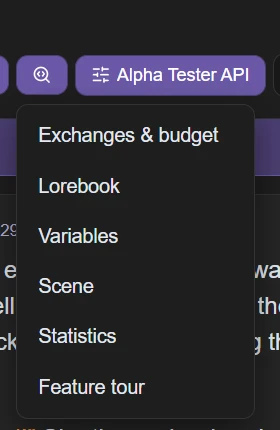
- Exchanges & budget: the exact request/response sent to the model (with your API key redacted), and a token breakdown of what's filling the context window.
- Lorebook: which world-info entries are active right now.
- Variables: the chat's local and global macro variables, with a 🎲 to reroll one — or Reroll all.
- Generators: what the card's inline
[Create …]generators rolled, and what they produced. - Scene: the scene tracker (edit / update / clear) — only shown when the scene tracker is enabled in Settings → Memory & Context.
- Statistics: turn balance, word counts, average and longest reply, and a rough token total for the whole chat.
- Feature tour: replays the guided first-run tour of the chat controls, any time.
Above the message box, the context meter breaks the window into one segment per thing filling it — hover a segment for its share. When older turns start being dropped it says trimming and shows which messages are still being sent, and dividers appear in the transcript at the cut-off points.
Providers & the LLM API
A provider is the AI that writes the replies. Rin Chat doesn't ship a model — you point it at any OpenAI-compatible chat-completions endpoint (a cloud service or a model running on your own machine). Manage them in Settings → LLM Providers.
A provider is only the endpoint — label, URL and key. Which model to run there (and its fallback, tool calling, context cap and reasoning) belongs to a generation config instead. So you set an API up once and point as many configs at it as you have models, rather than pasting the same key into a second provider just to change model.
There is no “use this provider”. You switch by making a config active — it carries its provider with it, so choosing Fast local or Big model switches endpoint, model and samplers in one move. Both screens can do it: Use this one on a config, in Settings → Generation Configs or beside the config on its provider’s page. The provider holding the active config is marked Active in the provider list.
Add one: Settings → LLM Providers → + Add provider, pick a preset (or OpenAI-compatible (custom)), fill in the URL + key and save. A generation config is created alongside it and made active; pick your model there. Each provider row lists the configs using it.
Common setups:
- LM Studio: start its local server, URL
http://localhost:1234/v1, no key. Load a model in LM Studio first so it appears in the list. - Ollama:
http://localhost:11434/v1, no key. Pull a model withollama pull <name>first. - KoboldCpp:
http://localhost:5001/v1; llama.cpp, whatever host:port it prints, ending in/v1. No key for local. - Text Generation WebUI (oobabooga) — start it with
--api --listen --listen-host 127.0.0.1, URLhttp://127.0.0.1:5000/v1, no key. All three flags: with--apialone the server answers but refuses the app's requests, and you get “Failed to fetch”.--public-apiis only for reaching it from another machine, and the address it prints changes every launch, so don't use that one here. - OpenRouter:
https://openrouter.ai/api/v1, key from openrouter.ai → Keys. Hundreds of hosted models. - NanoGPT, OpenAI, DeepSeek, Grok (xAI) — pick the preset and paste your key; the URL is filled in for you.
Starting from zero (no key yet)? Two things trip almost everyone up. First: a ChatGPT or Claude subscription is not an API key — API access is a separate, pay-per-use account with the provider. Second: on credit-based services (OpenRouter, NanoGPT) a fresh key returns errors until you add credit to the account — do that before your first message, not after the 402. Costs are per-token and small at roleplay scale: on a mid-priced hosted model an evening of chatting is typically cents, not dollars — $5 of credit lasts most people weeks (big premium models cost more; the provider's pricing page has exact numbers). If you just want something that works well for roleplay without research, make an OpenRouter account, add a few dollars, and try a popular mid-size model from their roleplay rankings — you can switch models freely later, per chat, without touching the provider.
The preset only prefills the URL — every field stays editable, so a non-standard port or a self-hosted gateway is just a custom URL. A bare host gets https:// added for you, and a remote http:// address is upgraded to https://; localhost and LAN addresses (192.168.x, 10.x, 172.16–31.x) keep plain http. The orange line under the field tells you what will actually be used.
Test (in the provider form) asks the endpoint for its model list and reports what came back — the fastest way to tell a wrong URL from a wrong key. An endpoint that publishes no list still works; you just type the model id yourself.
Choosing a model happens in Settings → Generation Configs, on the config you are editing. There are two boxes. The top one is the model id actually sent — type any id the endpoint accepts. The search box under it browses the list fetched from the config's provider; picking an entry fills the id in. The list loads by itself and the ↻ button re-fetches and reports errors. An empty list isn't fatal — plenty of endpoints don't publish one, so just type the id. ⭐ marks models included in your NanoGPT subscription (no per-token cost).
The rest of the config's model settings:
- Fallback model: if the main model comes back overloaded (HTTP 429/5xx) before anything has streamed, the turn is retried once on this model, on the same provider. It doesn't cover bad keys, wrong URLs, or a failure mid-reply.
- Test: sends a tiny "say ok" to this exact provider + model and reports what came back. Proves the pair actually works before you chat with it.
- Supports tool / function calling: off by default. Turn it on and a card's model-triggerable generators are offered to the model as OpenAI
tools. Without it those generators never fire. Some local servers reject the field, which is why it's opt-in. - Max context tokens: how much history this model is sent. When the endpoint reports a window for the chosen model a Use N button offers it, and an empty field is filled in for you. Blank = no cap. Because the model lives on the config, this is per model rather than a ceiling you have to remember to keep under some other number.
Reasoning / thinking (the collapsed section under the model) is per config, because effort tiers, the wire format and the markers all differ by model and gateway:
- Parse thinking into a collapsible block (on) — folds the model's chain-of-thought into a Thinking block. Turn it off and the raw
<think>tags show as text instead. Either way the thinking is never sent back to the model. - Reasoning effort: Auto (the field isn't sent at all, so the provider's own default applies), None, Minimum, Low, Medium, High, Maximum.
- How to send it:
reasoning_effort(the default: OpenAI, NanoGPT, Gemini, xAI), nestedreasoning: { effort }(OpenRouter, NanoGPT), Both,thinking: { type }(official DeepSeek, Anthropic), or Don't send. DeepSeek and xAI are special-cased for you when you pick None. - Hide reasoning: the model still thinks, but the provider doesn't return the thoughts.
- "Don't think" tag and Also send
chat_template_kwargs— the two off-switches for models that ignorereasoning_effort(see Sampling & generation). - Thinking prefix / suffix: the markers used to split thinking out, default
<think>/</think>. Leave the suffix blank and the block is treated as never-closing, which also stops the message editor splitting it into its own box.
Learned fixes get their own card right after the Reasoning section once a model has rejected something. Reasoning rows show the tier a model turned out to accept (or "no reasoning fields sent"); prompt-shape rows list models whose chat template only takes one system message (the app merges them there). The current config's model is listed first and marked, the rest fold away. Clear forgets it, and the next request tries your setting again — do that if a gateway changed upstream and the entry has gone stale. These are learned per model and shared by every config using that model, so one config's discovery spares the others the same rejected call.
The active generation config — provider, model and samplers together — answers every chat, except where something explicitly overrides it: a group member, the impersonation model in Settings → System Prompts, the summary and embedding models in Settings → Memory & Context, the Card Forge, and Direct chat.
Troubleshooting:
- Empty model list / "Failed to fetch": the URL is unreachable — check the server is running and the address (including
/v1) is exact. Press ↻ to see the actual error; the silent auto-fetch never shows one. - "Failed to fetch" while the server IS running (LM Studio and other local servers): the server is blocking browser requests — turn on Enable CORS in its settings (LM Studio: Developer tab → server settings). The provider's Test button now says so explicitly when this is the cause.
- 401 / 403: bad or missing API key.
- 404: the base URL is missing its path — most endpoints need to end in
/v1. - "Temporarily overloaded" (429/5xx): the provider's problem, not yours. Wait, set a fallback model, or use the model switcher offered right under the error.
- "No model selected for this provider": the active config has no model id — set one in Settings → Generation Configs or from the model name in the chat topbar.
Tune sampling (temperature, penalties, response length, etc.) in Sampling & generation settings.
Sampling & generation settings
Everything about what answers and how lives in Settings → Generation Configs, as named configs you keep several of and switch between. A config is a complete setup: its provider, its model (plus fallback, tool calling, context and reasoning), and the samplers below them — so switching config switches the model and its settings together, in one click, from the chat header. A blank sampler is left off the request entirely, so the server uses its own default and unsupported knobs are simply ignored — that's the right state for anything you aren't deliberately tuning.
The two that matter most (top of the panel):
- Max response tokens (default 400) — the hard ceiling on one reply.
- Max context tokens (with the model, above the samplers) — the history budget; oldest turns are trimmed to fit. It sits next to the model because it belongs to it: what one model can take says nothing about the next.
The everyday samplers: Temperature (default 0.9), Top P, Top K, Min P, Top A, Frequency / Presence / Repetition penalty, and Seed (-1 or blank = a new random seed each time; set a number to reproduce a reply). Advanced samplers — Typical P, Tail-free (TFS), Smoothing factor, DRY, XTC, Mirostat — are collapsed because most models and most gateways ignore them; they're mainly for local backends.
Stop sequences (one per line) halt generation the moment the model produces one. You can't type a real newline into a one-per-line box, so write \n and \t — they're converted for you.
\nUser:
        </s>
CFG scale and its Negative prompt are only sent when the scale is above 1, and only some local backends (KoboldCpp, text-generation-webui, TabbyAPI) implement them. Trim incomplete sentences drops a dangling half-sentence off the end of a finished reply — it's skipped for replies that fired a generator or ended on an adventure choices block, since those endings are already complete. Reset this config puts the samplers and dials back to their defaults, stop sequences included — your provider, model, context size, fallback and tool-calling setting stay as they are.
Response length — the Length dropdown in the reply-tools row above the composer: Auto, Short (~80 words), Medium (~240), Long (~650). It works by asking the model for that many words and to finish its sentence; the matching token cap is only a runaway guard. This control is per session and resets to Auto each time you reopen a chat — it isn't saved.
Auto-continue (Continue truncated replies, on by default, in Settings → Automation): when a reply stops because it hit the token limit rather than finishing, the app seamlessly resumes it — up to Max continuations (default 2). Two things to know: it needs a provider that reports finish_reason (most OpenAI-compatible APIs do), and it only runs while Length is set to Auto — with Short/Medium/Long, hitting the cap is the limit you asked for, so continuing past it would defeat the setting. If a Short reply cuts off mid-sentence, that's the trade; switch to Auto or raise the config's Max response tokens.
Auto-swipe (off by default, same panel): re-rolls a reply that looks bad — empty, shorter than Minimum length characters, or containing one of your blacklist phrases — up to Max attempts (default 3). Each attempt is kept as a swipe you can arrow back to. It judges only the text you'd actually read: a thinking block and hidden generator rolls don't count toward the length, and a blacklisted phrase the model merely thought won't trigger a re-roll.
Minimum length: 200
        Blacklist:  I cannot
                    As an AI
Switching quickly: click the model name in the chat topbar for Model & generation — provider, model, reasoning effort, generation preset and prompt config in one place. These are your global defaults, the same ones in Settings — not per-chat overrides — and they apply from the next reply onward. (For genuinely per-chat model changes, use a group member's override.)
Reasoning models: set how hard they think — including don't think — in the Reasoning section under this config's model. A model that refuses your setting is handled for you: the app reads which tiers the model says it accepts, uses the cheapest, remembers it for that model so the next request is a single call, and tells you once. Review or clear those in the Learned fixes card after the Reasoning section.
Prompting & steering
Shape how the model behaves, globally and per chat. The system-prompt side lives in Settings → System Prompts as named prompt configs — bundles you can keep one of per card, model or API.
- Main system prompt: the baseline instruction the model receives. Supports
{{char}}/{{user}}. Prefer a character's own system prompt (on by default) lets a card that ships one override this. - Jailbreak prompt: appended after the chat history every turn. Empty by default; most modern and open-source models don't need one. Only reach for it if you're getting refusals.
- Author's Note: free text injected near the end of the prompt every turn, at a depth in turns from the end (default 4) and a role (default system). A strong steer for tone or an upcoming beat. What you set here is the default for new chats on this config; each chat's own note (the sticky-note button in the chat) overrides it.
- Context template (advanced) — the "story string" that lays out the system block:
{{system}},{{wiBefore}},{{generalDescription}},{{appearance}},{{corePersonality}},{{behaviorRules}},{{speechStyle}},{{backgroundHistory}},{{worldSetting}},{{dialogueExamples}},{{wiAfter}}, with{{if x}}…{{/if}}conditionals (comparisons,&&,||, and{{.messageCount}}for "drop this once the chat gets going"). Leave it blank to use the built-in layout. Your persona is always its own system message and can't be placed in the template. - Start reply with: seeds every reply with text the model continues from, e.g. an opening quote to force a format. Off by default, and only applied to full replies, not to Continue or Impersonate. Some backends dislike a non-user final message — clear it if replies stop working.
- Include names: tags each turn with the speaker's name in the request (the OpenAI
namefield) rather than altering the text. Some weaker models keep speakers straighter this way. Ignored in group chats, which already label every turn. - Group chat prompt: the system instruction telling the responder who else is present and to stay in their own character.
{{names}}= participants,{{char}}= the responder. Empty sends nothing.
The utility prompts — one per button, all editable on a duplicated config:
- Impersonation prompt: what Impersonate (and
/impersonate, and the Story Director writing your turns) is told. It can also point at its own provider and model: drafting your voice is a small job, so a fast non-thinking model here keeps it snappy without touching the chat's model. That picker only appears on an editable config. - Continue nudge: appended when the Continue button extends the last reply.
- Regenerate nudge: prepended to your directions when you Shift-click Regenerate, pick a quick dial, or give a group member directions. Your text follows it.
Quick dials (Shorter, Spicier, Darker, Less repetitive…) are the one-click buttons in that regenerate-directions box. Edit them, add your own, or restore the built-in ten in Settings → Quick Actions. A dial with empty directions is hidden.
Response length and the auto-continue / auto-swipe behaviors are covered under Sampling & generation settings.
Reasoning controls: for thinking models, set the effort and how it's requested per generation config, in the Reasoning section under the config's model in Settings → Generation Configs (see Providers for each field). Chain-of-thought is folded into a collapsible Thinking block and is never sent back to the model, whichever way that block is displayed. Editing a reply that has one gives you separate boxes for the thinking and the reply; clearing the thinking box deletes the block. Whether the block starts expanded is a single global setting in Settings → Chat Display.
reasoning_effort entirely. For those, set that config's "Don't think" tag to /nothink (GLM) or /no_think (Qwen) — it's only sent at effort None — and tick Also send chat_template_kwargs, which needs any effort tier chosen (it isn't sent on Auto). The tag works even through gateways that drop unknown request fields, and is only ever sent to a GLM or Qwen model id. DeepSeek has no in-prompt switch — on the official API effort None sends thinking: { type: "disabled" }; on NanoGPT it sends reasoning_effort: none. Note DeepSeek V4 thinks by default, so Auto there means thinking ON.Lorebooks
A lorebook injects extra context only when it's relevant. Each entry has keywords; when a keyword appears in recent messages, the entry's content is added to the prompt. Edit a card's own entries in its editor, or build reusable books on the Lorebooks page.
Other names for the same thing. Every app calls this something different, and they all mean these keyword-triggered entries: SillyTavern says World Info (and Character Lore for a card's own), NovelAI and Chub say Lorebook (Chub calls a card's own a Characterbook), Agnai says Memory Book, and the character-card format stores it as character_book. Rin Chat says lorebook throughout. Books exported from any of them import here as-is.
How an entry decides to fire
- Keys: comma-separated; any one of them fires the entry. By default a key matches as a substring, so
orfires inside "order" and "north". Tick Whole words only to stop that (it's almost always what you want), or Case-sensitive for exact case. - Always on (no keys needed): the entry is in every prompt. Its keys are ignored entirely.
- Keys are regex: keys wrapped in slashes (like
/dragons?/i) become regular expressions; a key without slashes still matches as plain text, so imported keys likeC++can't break. Case-insensitive unless you tick Case-sensitive. Applies to secondary keys too, and the Audit warns when a key looks like a pattern but is missing its slashes. - Also require other keys: adds a second key list plus a rule:
AND ANY(at least one secondary present),AND ALL(all present),NOT ANY(none present),NOT ALL(not all present). - Scan depth: how many recent messages this entry reads. Blank uses the normal window. 0 reads no chat at all, which only makes sense with a matching source ticked.
- Chance %: the entry rolls each turn it matches. The roll is re-seeded per turn, so a 25% entry really fires about a quarter of the time.
- Additional matching sources: also scan the character description, personality, scenario, your persona description, the character's note, or the creator's notes.
Where it lands
- Position: Before character or After character put the text in the system block, around the character definition. At depth puts it in the chat history N messages from the end, as System, User or Assistant.
- Order: lower goes in first, among entries in the same place.
Timing
All counted in chat messages, 0 = off.
- Delay: the entry can't fire until the chat is that long. Good for lore that would spoil an opening.
- Sticky: once it fires, it stays active for that many messages even if the keyword is gone, and skips its chance roll while the window is open. This is the fix for lore that keeps dropping out mid-scene.
- Cooldown: after firing (or after a sticky window ends) the entry is blocked for that many messages. Ignored by an always-on entry.
Scope
- Only for these characters / tags: one box, matched against both the card's name and its tags. Tick Exclude to invert it.
- Only on these actions: limit the entry to
normal,continue,regenerate,impersonate,swipeorquietgenerations. Nothing ticked means every action.
Grouping — one of several
Give several entries the same Group name and only one of them is injected when more than one matches. That's how you make three weather entries or five rumours behave like a single slot. Weight sets the relative odds (200 is twice as likely as 100); Prioritize means only prioritized members can win; Score by matches picks whichever member's keys matched most times instead of drawing.
Recursion & routing
An entry that has fired can pull in another. Write [recursion: KEY] in its content, or emit a routing token <!--TOKEN-->; both resolve to the entry whose keyword or title matches exactly, and both are removed from the injected text. Chains go three levels deep by default (Max recursion steps below). Control it per entry with Can't be pulled in by others, Can't pull in others, and Only via another entry (skips the first scan entirely — the entry exists only as a recursion target).
Recursive scan — in Settings → Lorebook Activation, on by default and applying to every book. On, a fired entry's own text is also checked for other entries' keywords, and those fire too. Off, only the markers above chain, so a common word inside an entry can't quietly load half the book. Max recursion steps beside it caps how deep the chain goes (three by default, 0 for no limit).
Routing tokens work outside the lorebook too. <!--TOKEN--> (letters, digits and underscores only) can sit in a greeting, a message, a lorebook entry, or a chat variable's value; while it's there, the entry whose keyword or title is exactly TOKEN is loaded — no keyword in the chat needed. It's an HTML comment, so nobody sees it, and because it names an entry it's removed before the model reads the text. Any other HTML comment is left in for the model, so a card's own <!-- notes --> still reach it. Example: give an entry the title TAVERN_MENU and no keywords, then put <!--TAVERN_MENU--> at the end of the greeting that opens in the tavern.
Tools in the editor
- Audit: free and instant. Finds keys that fire on everything, entries that can never fire, 0% chances, duplicated content, oversized entries, keys shared across entries, and how many tokens your always-on entries cost every single turn. Click a finding to jump to the entry. ✨ Check for contradictions is the opt-in AI pass on top (it sends the book).
- Test: paste sample chat text and see which entries would activate and why, using the same scanner the chat uses.
- ✨ Directive: describe what the book is for, so AI assist writes entries that fit. Stored on your machine, never exported with the book or card.
- Sort is display-only; Apply as order renumbers every entry in the book (in tens, so you can slot things in later) to match what you're looking at.
Shared lorebooks
The Lorebooks page holds reusable books. Import and export SillyTavern World Info JSON, star a book to make it global (injected into every chat), or attach one to a single chat from that chat's lorebooks panel. A character's own embedded book is always active for that character. All active books are scanned in turn, and variables set by one carry into the next.
Settings that apply to every book
Settings → Lorebook Activation holds the activation settings: how many recent messages keywords are looked for in (Scan depth), whether to keep looking further back until something fires (Min activations), recursive scanning and its depth, whether keys are case-sensitive or must match whole words, how much of the context lore may fill (Context share and Budget cap, spent across all books at once), and whether the character's own book or the shared ones go in first. An entry that sets one of these for itself keeps its own answer — these are what the rest fall back to.
The chat's own lorebook
A third kind, besides a card's book and a shared one: a lorebook that belongs to one chat and dies with it. Open it from the book button beside the character sheet and the variables panel. It is not an Adventure Mode feature; any chat can keep one.
It exists for what turns up DURING play. A town of people nobody wrote down before the chat started, a rumor, a room. Those have nowhere good to live otherwise: a variable only reaches the character if something prints it every single turn, the card's own book is permanent and would carry one playthrough's cast into the next, and a shared book outlives the chat as well. A chat-owned book recalls by keyword like any other, so a cast of forty costs nothing in context until one of them is actually mentioned.
The character can write into it as you play, on a line of its own, which you never see in the reply:
[[lore: NAME | what to remember]]writes the entry, and writing the same name again replaces it. That is how a correction is made.[[lore+: NAME | one more thing]]ADDS to an entry already written. Use this for a single new fact, which is most of what a scene teaches you: restating a whole entry to record one detail is how an older detail quietly goes missing.
A card opts into that by using the line in its own text, the same way every other interactive element works, so no other card pays tokens for it. The character can create and revise entries but never empty or delete one, and there are limits on how long an entry is, how many can be written in a turn, and how many a chat can hold. A refused write is reported rather than dropped silently.
A generator can write one too, with as.entry= beside the usual as=: [Create NPC as.entry="Guild Receptionist"]. Quote a name with a space in it. A repeat numbers them apart, so [Create Adventurer x5 as.entry=ADVENTURER] is five people rather than one entry written over five times, and re-rolling replaces that roster.
Where you put that tag decides what it does. In a message, a greeting or a choice it rolls fresh and the entry belongs to that message, so deleting or rerolling the message takes the entry with it. In the CARD's own text it rolls once, when a chat begins, which is how a card starts every playthrough with its own cast. There, as.entry= leaves the entry open for the story to revise and as.entry.static= fixes it so the story can never touch it. Entries a card seeded are marked from the card, and deleting one makes it stay deleted.
The two lists in the panel are two lifetimes. Yours belongs to the chat, and a branch copies it. Written by the story belongs to the message that wrote each one, so deleting, rerolling or branching away from that message takes the entry too. Editing one of those stops it rewinding that way, though the story can still revise it later, and renaming it keeps the old name quietly attached so the character's next write still finds it rather than starting a second entry about the same person. Save as a shared lorebook copies the whole thing into your Lorebooks library when a chat turns up something worth keeping.
Macros
Macros are {{...}} tokens expanded when text is sent. Type {{ — in the message box, a card field or a lorebook entry — for a list of macros to pick from, or press Ctrl+Space to open it anywhere. Macro names are case-insensitive, and macros resolve innermost-first — {{getvar::{{.which}}}} works. Every macro is listed, with an example, in the Macro reference.
{{description}}, {{lastMessage}}…). Only {{system}}, {{wiBefore}} and {{wiAfter}} are limited to the context template.Names
{{char}}: the character's name.{{user}}— your persona's name.{{persona}}— your persona's description.- Old-style
<USER>,<BOT>and<CHAR>tags from imported cards are converted automatically. {{group}}: everyone in a group chat (the character alone otherwise).{{notChar}}— everyone but the character.{{charIfNotGroup}}— the character's name, or nothing in a group.
The chat and its settings
{{summary}}(Chat Memory's summary),{{authorsNote}},{{defaultAuthorsNote}},{{charAuthorsNote}}(the card's Character's Note, same as{{charDepthPrompt}}),{{systemPrompt}}(the one in use),{{defaultSystemPrompt}}. In a card's own system prompt,{{original}}puts the app's system prompt it replaced.{{model}},{{maxContextTokens}},{{maxResponseTokens}},{{maxPrompt}}(context minus response),{{lastGenerationType}}(normal, regenerate, continue, impersonate).{{currentSwipeId}}/{{lastSwipeId}}(which swipe of the last message, and how many),{{firstIncludedMessageId}}(the oldest message that fit in the last prompt),{{idleDuration}}(how long since your last message),{{input}}(what's typed in the box).{{charPrefix}}/{{charNegativePrefix}}— the card's image prompt prefixes.
Variables
Two stores: chat variables (., saved with this chat) and global variables ($, shared across every chat).
- Read:
{{.hp}},{{$coins}}, or{{getvar::hp}}/{{getglobalvar::coins}}. Names may contain dots and hyphens:{{.guard.hair}}. - Set:
{{.hp = 10}}or{{setvar::hp::10}}.{{.hp ??= 10}}sets it only if it doesn't exist yet, and{{.name ||= Stranger}}also fills in an empty value — both print the value the variable ends up with. To set up a game silently, use=or{{setvar}}. - Maths:
{{.hp += 5}},{{.hp -= 5}},{{.hp++}},{{.hp--}}, or{{addvar::hp::5}}/{{incvar::hp}}/{{decvar::hp}}.+=joins text when either side isn't a number; the others leave a text value alone. - Calculate: for anything beyond a single step,
{{calc: hp + armor * 2}}evaluates a whole expression. It takes+ - * / %,**(power), parentheses, variable names (hp,.hpfor this chat only,$coinsfor a global; a missing one counts as 0), andfloor,ceil,round,abs,sqrt,min,max,clamp(x, low, high), andrandint(low, high)/rand(low, high)for random numbers — e.g.{{calc: min(hp, hp_max)}}or{{calc: 10 + randint(1, 6)}}. Write{{calc: hp = hp + armor}}(or:=;$coins = …for a global) to store the result in a variable and print nothing — the tidy way to update a stat. A malformed expression prints nothing. - Show text for a value:
{{switch: mood | 0-3=Tense | 4-6=Calm | *=Content}}picks the first case that matches (an exact value, a numericlow-highrange, or*as the fallback) — one line instead of a stack of{{if}}s. - Meters & pips:
{{repeat: ♥ | hp}}prints that many copies, and{{bar: hp / hp_max | 10}}draws a 10-wide filled/empty bar (██████░░░░); add| ♥ ♡to pick the characters. - Lists (an inventory, clues found, party members) are a variable holding comma-separated items —
rope, torch.{{.inv push rope}}adds one (or several:push rope, torch),{{.inv remove rope}}takes one out, and neither prints anything.{{count: inv}}is how many there are,{{.inv contains rope}}checks for one, and{{each: inv | - {{item}}}}writes a line per item ({{index}}is its number) — you can put an{{if {{item}} == rope}}inside. Items can't contain commas. - Fallbacks:
{{.title ?? none}}(only when unset),{{.title || none}}(also when empty). - Either/or:
{{.hp > 0 ? alive : dead}}— any condition, then?and:with spaces around them (: deadis optional). Only the chosen side runs, so a roll or++on the other side never happens. - Compare:
{{.hp > 3}},{{.flag == true}},{{.inventory contains rope}},{{.hp == .hp_max}}(a.nameor$nameon the right reads that variable) — these printtrueorfalse, so they're mostly used inside{{if}}. Against a number, an unset variable counts as 0. - Also:
{{hasvar::hp}},{{deletevar::hp}}, and a…globalvartwin of every function.
Seeing them
Variables are invisible until something prints them, which makes a card that tracks state by hand hard to follow. The Variables button on the right edge of a chat opens a panel listing everything this chat is keeping, with its value. You can change a value, rename one, add one and delete one from there.
- An edit here wins: it outranks what the transcript would put back, so deleting or regenerating an older message can't quietly undo it.
- A locked choice re-checks its condition straight away, so setting
has_keyhere unlocks the button without waiting for the next reply. - Global variables are listed separately, because changing one changes it in every chat.
- Adventure Mode stats aren't here. They live on the character sheet, behind the dice button.
=, +=, -=, {{setvar}}, {{addvar}}, {{deletevar}}. The value: ++, --, ??=, ||=, {{incvar}}, {{decvar}}. To set a value and show it, write both: {{.hp = 10}}{{.hp}}. A variable's value always prints as written — macros stored inside it don't run.Your own macros
Define custom macros in Settings → Macros & Regex: a name and the text it expands to, usable anywhere macros work — card fields, prompts, greetings, messages. Names are case-insensitive, and a built-in name can't be overridden ({{char}} stays the character no matter what you call a macro).
- Values can contain other macros, which expand too — including your other custom macros. So
{{sig}}→the Crimson Vow of {{char}}prints the character's name inside your text, and macros can build on each other:{{mood}}→{{random::wistful::furious::giddy}}, then{{scene}}→{{char}} is feeling {{mood}} today. - Use them for anything you keep retyping: a formatting reminder you drop into Author's Notes, a boilerplate scene-setter, a random-flavor table, a nickname that should follow
{{user}}everywhere.
{{char}}, {{user}} and {{persona}} values — the fastest way to check a {{roll}} or a conditional before putting it in a card.Macro mistakes are pointed out for you — in the playground as you type, above a card field or lorebook entry when you click away from it, and in the card's health check. It catches an {{if}} with no {{/if}} (or the reverse), a stray {{else}}, = where == was meant, a macro name that doesn't exist, {{trim}} with text inside it, and a {{ that never closes.
Conditionals
{{if EXPR}}…{{elseif EXPR}}…{{else}}…{{/if}}. The condition is written without braces: {{if .flag}}, {{if .hp < 3}}, {{if hasvar::met}}. Chain as many {{elseif}} branches as you like (the first true one wins), combine with &&, ||, ! (not) and parentheses — {{if .ready && (.hunger > 0 || .thirst > 0)}} — and nest freely. Either side of a comparison may be a macro in braces: {{if .name == {{user}}}}. A condition is true when it expands to something that isn't empty, 0, or false, off or no (any case). {{if::.flag}} works too. {{endif}} works as {{/if}}. As in SillyTavern, what's inside a block is trimmed and un-indented, so you can lay it out on its own lines; write {{#if …}} to keep its spacing exactly. Any macro that takes an argument can be a block too — {{setvar backstory}}…{{/setvar}} stores everything between as the value. For mapping one value to text, {{switch}} (see Variables) is usually shorter than a chain.
Randomness
{{random::a::b::c}}: re-rolls each time it's evaluated.{{weighted::common:5::rare:1}}: like random, buttext:Nis N times as likely (no number = 1,:0= never). Good for loot and encounter tables.{{pick::a::b::c}}: stable: the same list of options gives the same answer for the whole chat, and a different answer in a different chat. In a lorebook entry each entry gets its own draw.{{roll::2d6+1}},{{roll::d20}},{{roll::1d6+1d4}}— dice, added or subtracted. A bare number rolls one die of that size ({{roll::20}}is a d20). It reads the same dice the Adventure Mode roll button does:{{roll::4dF}}for Fate dice, each face -1, 0 or +1, and{{roll::3d6kh1}}to keep the highest of three (klkeeps the lowest). Anything it cannot read returns0.
Date & time
{{date}}/{{time}}— your system's local format.{{isodate}}→2026-08-18,{{isotime}}→21:04(24-hour, no seconds),{{weekday}}→Tuesday.{{datetimeformat::YYYY-MM-DD HH:mm:ss}}: only those six tokens are substituted; everything else is literal.{{time::UTC+2}}: the time at that UTC offset.{{timeDiff::a::b}}— how far apart two dates are, in words (2 hours).
Text utilities
{{newline}},{{newline::3}},{{space}},{{space::4}}.{{trim}}: prints nothing and swallows the line breaks either side of it. Use it to close up the gap an unused conditional leaves behind. As a block,{{trim}}…{{/trim}}keeps what's inside and trims its edges. Don't put text inside a single{{trim …}}: as in SillyTavern, that text is dropped.{{silent}}…{{/silent}}— everything inside still runs (variables are set, dice are rolled) but none of it is shown. Handy for debugging with the output visible, then wrapping the section once it works.{{reverse::text}},{{noop}}(nothing at all),{{// a note to yourself}}(a comment, removed before sending — for several lines,{{ // }}…{{ /// }}).\{\{char\}\}prints{{char}}as written, without running it.- SillyTavern's space form works for single-argument macros:
{{getvar hp}},{{roll 1d20}},{{reverse text}}. {{banned::word}}is accepted for card compatibility but does nothing here.
Character & chat (prompt-building places only)
- Card fields:
{{generalDescription}},{{appearance}},{{corePersonality}},{{behaviorRules}},{{speechStyle}},{{backgroundHistory}},{{worldSetting}},{{dialogueExamples}},{{charVersion}},{{charFirstMessage::0}}(the N-th greeting). The list fields take a number for one item —{{behaviorRules::0}},{{speechPatterns::1}},{{dialogueExamples::2}}— counted from 0, the same as{{charFirstMessage}}and SillyTavern. There is no macro for a card's creator notes — that field is the publishable blurb for whoever downloads the card, so it never goes to the model. - Chat:
{{lastMessage}},{{lastUserMessage}},{{lastCharMessage}},{{lastMessageId}}.
{{description}}, {{personality}}, {{scenario}} and {{mesExamples}} each read the merged text an export to SillyTavern would carry, so an imported card's own prompts keep working. Reach for the individual field macros above when you want one part of it rather than the lot.Context template only
Inside a custom context template in Settings → System Prompts you also get {{system}} (the active system prompt), {{wiBefore}} and {{wiAfter}} (lore placed before/after the character), and {{.messageCount}} (how many messages so far — handy for dropping example dialogue once a chat gets going). {{persona}} is deliberately blank there: your persona is always sent as its own separate block.
Routing
A <!--TOKEN--> anywhere in evaluated text is removed and used to force-activate the world-info entry whose keyword or title is TOKEN. It works from a variable's value too, so a variable can steer which lore appears.
[code]…[/code]. Nothing inside is evaluated.A greeting that varies and sets up state:
"{{pick::Morning::Evening}}, {{user}}." {{char}} {{random::smiles::frowns}}.
{{.trust ??= 0}}{{.met ??= false}}
Later, in a lorebook entry:
{{if .trust > 3}}{{char}} speaks freely around {{user}} now.{{else}}{{char}} is still guarded.{{/if}}
A die roll with a comment:
{{// combat check}}{{char}} rolls {{roll::2d6+2}} against the lock.Macro reference
Every macro, by what it's for. Names work in any capitals. Type {{ (or press Ctrl+Space) in the message box, a card field or a lorebook entry to pick one from a list.
Names
| Macro | What it does | Example |
|---|---|---|
{{char}} | The character's name. | Hi, {{char}}! → Hi, Rin! |
{{user}} | Your persona's name. | {{user}} waves. → Alex waves. |
{{persona}} | Your persona's description. | {{persona}} → a traveling merchant |
{{group}} | Everyone in a group chat (the character alone in a one-on-one). | {{group}} → Rin, Ada |
{{groupNotMuted}} | Everyone in a group chat except muted members (mute from the speaker icon on their chip). | {{groupNotMuted}} → Rin |
{{notChar}} | Everyone in the chat except the character. | {{notChar}} → Alex, Ada |
{{charIfNotGroup}} | Same as {{group}} — as in SillyTavern, where it's another name for it. | {{charIfNotGroup}} → Rin |
<USER> <BOT> <CHAR> | Old-style tags from imported cards, converted to {{user}} / {{char}}. | <BOT> smiles. → Rin smiles. |
The card
The list fields take a number for one item, counted from 0 (as in SillyTavern).
| Macro | What it does | Example |
|---|---|---|
{{description}} / {{charDescription}} | The description as SillyTavern exports it (General description + Appearance). | {{description}} → A stoic knight… |
{{personality}} / {{charPersonality}} | Personality as SillyTavern exports it (core + behavior rules + speech style). | {{personality}} → Loyal and terse… |
{{scenario}} / {{charScenario}} | Scenario as SillyTavern exports it (World / setting + Background). | {{scenario}} → The keep at dawn… |
{{mesExamples}} / {{mesExamplesRaw}} | The example dialogue. | {{mesExamples}} → {{user}}: Hi… |
{{generalDescription}} | The General description field. | {{generalDescription}} → A stoic knight. |
{{appearance}} | The Appearance field. | {{appearance}} → Tall, scarred… |
{{corePersonality}} | The Core personality field. | {{corePersonality}} → Loyal. |
{{behaviorRules}} / {{behaviorRules::N}} | All behavior rules as a list — or just rule N. | {{behaviorRules::0}} → Never lies. |
{{speechStyle}} | Tone, verbosity, format and patterns in one line. | {{speechStyle}} → Tone: dry… |
{{speechPatterns}} / {{speechPatterns::N}} | All speech patterns as a list — or just pattern N. | {{speechPatterns::0}} → Says 'aye'. |
{{backgroundHistory}} | The Background / history field. | {{backgroundHistory}} → Raised in… |
{{worldSetting}} | The World / setting field. | {{worldSetting}} → A kingdom at war. |
{{dialogueExamples}} / {{dialogueExamples::N}} | All example dialogue — or just example N. | {{dialogueExamples::1}} → the second example |
{{charFirstMessage::N}} / {{greeting::N}} | Greeting N (0 = the first message). | {{charFirstMessage::1}} → the first alternate greeting |
{{charPrompt}} | The card's own system prompt. | {{charPrompt}} → You are {{char}}… |
{{charInstruction}} | The card's post-history instructions. | {{charInstruction}} → Stay in character. |
{{charDepthPrompt}} / {{charAuthorsNote}} | The card's Character's Note (depth prompt). | {{charDepthPrompt}} → Keep replies short. |
{{original}} | Inside a card's own system prompt: the app's system prompt it replaced. | {{original}} Also: never break character. |
{{charVersion}} / {{version}} | The card's version. | {{charVersion}} → 1.2 |
{{charPrefix}} / {{charNegativePrefix}} | The card's image prompt prefix / negative prefix. | {{charPrefix}} → 1girl, silver hair |
The chat and its settings
| Macro | What it does | Example |
|---|---|---|
{{lastMessage}} | The last message in the chat. | {{lastMessage}} → The gate creaks open. |
{{lastUserMessage}} / {{lastCharMessage}} | Your last message / the character's last message. | {{lastUserMessage}} → I draw my sword. |
{{lastMessageId}} | The number of the last message (counted from 0). | {{lastMessageId}} → 12 |
{{currentSwipeId}} / {{lastSwipeId}} | Which swipe of the last message is shown / how many there are. | {{currentSwipeId}}/{{lastSwipeId}} → 2/3 |
{{firstIncludedMessageId}} | The oldest message that fit in the last prompt. | {{firstIncludedMessageId}} → 4 |
{{idleDuration}} | How long since your last message. | {{idleDuration}} → 2 hours |
{{input}} | What's typed in the message box right now. | {{input}} → I open the |
{{summary}} | The Chat Memory summary. | {{summary}} → Earlier, the party… |
{{authorsNote}} / {{defaultAuthorsNote}} | The Author's Note in use / the prompt profile's default one. | {{authorsNote}} → Keep it tense. |
{{systemPrompt}} / {{defaultSystemPrompt}} | The system prompt in use / the app's own. | {{systemPrompt}} → You are {{char}}… |
{{model}} | The model answering. | {{model}} → glm-4.6 |
{{maxContextTokens}} / {{maxResponseTokens}} / {{maxPrompt}} | Context size, reply length limit, and context minus reply (in tokens). | {{maxContextTokens}} → 32000 |
{{lastGenerationType}} | What the last reply was: normal, regenerate, continue, impersonate or quiet. | {{lastGenerationType}} → regenerate |
{{system}} / {{wiBefore}} / {{wiAfter}} | Context template only: the system prompt, and the lorebook text before / after the character. | {{if wiBefore}}{{wiBefore}}{{/if}} |
{{.messageCount}} | Context template only: how many messages the chat has. | {{if .messageCount < 8}}…{{/if}} |
Variables
{{.x}} is a chat variable (saved with this chat); {{$x}} is global (shared by every chat). Setting prints nothing; ++, --, ??= and ||= print the value.
| Macro | What it does | Example |
|---|---|---|
{{.x}} / {{$x}} | Read a variable. | {{.hp}} → 10 |
{{.x = value}} | Set it (prints nothing). | {{.hp = 10}} → (nothing) |
{{.x += n}} / {{.x -= n}} | Add / subtract (+= joins text when either side isn't a number). | {{.hp -= 3}}{{.hp}} → 7 |
{{.x++}} / {{.x--}} | Add / subtract 1 and print the new value. | {{.turn++}} → 4 |
{{.x ??= value}} | Set it only if it doesn't exist yet; prints the value it ends up with. | {{.hp ??= 10}} → 10 |
{{.x ||= value}} | Set it if it's missing or empty; prints the value. | {{.name ||= Stranger}} → Stranger |
{{.x ?? fallback}} | The value, or the fallback if it doesn't exist. | {{.title ?? none}} → none |
{{.x || fallback}} | The value, or the fallback if it's missing or empty. | {{.title || none}} → none |
{{.x == v}} (!= > >= < <=) | Compare: prints true or false. A number compares as a number; unset counts as 0. | {{.hp > 3}} → true |
{{.x contains text}} | Whether the value contains the text (any case). | {{.inv contains rope}} → true |
{{.a == .b}} | Compare two variables. | {{.hp == .hp_max}} → false |
{{.a > 1 && .b}} (|| ! and parentheses) | Combine conditions; prints true or false. | {{.a==1 || .b==1}} → true |
{{cond ? yes : no}} | Pick text by a condition (spaces around ? and :). Only the chosen side runs. | {{.hp > 0 ? alive : dead}} → alive |
{{getvar::x}} / {{getglobalvar::x}} | Read a variable (any name, even with spaces). | {{getvar::guard name}} → Bram |
{{setvar::x::value}} / {{setglobalvar::x::value}} | Set a variable (prints nothing). | {{setvar::mood::calm}} |
{{addvar::x::n}} / {{addglobalvar::x::n}} | Add a number, or join text (prints nothing). | {{addvar::gold::5}} |
{{incvar::x}} / {{decvar::x}} | Add / subtract 1 and print the new value. | {{incvar::turn}} → 4 |
{{incglobalvar::x}} / {{decglobalvar::x}} | The same for a global variable. | {{incglobalvar::runs}} → 12 |
{{hasvar::x}} / {{hasglobalvar::x}} | Whether the variable exists: true or false. | {{hasvar::met}} → false |
{{deletevar::x}} / {{deleteglobalvar::x}} | Delete it. | {{deletevar::met}} |
{{getvar hp}} (space form) | SillyTavern's shorthand for one-argument macros. | {{getvar hp}} → 10 |
Conditions
Content inside a block is trimmed and un-indented, as in SillyTavern; start it with # to keep the spacing exactly.
| Macro | What it does | Example |
|---|---|---|
{{if cond}}…{{/if}} | Show the text only when the condition holds. | {{if .met}}Welcome back!{{/if}} |
{{elseif cond}} / {{else}} | Other branches; the first that holds wins. | {{if .hp > 5}}Fine{{elseif .hp > 0}}Hurt{{else}}Down{{/if}} |
{{if !cond}} | Not. | {{if !.met}}Who are you?{{/if}} |
{{if (.a || .b) && .c}} | Combine with && (and), || (or) and parentheses. | {{if .ready && (.hp > 0 || .potion)}}Go!{{/if}} |
{{if {{getvar::x}} > 3}} | Either side of a comparison may be a macro. | {{if .name == {{user}}}}It's you.{{/if}} |
{{#if cond}}…{{/if}} | Keep the block's spacing exactly as written. | Line{{#if .a}}⏎Extra{{/if}} |
{{endif}} / {{if::cond}} | Other spellings SillyTavern accepts. | {{if::.a}}Y{{endif}} |
False values | Empty, 0, false, off, no (any case) count as false; anything else is true. | {{if .flag}} with flag = no → skipped |
Lists
A list is a variable holding comma-separated items (rope, torch). Items can't contain commas.
| Macro | What it does | Example |
|---|---|---|
{{.x push item}} | Add an item (or several: push a, b). Prints nothing. | {{.inv push rope}} |
{{.x remove item}} | Take one matching item out (any case). | {{.inv remove rope}} |
{{count: list}} | How many items. | {{count: inv}} → 2 |
{{each: list | template}} | The template once per item, one per line. {{item}} is the item, {{index}} its number. | {{each: inv | - {{item}}}} → - rope ⏎ - torch |
{{each: list}}…{{/each}} | The same, as a block. | {{each: inv}}{{index}}. {{item}}{{/each}} |
Maths and display
| Macro | What it does | Example |
|---|---|---|
{{calc: expression}} | Work out + - * / % ** and ( ), variables by name (hp, .hp, $gold), and floor ceil round abs sqrt min max clamp randint rand. | {{calc: hp + armor * 2}} → 16 |
{{calc: x = expression}} | Work it out and store it in a variable (prints nothing; $x for a global). | {{calc: hp = min(hp + 5, hp_max)}} |
{{switch: value | case=text | *=default}} | Text for a value: exact values, numeric ranges (0-3) or * as the fallback. | {{switch: mood | 0-3=Tense | *=Calm}} → Calm |
{{repeat: text | n}} | Text repeated n times. | {{repeat: ♥ | hp}} → ♥♥♥ |
{{bar: cur / max | width | fill empty}} | A filled/empty meter. | {{bar: hp / hp_max | 10}} → ██████░░░░ |
Randomness
| Macro | What it does | Example |
|---|---|---|
{{random::a::b::c}} | A random option, chosen again each time. | {{random::rain::sun}} → sun |
{{pick::a::b::c}} | A random option that stays the same for this chat. | {{pick::red::blue}} → blue |
{{weighted::a:5::b:1}} | A random option, each :N times as likely (none = 1, :0 = never). | {{weighted::common:9::rare:1}} → common |
{{roll::2d6+1}} | Dice — terms can be added (1d6+1d4); a bare number is one die of that size. | {{roll::d20}} → 14 |
Date and time
| Macro | What it does | Example |
|---|---|---|
{{time}} / {{date}} | The time / date in your system's format. | {{time}} → 9:15 PM |
{{time::UTC+2}} | The time at a UTC offset (SillyTavern's {{time_UTC+2}} works too). | {{time::UTC-5}} → 2:15 PM |
{{isotime}} / {{isodate}} | HH:mm / YYYY-MM-DD. | {{isodate}} → 2026-09-21 |
{{weekday}} | The day of the week. | {{weekday}} → Monday |
{{datetimeformat::format}} | The date in your own format (YYYY MM DD HH mm ss). | {{datetimeformat::DD/MM}} → 21/09 |
{{timeDiff::a::b}} | How far apart two dates are, in words. | {{timeDiff::2026-01-01::2026-01-03}} → 2 days |
Text and structure
| Macro | What it does | Example |
|---|---|---|
{{newline}} / {{newline::n}} | One or n line breaks. | a{{newline}}b → a⏎b |
{{space}} / {{space::n}} | One or n spaces. | [{{space::2}}] → [ ] |
{{trim}} | Removes the line breaks on both sides of it. | a⏎{{trim}}⏎b → ab |
{{trim}}…{{/trim}} | Keeps what's inside and trims its edges. (Text inside a single {{trim …}} is dropped.) | {{trim}} x {{/trim}} → x |
{{silent}}…{{/silent}} | Everything inside runs (sets, rolls, lists) but nothing is shown. | {{silent}}{{.hp = 10}} debug{{/silent}} → (nothing) |
{{noop}} | Nothing at all. | a{{noop}}b → ab |
{{reverse::text}} | The text backwards. | {{reverse::abc}} → cba |
{{// note}} | A comment — removed before anything runs. | {{// TODO: add a twist}} |
{{ // }} … {{ /// }} | A comment over several lines. | {{ // }}notes{{ /// }} |
\{\{text\}\} | Braces shown as written, not run. | \{\{char\}\} → {{char}} |
{{name args}}…{{/name}} | Any macro that takes an argument can wrap text; the text is its last argument. | {{setvar backstory}}Born in a village.{{/setvar}} |
{{banned::word}} | Accepted for SillyTavern cards; does nothing here. | {{banned::delve}} → (nothing) |
{{yourMacro}} | Your own macros from Settings → Macros & Regex. | {{sig}} → the Crimson Vow of Rin |
Card images
Use the card's own images (the editor's Images section) by name. Each becomes a line of its own.
| Macro | What it does | Example |
|---|---|---|
{{img::name}} / {{img::name::caption}} | Shows one of the card's pictures in the message. | {{img::map::The old map}} → the picture, captioned |
{{background::name}} | Switches the chat background to one of the card's backgrounds. | {{background::tavern}} |
{{expression::name}} | Sets the character's sprite for this message, whatever the automatic picker says. | {{expression::joy}} |
SillyTavern macros with nothing to do here
Accepted so SillyTavern cards don't break. The macro checker points them out as tips, not mistakes.
| Macro | What it does | Example |
|---|---|---|
{{isMobile}} | Always false: prompts are built on the desktop, even when you chat from the phone. | {{if isMobile}}…{{/if}} → skipped |
{{hasExtension::name}} | Always false: Rin Chat has no extensions. | {{hasExtension::tts}} → false |
{{instructUserPrefix}} and the other instruct… macros, {{chatStart}}, {{chatSeparator}} | Instruct-format pieces. Rin Chat sends chat messages, not instruct-formatted text, so these print nothing. | {{instructStop}} → (nothing) |
{{reasoningPrefix}} / {{reasoningSuffix}} / {{reasoningSeparator}} | Reasoning format pieces for text completion; nothing here. | {{reasoningPrefix}} → (nothing) |
{{firstDisplayedMessageId}} / {{allChatRange}} | For SillyTavern's scripting commands; nothing here. | {{allChatRange}} → (nothing) |
{{outlet::key}} | SillyTavern's lorebook outlets; Rin Chat's lorebooks have no outlet position. | {{outlet::scene}} → (nothing) |
{{charCreatorNotes}} / {{creatorNotes}} | Left out on purpose: public creator notes often hold changelogs the model would take as instructions. | {{charCreatorNotes}} → (nothing) |
Command tags
Command tags are square-bracket tags typed straight into a message. They change what the model sees or what you see. In the composer, type [ for an autocomplete.
What the model sees
[once]…[/once]: sent for this turn only. A one-off nudge: a dream, a noise outside, a private instruction. It survives rerolls, swipes and Continue of that turn — those are all attempts at the same beat — and is deleted the moment you send your next message, so it never lingers in the context.[ooc]…[/ooc]: out of character. Shown grayed in the chat and labelled to the model as an aside from you rather than as story.[h]…[/h](or[hide]) — hidden from you, kept for the model. Stage directions you don't want cluttering the transcript.[co]…[/co](or[chatonly]) — the reverse: shown in the chat, never sent to the model. Notes to yourself.[code]…[/code]: inert everywhere. No macros run, no generator tags fire, no markdown. Use it to show a literal{{macro}}or[tag], or to keep a block of text exactly as typed.
[h] and [co] don't need closing — an unclosed one applies to the end of the message. Handy, and worth knowing before you wonder where the rest of your message went.Looks
[small]…[/small],[center]…[/center],[color=crimson]…[/color].color=takes a hex value (#f80,#ff8800), a CSS color name (red,gold), orrgb(…). Anything else is ignored and the text renders plain.
[co].Give the character a dream, once:
[once]Last night {{char}} dreamt of the lighthouse again.[/once]
So — sleep well?
A private note to yourself, never sent:
[co]remember: he still doesn't know about the letter[/co]
Show a macro literally instead of running it:
Type [code]{{roll::d20}}[/code] to roll a die.Generators (randomizers & wheels)
The Generators page builds reusable weighted randomizers — NPC generators with dependent fields, numeric ranges (heights, sizes), and outcome "wheels". Two examples, HumanNPC and Outcome, are there on first run. You can import and export them as JSON.
Fields
- Options: a list of values, each with a weight. Higher weight, more likely; a weight of 0 or less removes the option. Values can contain macros (
{{user}}works). - Range: a number rolled between Min and Max by Step, displayed as a plain number (with an optional unit), as inches (
7"), or as height (5'11"). - Only if …: makes a field depend on another field's value, so gender-specific or class-specific details only roll when they apply. A skipped field's placeholder blanks out, and a template line made only of skipped fields is dropped entirely.
Output
- Template: write the result yourself with single-brace
{Field}placeholders. Leave it blank and a one-field generator prints its bare value, while a multi-field one printsField: valuelines. - Message prefix / suffix: text before and after the rolled block; a wheel usually wants a suffix telling the model what to do with the result.
- Send results silently: the result is wrapped in
[h]: sent to the model, hidden from the chat. - Chained generators: run others afterwards and append their output, each with its own chance of running and, optionally, a condition on this generator's roll (Female Name only if Gender is Female).
Four ways to fire one
- You type it:
[Create HumanNPC], or with pinned fields[Create HumanNPC Gender=Female, Hair Color=Auburn]. It's rolled once and frozen into that message, so it never re-randomizes. Works in greetings, in messages you send, in quick replies, in lorebook entries, and in the model's replies. A tag inside[code]won't fire. Addx3to roll it several times in one go ([Create HumanNPC x3], up to 10), andas=guardto keep the result as chat variables:{{getvar::guard}}is the whole text,{{getvar::guard.Hair Color}}one field — and with a count,{{getvar::guard.2.Hair Color}}and{{getvar::guard.count}}. They last as long as the message does. Tick No repeats in a batch on a field (a name, say) so onex3never rolls the same value twice. - Auto-fire: give the generator a % chance to fire on its own each reply. Events are injected as a note at the end of the recent history, capped at two per turn, and are stable across swipes of the same turn.
- The model calls it: tick Let the model trigger this and it becomes a tool the model can call to roll. Needs a provider with tool calling on. The tool takes no arguments on purpose: the model can ask for a roll, but it can't cherry-pick the outcome.
- The model offers a button (Adventure Mode) — the model ends a reply with
[[gen: HumanNPC | Draw a contestant]]and the player gets a button that fires the generator on click (the label is optional). Unlike model tool-calling this needs no tool support, so it works on every model — and it's more reliable than asking the model to type a bare[Create …]itself, which weaker models tend to narrate as prose instead of emitting. Ideal for a spin, a draw, or a random encounter the player pulls.
[Create …], but it won't fire on its own — otherwise one character's random events would show up in every unrelated chat.[Create HumanNPC Gender=Male]
→ Male, 5'11" tall, Slim build, with Auburn hair.
Personality: Bratty.
Facial hair: Stubble.
A wheel, sent silently:
[Create Outcome]
→ [h] Outcome: {{user}} partially fails
Narrate the consequence in-world. [/h]Regex scripts
Ordered find/replace passes over message text, managed in Settings → Macros & Regex. They run after macros expand, and they can rewrite what the model receives, what you see, or both.
- Find: a bare pattern, or a
/pattern/flagsliteral. Either way it replaces every match, not just the first. - Replace: leave it empty to delete matches. Supports
$1,$<name>,$&and{{match}}(the whole match). - On: which messages it runs against: User, AI, System. A new script starts on AI only.
- Display and Prompt — two independent switches. Display changes what you see; Prompt changes what the model receives. A new script has Display on and Prompt off, so if you're trying to strip something from the prompt, tick Prompt. Both work on a copy, every time the message is used, and leave the message itself alone.
- Message: the third destination, and the one that does change the message. It runs once, as the message is saved, and what it writes is the message from then on: it shows in chat, it goes to the model, you can edit it by hand, and any macros in it are frozen to the values they had that turn. Good for a reading you want kept: a status line, a timestamp, a dice result. Add
[co]before the part the model shouldn't see.
Two things to know: it's exclusive with Display and Prompt (a script that rewrote the message and then ran again on the way out would apply itself twice), and it can't be taken back. Turning the script off leaves what it already wrote, so you'd edit those messages yourself. - Trim strings: comma-separated bits removed from each match before the replacement runs. Handy for stripping wrapper tags while keeping their contents.
- Min / Max depth: only run on messages within that distance from the end.
0is the newest message, and both ends are inclusive. Blank means no limit.
A card can carry its own scripts, in the card editor's Regex section, and they run after yours on that character's messages, once you've allowed them for that card. A script imported from a SillyTavern card that sets neither "display only" nor "prompt only" lands on Message, because that is what it does in SillyTavern: it edits the stored message.
Scripts run in the order they're listed, which is the order you added them — one script's output is the next one's input.
The Live tester at the bottom of the panel runs your enabled display-phase, AI-target scripts over sample text and updates as you edit.
(\w+\s?)+ is the classic — can take hours to match and is refused: the script does nothing rather than freezing the app, and the editor marks the pattern in red so you know. An invalid pattern is flagged the same way. Very long messages (over 100,000 characters) are skipped.Strip a phrase the model keeps repeating:
Find: /\s*I can't help but notice[^.]*\./g
Replace: (empty)
On: AI · Display + Prompt
Hide OOC blocks from view but keep them in context:
Find: /\[ooc\][\s\S]*?\[\/ooc\]/g
Replace: (empty)
On: AI · Display onlyQuick replies
One-tap buttons at the end of the reply-tools row that send a preset message — or, if you mark it "insert only", drop it into the box for you to edit first. Messages support the same {{macros}} as chat and are expanded when they're sent. Create them in Settings → Quick Actions.
A preset can be disabled to hide its button without deleting it, and the buttons are switched off while a reply is generating.
Label: "Look around" Message: *{{user}} scans the room carefully.*Image generation in chats
With an image provider set up, the app can draw the story as you play it. Add one in Settings → Image Providers: NanoGPT, OpenAI, Grok, any OpenAI-style image API, an OpenRouter image model, or a local server — Automatic1111 / Forge, SwarmUI or ComfyUI. Local setup has its own section: Local image servers ↗. Keys stay on this device and are never exported.
Image in the row below the composer (or /image, /img, /sd) opens the subject picker: the character, their face, your persona, the whole story, the last message, the last message verbatim, and the background. Each one reads the conversation, has your text model write a prompt, and renders it with your image provider. You can also set a shape (portrait, square or landscape — blank uses whichever suits the subject) and add a line of steering ("wide shot, night time, keep the jacket on").
To skip the AI entirely, type into the instructions box and press My own prompt, or type /image a red bicycle — either sends your text exactly as written. You can also jump straight to a subject with its id, e.g. /image face.
- You see the prompt before it renders: edit it, or press Rewrite with a note about what's wrong and the model writes a new one. Fixing a word is free; rerolling a wrong picture costs a generation. Turn the check off in Settings → Images in Chat once you trust it.
- "The whole story" reads further back than the others. The gear beside it sets how many messages it takes in (12 by default, up to 100) and whether the chat's summary and memory tree come too. Every other subject always reads the last 12 and never the memory — deliberately, so a close-up of a face isn't pulled off by what happened an hour ago.
- Rerolls sit beside each other like message swipes — same prompt, new seed, every attempt kept and steppable with
‹ ›. Set as card art promotes any picture to the character's card image (through a 2:3 crop step), and the gallery icon beside the Image button lists everything drawn in this chat — click one to jump to where it happened. - A consistent look comes from three layers. The card carries an image prompt prefix ("female, green eyes, brown hair", or a LoRA tag) and a matching negative, and those travel with the card. A common prompt prefix and negative prompt in Settings → Images in Chat apply to everything you generate. On top of both sits the style preset chosen as Default style for new images — edit those with Edit styles in a card's image generator or the pencil in Image Studio ↗. A prompt you typed yourself gets none of the prefixes; the negative still applies.
- The model never sees the picture: only its prompt, posted as the message's text. Generated images are left out of context by default; the eye icon in the message's hover actions, or Let the character read generated images in settings, puts that prompt back in so they can react to it.
- "Send me a picture of yourself": switch on Generate when a message asks for a picture and a request inside the story draws one after the reply. It's deliberately narrow — merely mentioning a photograph won't fire it — and it draws with no prompt dialog at all, even if the check is on, because being shown a prompt editor is what breaks the illusion.
How prompts are worded is a setting, because it belongs to the image model rather than to the picture. Flux, Chroma and SD3 are trained on sentences; SDXL, Pony and Illustrious descend from tag lists and read a sentence poorly. Prompt style instruction in Settings → Images in Chat has a one-click Use tag style for the second family.
z-image-turbo at about 1,200 characters, hidream at 3,000 — and your style prefix counts toward it, so a long preset can fail a short-looking prompt with a bare error.Pictures are stored encrypted alongside your card art and are never deleted, including rerolls you stepped past — branching a chat shares them rather than copying them.
Local image generation (ComfyUI)
Generating on your own GPU costs nothing per picture and keeps everything on your machine. Add any of these in Settings → Image Providers.
Automatic1111 / Forge — start it with the API enabled and point the Server URL at it, normally http://localhost:7860. It renders on whatever checkpoint the server has loaded; the provider's Model box is not sent — to switch checkpoints, name one in the per-generation model override instead.
SwarmUI — Server URL, normally http://localhost:7801. The Model box becomes a dropdown listed from the server (the names are long folder paths, so don't type them), and any Preset you saved in SwarmUI can be applied to every generation. A preset supplies its own sampler, LoRAs and numbers; a preset prompt containing {prompt} wraps yours, and the picture size always stays the one Rin Chat asked for.
ComfyUI runs your own workflow. Two small nodes let Rin Chat drive it, and nothing else about the graph changes — your samplers, LoRAs, upscalers and ControlNets are untouched, and the workflow still runs on its own in ComfyUI.
- Get the node pack from github.com/blueprintcoders/comfyui-rinchat and copy or clone the folder into ComfyUI's
custom_nodesdirectory, so you end up withComfyUI/custom_nodes/comfyui-rinchat/. Restart ComfyUI. - In ComfyUI, add Rin Chat · Input (under the Rin Chat category) and wire the outputs you want:
positiveandnegativeinto your text encoders,width/heightinto the latent,seedinto the sampler. Unused outputs can dangle. - Feed your finished image into Rin Chat · Output. It previews like any preview node and writes to ComfyUI's temp folder, so chat rerolls don't fill your output directory — add your own Save Image if you want copies.
- Press Queue once. That's the whole setup: Rin Chat adopts the last workflow you queued in ComfyUI that contains these nodes, and re-adopts it whenever you edit and Queue again. No file exports.
- In Rin Chat, add the ComfyUI provider, point it at
http://localhost:8188, and press Test. It tells you separately whether the server is reachable and whether the nodes are installed — two problems with completely different fixes.
If you'd rather pin one exact graph, use Load workflow… with a file saved by ComfyUI's Save (API Format) — not the ordinary save, which has no node ids to drive. A pinned workflow stops auto-updating until you Clear it. The Key field only matters if one workflow contains more than one Rin Chat Input; leave it blank otherwise.
Running the server on another machine? Start ComfyUI with --listen so it accepts connections beyond localhost, use that machine's address instead of localhost, and check the port and firewall. A local render can take minutes; Rin Chat waits up to ten before giving up.
Image Studio
A generator on its own — no character, no chat, just the provider and what you type. It appears only once an image provider is configured, and it starts in the title bar's ☰ menu; pin it to the bar under Settings → Sizing & Layout → Header buttons. Press Esc to leave.
- Prompt and negative prompt, both expandable to full screen. Prompt from character writes one from any character's description and appearance with your text AI — add directions like "full body, beach outfit" to steer what it pulls out, then edit the result before using it.
- Styles. Prefix and suffix style presets, the same ones the chat and card generators use; the pencil opens the editor. With a style active, a
Sends:line under the boxes shows the full prompt that will actually go out — click it to expand. - Size as one-click buttons (Square, Portrait, Landscape, Tall, Wide) or exact width and height. Every preset is a multiple of 16 and near one megapixel, which is what current models are trained at — an unusual shape costs more quality than any sampler setting.
- Steps, CFG and Seed. Blank steps and CFG mean "the provider decides" — except on Automatic1111, where blank means 28 steps at CFG 6.5. Seed 0 or blank is random. How many renders up to eight per click; on ComfyUI that's one run of the workflow's batch, everywhere else it's a loop — and a fixed seed there walks forward one per image, so you get variations rather than eight copies.
- A per-generation Model override, separate from the provider's configured model, so you can try one without changing your setup. (ComfyUI has none — the workflow owns its checkpoint.)
- Project: ComfyUI only. Free text handed to the Rin Chat Input node's
projectoutput, for filename prefixes or folder routing. Blank leaves the workflow's own value alone.
Under each picture: the seed (click to copy), a refresh icon to load that seed back into the form, an info icon showing exactly what made it — provider, model, styles, the final prompt and negative, size, steps, CFG and seed — Use to set it as a character's card art after a crop, and Save.
Presets save a set-up whole: the prompt and every dial, because they only mean anything together — a prompt that looks right at 8 steps and CFG 1 looks like mud at 30 and 7. Choosing a preset makes it active, and the save icon then updates it in place. Your last set-up is remembered whether you saved it or not, so the screen reopens where you left off.
Voice: text to speech & dictation
Chats can talk — text to speech reads messages aloud — and listen: dictation types what you say into the composer. One voice provider covers both directions and each direction picks its own backend, so you can read aloud with a bundled voice while a local whisper server does the listening. Add one in Settings → Voice Providers and mark it active; model and voice are picked on the provider itself.
Reading aloud. Every message has a speaker button in its hover actions — that works on its own, always. The speaker icon in the chat header is separate: it turns on auto-read for that one chat, so each new reply is spoken as it finishes. It's off by default and remembered per chat. While a message is speaking you get a pause/resume button beside it.
- Native (system voices, free): offline, no setup, no cost. On Windows the app reads every voice installed under Settings → Time & Language → Speech → Manage voices, not just the three Windows ships with.
- Bundled Piper: small neural voices running inside the app, ~123 of them across many languages. Clearly better than the system voices with no OS setup. First use downloads about 43 MB of engine plus a few MB per voice; after that it's offline.
- Bundled Kokoro: larger, more expressive, English only, 28 voices graded by the model's author. Pick a compute device:
Auto,GPU (WebGPU, ~330 MB model)orCPU (~90 MB model). The panel shows the GPU and CPU it detected. First use downloads the model once. - OpenAI-compatible API / local server: point the base URL at OpenAI, or at a local TTS server (Kokoro-FastAPI, openedai-speech, LM Studio) and leave the key blank. Long replies are cut at about 4,000 characters.
- NanoGPT: the model and voice boxes offer NanoGPT's own catalog with prices. Cut at about 3,000 characters per message.
Voices you trained yourself (bundled Piper only). Choose + Add a voice you trained… under Your trained voices and pick the .onnx. Two rules, both enforced when you add it:
- The filename must be
lang_REGION-name-quality— e.g.en_US-egirl-medium.onnx, where quality isx_low,low,mediumorhigh. That name becomes the voice's id. - Its
.onnx.jsonmust sit in the same folder — that's the file written beside the model when you exported it, and the engine can't speak without it.
Your voices appear at the top of the picker. Re-adding the same id replaces it, so you can iterate on a checkpoint without restarting. If app storage is ever cleared the row says files missing, re-add — a voice you trained can't be re-downloaded.
Dictation. The mic button sits beside Send. The default Built-in recognizer is free and needs no key — on Windows it may need "Online speech recognition" enabled under Settings → Privacy & security → Speech. For better accuracy, point the OpenAI-compatible backend at a local whisper server (faster-whisper, Speaches) and leave the key blank, or use OpenAI/NanoGPT with a key. A Language hint like en or ja helps; blank is auto.
- The mic stops itself after about 30 seconds of silence, and pressing Send stops it too — whatever it heard is transcribed and sent rather than thrown away.
- Dictation is ignored while a message is being read aloud, so the mic can't transcribe the character's own voice back into your box.
- NanoGPT rejects recordings over 3 MB — keep takes short there.
Two checkboxes at the bottom of the voice panel are master switches: Read-aloud hides every speaker button when off, Dictation hides the mic. Other controls worth knowing: Speed, Test voice, and Collapse stretched words — which turns Joooohn!! into John! and is forced on for the bundled engines, because they sound out every extra letter as noise.
Phone remote access
Rin Chat can serve its own chat page to a phone or tablet. Turn it on in Settings → Remote access, set a PIN there (the PIN is always chosen at the computer — never from the phone), then open one of the addresses it shows on the phone and enter that PIN. Your computer does all the work: API keys, characters and chats stay on it. Closing the app stops the server outright; signing out leaves it running but serving nothing except an "app locked" page. The app does not keep the computer awake, so if it sleeps the phone loses the connection until you wake it — check your power settings if you want to reach it from bed.
Off by default, port 8787 (change it while it's switched off).
What a paired phone can do — quite a lot, so only approve devices you trust:
- Browse the whole library — search, folders, tags, a Jump back in row of recent chats, and Load more for big libraries.
- Read a character's full fields, including its system prompt and post-history instructions (Fields tab) — and edit cards, folders, tags and lorebooks too: a connected phone is a real client, not a viewer. What stays desktop-only, permanently: your vault and account, provider API keys, the data folder, and administration of the remote server itself.
- Start a new chat or resume a saved one, send messages with live streaming, and Stop a reply mid-flight.
- Per message: swipe between alternates, Retry the last reply, Edit, and Delete (tap once to confirm).
- Hold the Send button for Suggest replies, Impersonate (it drafts your next message — type instructions first if you like), and Continue the reply. With a hardware keyboard, Ctrl/⌘+Enter sends.
- Group chats get a cast row for "have this one respond now"; pictures generated in the chat show up too. Aa in the header cycles the text size, and pull down anywhere to reload.
"Why does my browser say the connection isn't private?" That's expected and it isn't a fault. The connection is encrypted; the certificate is one the app made for itself, which browsers can't verify because a verifiable one needs a public web address and your home network hasn't got one. Choose Advanced → Proceed. If you want proof you're talking to your own computer, compare the certificate's fingerprint with the one shown in Settings → Remote access.
"My phone keeps asking for the PIN." The phone isn't keeping its cookie. Leave private/incognito browsing, allow cookies for that address, and don't clear cookies on exit. Also check you're opening the same address every time: if your computer's IP changed, that's a different site as far as the browser is concerned, and the session doesn't follow. A VPN address (below) doesn't change.
The PIN — one PIN covers every device, and it is set (or changed) only at the computer in Settings → Remote access. At least 4 characters (letters and symbols work, digits are easiest on a phone). Changing it signs every device out.
- Three wrong tries are free, then each further attempt has to wait longer — and after ten wrong attempts the app assumes someone is guessing and locks the whole vault: the server stops serving, the desktop drops back to its login screen, and nothing is readable again until the account password is typed at the computer — the one thing a guesser on the network can't do. If that happens to you (a cat on the keyboard counts), it isn't broken: unlock at the desktop and carry on.
- Ask for it again after: 5, 15 or 30 minutes, 2 hours or 12 hours of not using it. It's 30 minutes by default and it slides: reading and sending push it out, so it never interrupts a conversation. Locking your phone or switching apps doesn't end the session; the timer and the phone's Sign out (in its
☰menu) do. - Forget the PIN in the settings panel locks every device out until a new one is chosen.
What the phone keeps — chats and the character list are never stored on the device. Character art is cached for an hour so a long chat doesn't re-download the same face on every message; the Let devices keep character art for 3 days option extends that beyond the session.
Reaching it from outside the house — install Tailscale (or another private VPN) on both devices, sign both into the same account, and a VPN address appears in the panel — open that one from anywhere and everything works exactly as it does at home. A note on exposure: the server listens on all of the computer's network interfaces, so on a typical home network behind a router it is reachable only from your own devices — but on a network you don't control (public IP, hotel or coworking Wi-Fi) treat it as reachable by anyone on that network, and either leave remote access off there or use the VPN address. Never port-forward it to the open internet.
On iPhone: Share → Add to Home Screen — it opens without the address bar and behaves like an app. There's no reload button then, so pull down to refresh.
The phone can't connect at all? That's almost always the firewall, not Rin Chat — the request never arrives. Windows usually marks home Wi-Fi as a Public network and blocks incoming connections whatever you've allowed: set it to Private (Windows Settings → Network & internet → your Wi-Fi). Some routers also have AP isolation or a guest network that stops devices seeing each other; a VPN sidesteps both. The Remote access panel has the full walkthrough.
While the desktop is locked or signed out, the phone gets a page saying so and picks up by itself once you unlock. Use Lock screen (in the ☰ menu, or on the phone icon while remote access is on) when you want the computer covered but the phone still working. Revoke a device any time in Settings → Remote access.
Export, import & backup
Make backups. The app is local-only: if this computer dies and you have no backup, your recovery kit gets you a working — but empty — vault. The key and the library are two separate things to save.
Full backup — Settings → Data & Backup → Export full backup writes a .rcbak file to your Downloads folder containing every card (with its art and edit history), every chat, lorebooks, folders, and your settings. Large libraries make large files. If anything can't be read — during export or restore — it's skipped and listed for you rather than failing the whole job.
- A
.rcbakis not encrypted. It's a ZIP, and anyone who opens it can read your cards and chats. Keep it somewhere you'd be comfortable keeping the chats themselves. - API keys are never included: in this or any other export. Importing keeps the keys already on this device.
- Import full backup restores onto this device. Records with the same id are overwritten, folders with the same name are reused rather than duplicated, and original dates are kept. Anything unreadable is skipped and counted rather than failing the whole restore.
Moving to another computer — two steps, in this order:
- Export a full backup on the old machine.
- On the new machine, at first run choose Restore from a recovery phrase and use your recovery phrase or file (or Linked AICC account, if you linked one). That restores your key. Then use Import full backup to bring in the library.
Smaller exports
- Settings only: every setting as a shareable JSON: providers (keys stripped), configs, prompts, regex, macros, quick replies, themes, shortcuts, voice setup, Card Forge guides and sessions, Direct Chats. Safe to hand to someone: no keys, no cards, no chats. The only things left out are machine-specific: the remote-access setup, the AICC login token, the debug log, trained-voice file paths and telemetry ids. (Personas and adventure characters are cards, so they travel in a full backup, not here.)
- One card: native AICC JSON (everything intact) or a SillyTavern-compatible export.
- One chat: Markdown, plain text, or JSONL.
Debug log (same panel) — on by default. It records the raw requests and replies exchanged with your AI provider, plus errors, so you can send a diagnostics file when something misbehaves. API keys are redacted, but your prompts, card text and messages are in there — so read an exported log before you share it, or switch the log off and clear it if you'd rather it never existed. It's kept encrypted in your vault; the exported file is plain JSON in Downloads.
Appearance & themes
Looks are split across three leaves under Customization: Theme & Colors (themes, the palette, message colors, background images), Sizing & Layout (UI scale, font size, header buttons) and Chat Display (how the chat itself behaves and reads).
Finding your way around Settings. The search box above the section list matches sections and individual rows, so typing "enter to send" lands on the row itself. Pop out (top of the panel) opens Settings in its own window so you can keep chatting while you tune. Inside Settings your mouse's back button (or Alt+←) steps back through the sections you've visited before it closes the panel.
Themes. The app ships two built-ins, Dark and Light. Both are read-only — to change anything, pick one and choose Duplicate from the ⋯ menu, or press New theme to name the look you have now. From then on every color you touch auto-saves into the selected theme; there is no save button. The ⋯ menu also holds Rename, Delete, and Import / Export .rctheme.
- The palette is eighteen colors in four groups — surfaces, ink (text and borders), accent and status. Any color you change grows a reset link back to that mode's default, and one button resets them all.
- Chat message colors are separate: quoted speech, italic narration, bold, and body text, with a live preview above them. Leave body text and bold at their defaults and they follow the theme automatically, so a light theme stays readable; pick a color and you get exactly that color in both modes.
- Background images can be set for the Library, Lorebooks and Chats views — one for all three or one each. Pick anything under 10 MB; it's downscaled and converted to WebP before it's stored, so a huge photo can't slow the app down. A background dim slider then fades it behind the text (70% by default — more dim, more readable).
- .rctheme is a single file carrying the palette, the message colors, the dim and the background images, so a whole look can be shared. Importing one adds it as a new theme rather than overwriting yours, and any styling that would make the app fetch from the internet is stripped out on the way in.
Sizing (Sizing & Layout). UI scale (80–200%) zooms the whole interface — nav, buttons, labels — for large or hi-dpi screens. Message font size (12–28px) changes only the chat text, with a preview line underneath.
Header buttons (same leaf). Which optional buttons sit on the top bar: Lorebooks, Generators, Card Forge, Direct Chat, Image Studio, Lock screen and Guide. Unpinned ones move into the bar's ☰ menu — that's where Generators, Direct Chat, Lock screen and Image Studio ↗ start. Characters and Settings are always shown.
Chat display (Chat Display). Avatars for the character and your persona, auto-closing an unclosed *italic* so it can't bleed across a message, which side your own messages sit on, which corner the per-message buttons appear in, Enter-to-send, where the transcript scrolls when a reply finishes, the AI chat-title settings and the new-chat name format, how thinking blocks display, and which notes your library tiles show. One button resets this group to its defaults. (The scene tracker's switches live in Settings → Memory & Context, not here.)
Account & security
Your library is encrypted on this device. Card and chat files are AES-256-GCM blobs and the index database is SQLCipher, both keyed by a random 32-byte key that is never written to disk in the clear. That key is protected by your password (Argon2id), and optionally by the OS keychain for silent unlock.
Your local account
- Username + password: set at first run; the password derives the key that opens your vault. Change either in Settings → Account & Security. Changing the username renames your data folder and reloads the app.
- Remember me: off by default. On, the app unlocks silently on this device using the OS keychain (Windows Credential Manager / macOS Keychain / libsecret). Off, you type your password each launch.
- Windows Hello / Touch ID: optional, in Settings → Account & Security. It's a consent prompt in front of the same stored key, not a second password, so it keeps "Remember me" switched on. Your password always still works — cancel the prompt and you get the password screen.
- Sign out (the log-out icon, top-right) closes the vault so the password is needed to return. With Hello / Touch ID enabled the stored key is kept, since that's what the prompt releases — so the next unlock is the biometric prompt rather than nothing at all.
More than one account on one computer
- Each account is a completely separate encrypted vault — its own key, library, settings and (optional) linked website account. One can't read another.
- Add one with + Add another account on the unlock screen. With two or more, the unlock screen shows an Account dropdown and always asks for a password — nothing opens silently.
- Each account's data lives in its own folder:
…/rin-chat/<username>/. Only the account names and folder locations are stored unencrypted, so the picker can be drawn before anything is unlocked.
Recovery kit — read this before you need it
- It's 24 words and a recovery file, and they are the same key in two forms — the file is plain text containing those same words. Keep either one somewhere safe; you don't need both.
- Anyone who has either one can open your vault. Treat it like a house key: not in the folder it protects, and not in a shared drive you wouldn't hand someone.
- View it any time in Settings → Data & Backup → Recovery kit. It is always the same kit — showing it again doesn't invalidate an older copy, and there is no way to rotate it.
- It restores the key, not your library. On a new computer the kit gets you back into an empty vault; your cards and chats come from a full backup (see Export, import & backup).
- Older 12-word kits still work, but they need their phrase and their file together.
"I forgot my password" — the unlock screen offers three ways back, in this order:
- Use recovery phrase: paste the 24 words or load the recovery file, then choose a new username and password for this device.
- Reset with your AICC account: only if you linked one while unlocked. Sign in through your browser and set a new local password.
- Neither? Then the data cannot be recovered — not by us, not by support, not by anyone. There is no master key and no reset link. This is the cost of a vault nobody else can open.
Linking your aicharactercards.com account (optional, in onboarding or Settings → Account & Security) — done through your browser, so the app never handles your website password and Google/Discord sign-in works. Be clear about what it does before you turn it on:
- It gives you a second way to reset a forgotten local password, and a way to recover your vault key on another computer by signing in.
- To do that it uploads a copy of your vault key to aicharactercards.com, sealed with a secret the site issues for your account. Because the site holds both the sealed key and the secret that opens it, a linked vault is recoverable by the site. Your cards and chats are never uploaded — only the key.
- If you don't want that, don't link — the recovery kit works entirely without it. Unlink removes the reset path on this device; ask support if you want the uploaded copy deleted from the account.
Locking the screen — the ☰ menu has Lock screen (pin it to the bar under Header buttons if you use it often). It covers the desktop behind your password while the vault stays open — useful on a shared computer even with no phone paired, and paired phones keep chatting. Everything under the cover is made unreachable — no clicking, no tab-focus, no text selection, no printing or saving the page — and pairing requests are held back until you unlock. It does not protect against someone reading the running program's memory; the key is in memory, because that's what the phone is being served from. To close the vault completely, sign out instead.
Where things live, and what isn't encrypted
- Pick the data folder at setup, or move it later in Settings → Data & Backup. Card artwork can also be encrypted at rest — on by default, same panel.
- API keys are stored encrypted, redacted in the debug log and Session Info, and stripped from every export.
- Not encrypted, on purpose: the list of account names and folder locations (needed before unlock), the remote-access certificate, and anything you export — backups, settings files, card and chat exports and debug logs are ordinary files in your Downloads folder.
Starting over — Settings → Data & Backup → Danger zone → Reset this device's vault asks you to type RESET, then permanently erases this device's library — cards, chats, lorebooks, images — along with the vault key, and returns you to first-run setup. There is no "keep my data" option. Export a full backup first.
Updates
Rin Chat checks for a new version once when it starts, and shows a strip at the top if there is one. It never installs or restarts by itself — a surprise relaunch could interrupt a reply. Later dismisses the strip until next launch.
- Check manually in Settings → Updates. Unlike the launch check it tells you when you're already up to date, and shows the release notes before you install.
- Installing downloads in the background and applies on the next restart. A Restart now button appears when it's ready.
- On Linux, a
.debinstall can't replace its own files, so the update is handed to your package manager behind the system password prompt. If your desktop has no way to ask for that password, the app points you at the download page instead of a button that can't work. - If an update is rejected for a bad signature, that's the release, not your install — the app refuses to run a file that doesn't match what was published.
Usage statistics
Rin Chat sends anonymous counts about how it's used, to api.aicharactercards.com. This page lists every field and what it's for, because "anonymous statistics" is a phrase that has been used to mean almost anything.
Never collected, at all: your characters, chats, prompts, personas or lorebooks — not their text, and not their names, tags or creators. Not your API keys, file paths, folder names, usernames, or the addresses of the AI providers you connect to.
Always sent — part of the terms of use, and not switchable:
- That the app was installed and launched, with a random identifier generated on this device. It isn't derived from your hardware, means nothing anywhere else, and resets if you clear the app's data. This is simply how we know how many people use Rin Chat.
- App version, operating system and version, CPU architecture, system language, and which package you installed (installer,
.deb, AppImage,.dmg). This decides where the work goes: whether a Linux build is worth maintaining, whether translations are worth doing, and when it's safe to stop supporting an old system rather than carrying workarounds for one nobody runs.
Optional — four switches in Settings → Data & Backup, all on unless you turn them off. There's a Turn all off button there (and a Turn off everything optional one on the last screen of setup):
- Link to your account: so one person on a laptop and a desktop counts as one person, not two. Off, the report carries only the random device identifier.
- Providers and models: the provider's preset name and up to eight model ids, never an address. A self-hosted endpoint reports only whether it's on your own machine or out on the internet, which is why a private URL or an embedded API key can't travel with it.
- Library size: six numbers: cards, favorites, unfiled, missing art, never chatted, and how many distinct creators. Performance work is aimed at real libraries, and this is how we know whether a thousand cards is common or rare.
- Features you've set up: how many personas and lorebooks you have, how many chats in total, and whether image generation is configured (which kind, never an address). It stops us polishing something nobody uses while a popular feature waits.
Shortcuts & tips
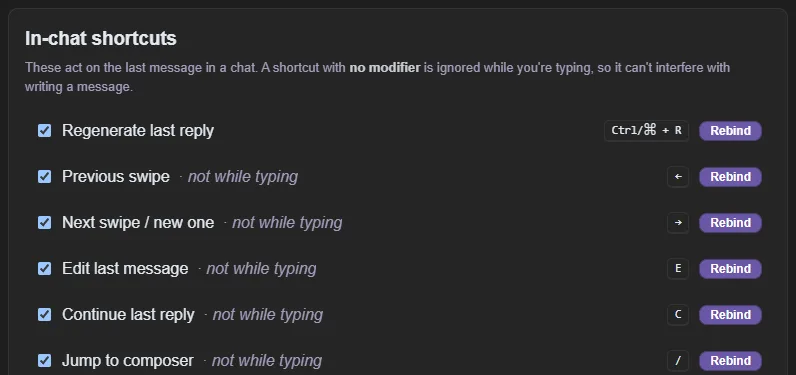
In a chat — these act on the last message. All of them can be rebound or switched off in Settings → Shortcuts.
- Ctrl+R regenerate the last reply.
- ← / → step through that reply's alternates — → past the last one generates a new alternate.
- E edit the last message · C continue the last reply.
- / jump to the message box · ? show this list in the chat.
Writing:
- Enter send · Shift+Enter newline. Flip this in Settings → Chat Display and Ctrl+Enter sends instead.
- Ctrl+Shift+Enter send with directions for the reply (the same as Shift-clicking Send).
- Ctrl+I italics · Ctrl+B bold · Ctrl+Q quotes · Ctrl+E inline code — they wrap whatever is selected, in the message box, a message editor, or the full-screen editor. Change them in Settings → Shortcuts.
- Type
/for slash commands,{{for macros,[for tags. ↑/↓ to move, Tab or Enter to accept, Esc to dismiss. - Ctrl+Shift+V opens the clipboard-history picker (arrows + Enter to pick). Rebind it in Settings → Shortcuts.
- Ctrl+Enter confirms the Regenerate / Continue / Impersonate directions boxes.
Mouse:
- The function keys jump to a screen from anywhere: F1 Guide, F2 Settings (again to close), F3 Characters, F4 Lorebooks, F5 Generators, F12 sign out (locks the vault). Switch them off in Settings → Shortcuts → Function keys. Desktop only.
- Shift-click Regenerate, Continue, Impersonate, or a group member's chip for one-off directions. Shift-click Delete to also remove everything after that message.
- Right-click a highlighted span in a message → Regenerate this section. Right-click in a text box for spelling, cut/copy/paste and formatting.
- Shift+right-click in a text box gives the webview's own system menu instead. (Add to dictionary is in the app's menu now — it teaches Windows, so the word stops being underlined everywhere.)
- Your mouse's side button goes back a screen (closing Settings or search first — inside Settings it first retraces the sections you visited, as does Alt+←). Rebind or switch it off in Settings → Shortcuts.
Everywhere: Ctrl+K global search (characters & chats — start it with ?: to ask this guide a question instead) · Esc closes the top-most dialog.
Enter, Esc and Tab can't be rebound — the app needs them.
Terms of use & privacy
The short, honest version — this page is the terms of use referenced elsewhere in the app.
The full Terms of Service and Privacy Policy live online at rin.chat. This page summarises them in plain language; where they differ, the online versions govern.
The deal. Rin Chat is provided free of charge during its beta, for personal use, as-is and without warranty. It is beta software: defects are possible, so keep backups of anything you care about. You may not redistribute or sell the app itself; everything you create with it — characters, chats, lorebooks — is yours, and you can export all of it at any time.
Your responsibilities. You bring your own AI provider: the account, its costs, and compliance with that provider's own terms are between you and them. You are responsible for the content you create and import, and for complying with the laws that apply to you.
Privacy. Rin Chat is local-first: your characters, chats, and API keys are stored encrypted on your device and are never uploaded to us. The complete list of what does leave your machine is in Getting started, and every field of the anonymous usage ping — the one mandatory transmission, which identifies an install, never a person — is documented in Usage statistics, alongside the optional categories and their switches. We have no account of yours to hold data against unless you link an AICC account, and no ability to read what the app encrypts.
Changes. These terms may be updated between versions; material changes will be called out in the release notes. Continuing to use the app after an update is acceptance of the then-current terms. Third-party components are credited in the THIRD-PARTY file that ships with the app.