Nothing matches that. Try a different word.
Character Cards in Rin Chat: Library, Editor and Card Format
Characters & the library#
The Library opens on its Characters tab, your card library. The tabs beside it hold your Lorebooks, Generators, Document styles and, with a linked aicharactercards.com account, My listings. Every tab is laid out the same way, folders on the left and search and sort along the top, and each keeps its own folder, search and sort while you switch between them. The Library reopens on the tab you used last. Click a card to open its editor, or use its Chat ▾ button to start or resume a chat without leaving the grid.

Getting cards in. Drag .json or .png files anywhere onto the page, or use the Import button (the arrow-into-tray icon):
- Import file(s): one or many cards at once.
- From URL or card ID: paste an AICC card ID (
AICC/###/###), anaicharactercards.com/cards/…link, a bare card number, or any direct link to a card file. - Import folder: scans a folder (and its subfolders) and imports every card in it.
SillyTavern V1/V2/V3 cards convert to the app's format on import; native Rin Chat cards come back in unchanged. Imports land in whichever folder you're currently viewing. Above 50 files the import runs as a locked, full-screen wizard so it isn't interleaved with the rest of the app.
Sharing a card you made. With an aicharactercards.com account linked (Settings → Account & Security), the card editor's Import / Export → Upload saves you the round trip of exporting a file and finding it again in a browser. It sends the card to the site and opens the site's submit form with it already attached — you write the title, summary and description there and submit it, exactly as you would on the site. Nothing is posted until you do, and then it goes to the moderators like any other submission.
Do it again with the same card later and the app opens the edit form for the listing you already have instead of a blank submit form — so you update that card rather than posting a second one, and you can revise the listing text at the same time. Your ratings, reviews and download count carry over. One thing worth knowing: once you submit that edit, the card comes off the site until a moderator approves the new version. That's how edits work there, and the app says so before it opens the form. Anyone who already downloaded it keeps their copy.
My listings (a Library tab, shown once an account is linked) is where you see what you've posted and where each card stands — waiting on a moderator, published, or sent back needing changes, with the reason when a moderator has shared one. A card you upload appears there as soon as you submit the form, and the character itself picks up an In review badge in its editor.
Duplicates are caught for you. A card whose content already exists is skipped (you can still Import anyway). A card that matches an existing one by name + creator but differs is listed next to the card it matched, with its art and folder — Open or Compare them, choose Replace (overwrites the existing card with the imported one, content and art, and keeps its folder, tags, notes and chats), New or Skip for each card, then Apply. A placeholder creator such as "anonymous" or "unknown" isn't treated as a match. Tags that differ only by case, spacing or dashes are folded onto the spelling you already use. The import menu's Import log records what happened to every card you've imported.
Organizing.
- Folders: create, rename, nest (up to four levels), and drag cards or whole folders between them. A folder's count includes its subfolders. Right-click a folder for Move to top level, Rename, New subfolder and Delete folder — deleting a folder deletes its subfolders but never its cards; they just become unfiled.
- Hide a folder: with a folder open, the eye button toggles Hidden from All cards. Its cards (and its subfolders') stay reachable in the folder itself but disappear from All cards — handy for archives and NSFW shelves. A hidden folder shows a small crossed-out eye in the sidebar, and its cards still appear in the Personas view, the global search (Ctrl+K), All chats, Library stats, and All cards while a tag, Untagged, Missing art or Never chatted filter is on.
- Folder chips: in views that aren't a folder (Personas, search results), a card filed somewhere shows a small 📁 chip naming its folder; click it to jump there.
- Show nested cards: with a folder open, this also lists its subfolders' cards, in a second section below its own.
- Tags: click a tag chip to filter by it, Shift-click to exclude it. With two or more included tags, the ALL of / ANY of toggle switches between AND and OR. Manage tags (sidebar) renames, merges, re-cases, colors and bulk-assigns tags across the whole library — including suggested merges for near-duplicate spellings.
- Favorites: the ★ on a card. Bulk organize (sidebar) moves, exports or deletes many cards at once, by hand-picking them or by tag.
Finding things.
- Search matches name, creator and tags. Prefix with
f:to search inside the card instead — display name, name, creator, tags, general description, appearance, core personality, behavior rules, background/history, world/setting, creator notes and your private card note. It does not reach greetings, example dialogue, prompts or the lorebook. Ctrl+K opens the same search from anywhere, including inside a chat. - Sort: Recently updated · Recently chatted · Newest imported · Name (A–Z) · Largest (tokens) · Least complete. The last two have to read every card in the current view before they can rank it, so a big library shows a Measuring N more cards… line for a moment; after that it's instant.
- Quick filters in the same dropdown:
# Untagged onlyandMissing art only(which also counts cards wearing the app's own placeholder). - Views: grid, list, or field checklist — the checklist shows n/m fields filled per card and which fields those are. Pair it with Least complete to find the half-empty cards in a big import.
- Saved views: the bookmark button saves the current search + filters + sort under a name; it appears as a chip you can click to re-apply, or
×to delete. - Default view: right-click any sidebar row (All cards, Favorites or a folder) → Set as default view. A pin marks it and the library opens there.
- All chats lists every chat across all of your characters, newest first — the search box filters it by chat title or character name, and a click opens the chat.
Right-click a card for New chat, Edit, Edit in Card Forge, New card image (with an image provider set up), Duplicate, the four export formats, and Delete.
Working on many cards at once. The select button (top right) turns on selection mode: click cards to select, Shift-click for a range, then Assign tag, Assign folder, Compare (2–3 cards, field by field), or Delete.
Library tools (wrench) run over whatever you're currently viewing — the open folder and its subfolders, Favorites, Not in Folder, or everything:
- Find duplicate cards: groups cards by content. Identical means byte-for-byte the same, so keeping one is safe; Versions share a name and creator but differ, so compare them first. Each row shows when the card was added and how many chats it has. Compare → Merge into one card keeps the card you pick: choose which version of each differing field (and the image) goes into it, and the other card's chats move over before it's deleted. Imported a batch of updated cards as new by mistake? Replace older versions does every pair at once: the card added first takes the newer one's content and image and keeps its chats, folder and notes. Open a card from the results and Back returns you to them.
- Find placeholder artwork: finds cards wearing a stock avatar or sharing a picture. Nothing is ticked for you, because a cast of characters sharing one image is normal. Clearing artwork can't be undone; the cards fall back to the app placeholder and show up under Missing art, ready to generate.
Library statistics (chart icon) counts favorites, unfiled, missing art, never chatted, creators and top tags — and each underlined number is a link that applies that filter.
The card editor#
The editor uses the app's structured card format — separate fields for appearance, core personality, behavior rules, speech style, background, world, greetings, example dialogue and prompts instead of one big blob (see the card format). Edits auto-save; leaving the editor flushes anything still pending.
A brand-new character from + New is a draft — it isn't written to your library until you actually change something (or set an image, or open a chat/the Forge from it).
The header block holds the card's identity: artwork (click it to replace, or ✨ Generate image), Name (what the model sees as {{char}}), Display name (an optional label for you; the model never sees it), Private Card Notes, Character version, Folder, and Tags.
Name or Display name: which one shows where. The Name is the character as the model knows them: it fills {{char}} and every prompt, whatever you choose below. The Display name is only what you see, and a card without one just shows its Name. Three settings in Settings → Chat Display → Character names pick which name appears where:
- Library shows: the Characters grid and list, search, pickers, the card editor's title and the phone's Characters list. Default: Display name.
- Chat shows: message names, the member list, chat lists, the chat's title and tabs, and notifications. Default: Display name.
- Export uses: what an exported file is named after (single cards, bulk exports, bundles and site uploads). Default: Name. The card inside the file always keeps both names exactly as they are.
For example, a card named Mira with the Display name Fantasy - Mira, so the library groups her with the other fantasy cards: with Library shows set to Display name, Chat shows set to Name and Export uses set to Display name, the library lists her as Fantasy - Mira, the chat calls her Mira, an export is saved as Fantasy - Mira.png, and the model only ever hears Mira.
Two kinds of notes, and they behave differently: Private Card Notes are yours — never sent to the model, never included in an export. Public Creator Notes (under Metadata) travel with the card, so whoever you share it with sees them. Which one your library tiles show is a setting in Settings → Chat Display.
Your name and bio on every card: set Your creator name and Your creator notes under Settings → Automation → New cards, and every new character (and every card Card Forge writes) starts with them in Creator and Public Creator Notes. Turn off Fill them in on new cards to start each card empty instead. Either way, on a card with either field empty, an Insert yours button beside the field fills it in.
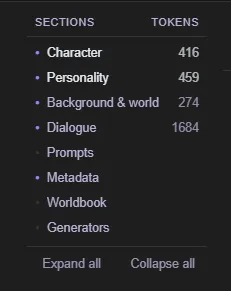
The section rail down the side lists every section with a filled or hollow dot and its token cost; click one to jump to it, or use Expand all / Collapse all. The number at the right of the bar above the buttons is the card's size, counted with the tokenizer of the model you're using: the total, then — lighter — how much of it is permanent: the name, description, personality, scenario and character's note, which stay in the prompt for the whole chat. The rest of the total is the first message, the system prompt, post-history instructions and example dialogue. If the card has always-on lorebook entries, +N lore follows: they're sent every turn, but aren't part of the total. Hover it for the breakdown field by field. A model's tokenizer downloads once, the first time it's needed — until it's ready the number is an estimate and starts with ~. Sections always open on the same defaults; that's deliberate, not a forgotten setting.
Every long field shows its own token estimate and carries two buttons: ✨ Edit with AI (describe a change, review the proposal, accept or retry — with one-tap quick prompts you can manage) and ⤢ for a full-screen editor. Highlight text inside any field and right-click for formatting plus Edit selection with AI, which rewrites just that passage. List fields (greetings, behavior rules, speech patterns, example dialogue) can be reordered by dragging or with ▲/▼ — the first greeting is the one a new chat opens with, so reordering is how you change the opener.
Metadata also holds Image prompt prefix and Image negative prefix — fixed visual traits (or a LoRA tag) added to every picture generated for this character, which is what makes two images look like the same person — and the Adventure character sheet checkbox for persona cards. The Card type dropdown in the header (Character / User Persona / Adventure Mode Game Master) travels with the card; Adventure Mode Game Master starts its chats in Adventure mode automatically.
Lorebook and Generators are the card's own lore entries and [Create …] randomizers. Attaching a generator embeds a copy that travels with the card. Edit changes that copy only; use Save a copy to library to add it to your Generators library.
Tools ▾ is where the heavy machinery lives:
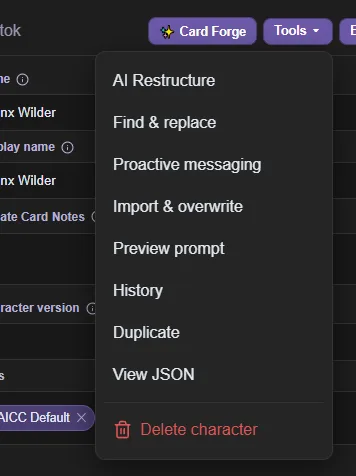
- AI Restructure: splits a flat import's merged prose into the structured fields: appearance out of the description, background out of the setting, behavior rules and speech style out of the personality. It only moves and lightly rephrases what's already there. You get a before/after review with a checkbox per section; unticked sections keep their current text, and greetings, example dialogue, prompts and the lorebook are never touched. This calls your active provider, so on a paid API it costs tokens.
- History: version history, and the app's undo for card edits. A checkpoint is saved when you start editing, periodically while you work, when you leave, and before anything that rewrites a lot at once. Restore opens a before/after review where you pick which fields come back — and your current state is checkpointed first, so a restore is itself undoable.
- Find & replace: literal text (not a pattern) across every field of this card plus your private notes, with a live match count and optional case sensitivity. Undo via History.
- Import & overwrite: load a newer
.png/.jsonof this same character and pick, field by field, what to take from it. Changed fields start ticked; a PNG can also bring its artwork. - Preview prompt: exactly what the model receives for this card, and what it costs.
- Duplicate: a full copy with a new id and its art.
(copy)is appended to the display name only, so the model still sees the plain name. - View JSON: read-only, including unsaved edits, with a Copy button.
- Delete character: asks whether to delete its chats too.
Export ▾ writes the card as it is on screen. Use Rin Chat Format to keep everything; SillyTavern Format for other apps (see the card format section for what that loses).
The Card health check callout at the top flags common card problems. Dismiss a single tip with its ✕, all of them with Dismiss all, or turn the whole thing off (or bring dismissed tips back) in Settings → Diagnostics.
The AICC-Chat card format#
Internally, every card uses the app's own AICC-Chat format (spec_version "1.0", metadata.card_format "AICC-Chat"). Instead of a few large text blobs like SillyTavern, it splits the character into focused fields. This gives the model cleaner, more consistent context and lets you edit one aspect without disturbing the rest.
The fields, and what to put in each:
- Name: the character's identity; this is what the model sees as
{{char}}. - Display name (
char_ui_name) — an optional label shown in the library, search, and chat (Settings → Chat Display → Character names picks where). It's never sent to the model (falls back to Name), so it can be a tagline or a shorter nickname. It's also what the library's plain search matches, and what Duplicate appends(copy)to. - General description: the high-level concept of who they are (role, premise) — not their looks.
- Appearance: physical traits, clothing, body language, notable visual details.
- Personality: split into: Core (traits + how they act toward you), Behavior rules (explicit "always/never" rules, shown as a bulleted list), and Speech style (tone, verbosity, format, and recurring patterns — how they talk).
- Background / history: backstory, past events, relationships, motivations.
- World / setting: the world, setting, and current situation.
- Dialogue: Greetings (the first is the opening message; the rest are swipeable alternates), Example dialogue (sample exchanges that teach the voice — used more while the chat is short), and Group-only greetings.
- Prompts: the card's own System prompt, Post-history instructions (the "jailbreak", placed after the chat), and a Depth prompt (a note injected a set number of messages from the end, as a chosen role).
- Lorebook: the card's own lore (keyword-triggered entries; same engine as the shared ones — see Lorebooks).
- Generators: AICC-native. Embedded
[Create …]randomizers the card carries with it (see Generators). - Metadata: creator, creator notes/tips, version, tags, and the two image prefixes that keep generated art on-model. Card art (assets) is carried along verbatim. Metadata also holds Spoiler mode: for story and game cards whose fields give the plot away. With it on, anyone who opens the card finds every section folded (except Metadata) and is asked before one opens. The name, image, tags and notes stay visible, and it never changes what the model receives.
- Features (
metadata.features) — AICC-native app-feature flags the card carries, likecard_type(set via the editor's Card type dropdown and the Adventure character sheet checkbox under Metadata). Not a SillyTavern field: ST exports round-trip it in a namespacedextensions.aiccspot that ST tools ignore, and ST's own extensions data is never read as flags.
{{appearance}}, {{corePersonality}}, {{behaviorRules}}, {{speechStyle}}, {{backgroundHistory}}, {{worldSetting}}, {{dialogueExamples}}.Clickable choices and interactive replies — buttons, inputs, timers, locked options and documents — are their own section: Choices & interactive replies. They work on any card, not just Adventure Mode.
How it differs from SillyTavern
- ST is flat: description, personality, and scenario are each single blobs. AICC pulls Appearance, Behavior rules, Speech style, Background/history, and World/setting into their own fields.
- Display name, Generators, the image prefixes and Features are AICC-only.
- Everything else maps one-to-one: greetings, example dialogue, system prompt, post-history, depth prompt, the character lorebook, tags, creator, version, and card art.
Importing / conversion
- Any card you import (ST V1/V2/V3, JSON or PNG) is converted to this shape on load. ST's flat fields map straight in — description → general description, personality → personality core, scenario → world/setting, first message + alternates → greetings, example messages → example dialogue, and the character lorebook, prompts, depth prompt, tags, creator, and art all carry over. (A
nicknamebecomes the display name if present.) - The fields ST doesn't separate — Appearance, Background/history, Behavior rules, Speech style — start empty. That's exactly what AI Restructure fills.
- Re-importing is safe: a card that's already in the native AICC format passes through unchanged.
AI Restructure
- In the editor, it takes the card's current prose (usually a flat import where everything's dumped into description/personality/setting) and, using your active provider, redistributes it into the structured fields — pulling looks into Appearance, backstory into Background, and behavior rules + speech style out of the personality blob.
- It only moves and lightly rephrases existing content — it never invents facts, leaves unsupported fields empty, and preserves
{{user}}/{{char}}macros. - It touches only the prose fields; greetings, example dialogue, prompts, and the lorebook are left as-is. You review it section by section and tick what to take.
Images
- The editor's Images section holds the card's own pictures in three kinds: Expressions (sprites named after a feeling —
joy,anger,neutral;joy-2is a second picture for joy), Pictures (with a description of what each shows) and Backgrounds. - Import sprite pack takes a sprite pack — a zip, or images named
joy.png,anger.png… — and replaces expressions of the same name. Export sprite pack saves them back out the same way. A sprite pack dropped on the library asks which card it's for. - Add from link downloads the picture into the card straight away, so the card carries it rather than pointing at the website — you can also paste an image into that box.
- Every image is converted to WebP and scaled down to at most 2048 pixels (backgrounds 1920) as it's added, so a card stays light; animated images are kept as they are. There's no limit, but past 25 MB the card can't go into a bundle.
- They travel with the card in a bundle (
.aicc/.charx) — not in a PNG or JSON export. - In chat, a card with expressions shows the character's current one in a panel beside the chat (in a group, everyone with sprites; whoever spoke last stands out). The buttons under it switch this chat to visual novel style — a stage across the top with the sprites and the card's background, and the chat below it — or hide them. The default is in Settings → Chat Display → Character expressions.
- The expression is picked from each reply: offline by default, or with an emotion classifier (a one-time ~70 MB download), set in Choosing the expression. A line
[[expression: joy]]in a reply or a greeting always wins and isn't shown. When nothing is clear the card showsneutral, or its first expression. [[img: name]](or[[img: name | caption]]) shows one of the card's pictures in the message — the first one in a reply, and not the same one again within a few messages.[[background: name]]switches the chat background to one of the card's. Card authors can write them in greetings and lorebook entries, or with the macros{{img::name}},{{background::name}}and{{expression::name}}.[[picture: what it shows]]in a reply asks for a newly generated picture rather than one of the card's. It is never shown, and draws only with Character can send pictures on in Settings → Images.- Tick Tell the AI about these images in the Images section and the AI learns the names and descriptions, and uses the pictures, backgrounds and expressions itself.
- A lorebook entry can carry a Picture (in the entry's settings): whenever the entry fires, that picture opens the reply. A choice can show one too —
[[choice: Play the tarot | img tarot]]makes a picture tile — and a picture inside a[[reveal:]]stays hidden until it's opened. - Generate in each group of the Images section makes one with your image provider, using the card's image prompt prefix; keep it or try again.
- An imported card whose images are links to a website shows a button instead of loading them: click it and they're saved into the card (converted, kept offline), and nothing is loaded from that site again.
Exporting
- Rin Chat Format (JSON or PNG card) keeps every character field, including the ones SillyTavern has nowhere to put. The PNG re-imports losslessly, so it's the format to share with other Rin Chat users. It deliberately leaves behind the things that are about your copy rather than the character: your private card notes, its folder and its favorite flag. Tags do travel.
- Bundle (.aicc / .charx) is one file holding the card, its art and — if you tick them — the document styles it uses and your shared lorebooks. (A card's own lorebook is always inside the card.) Select several cards in the library and Export bundle to send a whole cast as one file; importing it puts them in a new folder named after the bundle. A one-card bundle can be saved as
.charx, which SillyTavern and RisuAI also open. Chats are never included, and a bundle can be at most 25 MB. Double-click an.aiccfile to import it. - SillyTavern Format is lossy — ST has nowhere to put the extra fields, so each flat ST field is rebuilt with the split-out fields merged back in under labels:
- ST
description= General description + (labeled) Appearance - ST
personality= Personality core + (labeled) Behavior rules + (labeled) Speech style - ST
scenario= World / setting + (labeled) Background / history
- ST
- Greetings, example dialogue, prompts, depth prompt, the lorebook, tags, creator, version, and art map straight across. Dropped by the ST export: embedded generators, both image prefixes, and the display name — unless the card originally came from an ST card that used
nickname, in which case it's written back there.