Nothing matches that. Try a different word.
Getting Started with Rin Chat
Getting started#
Rin Chat is a local-first roleplay chat app. Your characters, chats and API keys are stored encrypted on this device and are never uploaded. What does leave your machine: the requests you send to your AI provider; anonymous usage counts (Usage statistics lists every field); a version check against rin.chat at launch; and — only when you use the feature that needs it — card downloads from aicharactercards.com (importing by ID or link); with a linked aicharactercards.com account and your yes, a daily check of the cards you got from there (card IDs and a fingerprint of each card's name, description, personality and scenario) for updates, ratings and reviews; voice runtime files from rin.chat and voice/embedding models from huggingface.co (first time you enable text-to-speech or vector memory), and the webpage you paste into the forge's attach-a-page. None of these carry your chats, cards or keys. You set up a local account with a password at first run; see Account & security.
The app at a glance. Everything is reached from the title bar: Library (your characters, and where chats start; its Personas row is who you are. Tabs along its top hold Lorebooks for reusable lore, Generators, Document styles and, with a linked account, My listings), Tools (tabs for Card Forge, which builds a character, a lorebook, a generator or a document style by talking it through, Image Studio, Story Maker and Direct Chat; hover either button to jump straight to a tab), and Guide (this page). To their right: the ☰ menu, the gear for Settings, a phone icon for reading chats on your phone, and a search button — Ctrl+K from anywhere.
Basic and advanced settings. Settings starts in Basic on a new install: the essentials for setting up a provider, chatting and making things look the way you like. Turn on Show advanced settings, under the search box at the top of the Settings list, to see everything, from sampler tuning to regex scripts. Search and Ask Rin always find every setting, and opening an advanced one turns advanced settings on. An advanced setting you changed stays visible in Basic, marked changed, so a tweak is never hidden.
▶ Take the app tour — the two-minute look around, whenever you want it.
Three steps to your first chat:
- Add a provider in Settings → LLM Providers — an OpenAI-compatible endpoint (LM Studio, Ollama, KoboldCpp, OpenRouter, NanoGPT, etc.) with its URL and API key. Then pick your model in Settings → Generation Configs, which is where a provider and a model are paired up.
- Go to the Library. Two characters are already there to try — Jinx Wilder and the Adventure Mode Narrator. Add your own by importing a card (drag in a
.json/.png, or use Import) or creating one with + New. - Open the character → New chat → type a message and press Enter.
Questions, bug reports, or just want to hang out? Join the community Discord: discord.rin.chat.
Ask Rin (pop out, float, size)#
Rin is the little animated character beside the Guide. Press Ask Rin under her, type a question about Rin Chat and press Enter: she answers in a bubble above her head, from this guide's own text and the list of every setting, with links to the sections she used. The answer is written by your active AI provider, so each question costs a small generation; she only knows what this guide and the settings say. Close the bubble with its ×. She shrinks to fit the margin beside the Guide, down to the width of her bar. On a window too narrow for even that, a question box at the top of the Guide takes her place and works the same way, and the speech-bubble button at the top right of the Guide pops her out to float instead.
She thinks while an answer is being written, celebrates when it arrives and keeps an eye on it while it is open, and looks embarrassed if something goes wrong or you click her. When she has nothing else to do she glances at your pointer, then rests for about ten seconds before she looks again.
Her bar, under her:
- Ask Rin opens the question box. Its ×, or Escape, closes it.
- S / M / L cycles her size: small, medium (the default) or large. The size is shared by both places she can stand; beside the Guide it is the largest she gets, and a narrow window shows her smaller.
- ↗ pops her out into a small window that floats above every other app, so you can ask about Rin Chat from anywhere. Drag her by her body to move her; she stays where you leave her, comes back when Rin Chat starts if you left her out, and steps away while the app is locked. A link in her answer opens that section here, or Settings at that setting. Her × puts her back beside the Guide.
She finds settings from here too. When a setting does what you asked ("how do I set up Chatterbox?"), the first link under her answer names it with a ↗; click it and Settings opens on that page, scrolled to the setting and highlighted. Without an AI provider, or if the call fails, she still points at the closest section or setting rather than giving up. To keep her still, turn off Animate Rin in Settings → Sizing & Layout.
She helps in Settings too. While Settings is open, an Ask Rin button waits in the window's bottom-right corner; press it and she appears, smaller, ready for your question, and she goes back to the button when you close her box and her answer. Drag her (or the button) anywhere and she stays there. Ask her about a setting ("how do I set the context limit?") and she opens its page, scrolls to it and highlights it, with a line on what it does and links to the guide sections behind it. Without an AI provider she still jumps to the closest match.
Updates#
Rin Chat checks for a new version once when it starts, and shows a strip at the top if there is one. It never installs or restarts by itself — a surprise relaunch could interrupt a reply. Later dismisses the strip until next launch.
- Check manually with Check for updates in the This version card of Settings → Updates, which also shows the version installed now. Unlike the launch check it tells you when you're already up to date, and shows the release notes before you install.
- Installing downloads in the background and applies on the next restart. A Restart now button appears when it's ready.
- On Linux, a
.debinstall can't replace its own files, so the update is handed to your package manager behind the system password prompt. If your desktop has no way to ask for that password, the app points you at the download page instead of a button that can't work. - If an update is rejected for a bad signature, that's the release, not your install — the app refuses to run a file that doesn't match what was published.
Shortcuts & tips#
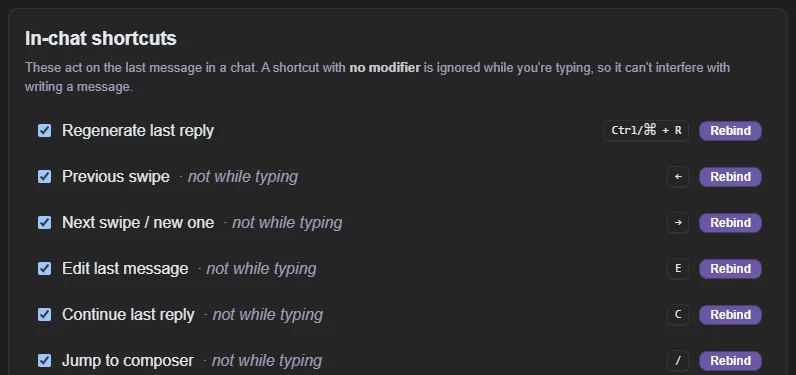
In a chat, these act on the last message. All of them can be rebound or switched off in the In-chat shortcuts card of Settings → Shortcuts, which also has Reset to defaults.
- Ctrl+R Regenerate last reply.
- ← Previous swipe / → Next swipe / new one: step through that reply's alternates, and → past the last one generates a new alternate.
- E Edit last message · C Continue last reply.
- / Jump to composer (the message box) · ? Show shortcuts (this list, in the chat).
Writing:
- Enter send · Shift+Enter newline. Flip this in Settings → Chat Display and Ctrl+Enter sends instead.
- Ctrl+Shift+Enter send with directions for the reply (the same as Shift-clicking Send).
- Ctrl+I italics · Ctrl+B bold · Ctrl+Q quotes · Ctrl+E inline code — they wrap whatever is selected, in the message box, a message editor, or the full-screen editor. Change them, or add your own wrappers, in the Text formatting shortcuts card of Settings → Shortcuts; they're in the right-click menu too, and a wrapper with no key is menu-only.
- Type
/for slash commands,{{for macros,[for tags. ↑/↓ to move, Tab or Enter to accept, Esc to dismiss. - Ctrl+Shift+V opens the clipboard-history picker (arrows + Enter to pick), a reliable alternative to Windows' Win+V, which doesn't paste into the app on some PCs. It's also Paste from history in the right-click menu. Rebind it, or switch the built-in picker off, in the Clipboard history card of Settings → Shortcuts.
- Ctrl+Enter confirms the Regenerate / Continue / Impersonate directions boxes.
Mouse:
- The function keys jump to a screen from anywhere: F1 Guide, F2 Settings (again to close), F3 the Library's Characters, F4 its Lorebooks, F5 its Generators, F12 sign out (locks the vault). Switch them off in Settings → Shortcuts → Function keys. Desktop only.
- Shift-click Regenerate, Continue, Impersonate, or a group member's chip for one-off directions. Shift-click Delete to also remove everything after that message.
- Right-click a highlighted span in a message → Regenerate this section. Right-click in a text box for spelling, cut/copy/paste and formatting.
- Shift+right-click in a text box gives the webview's own system menu instead. (Add to dictionary is in the app's menu now — it teaches Windows, so the word stops being underlined everywhere.)
- Your mouse's side button goes back a screen (closing Settings or search first — inside Settings it first retraces the sections you visited, as does Alt+←). Rebind or switch it off in Settings → Shortcuts.
Everywhere: Ctrl+K global search (characters & chats — start it with ?: to ask this guide a question instead) · Esc closes the top-most dialog.
Enter, Esc and Tab can't be rebound — the app needs them.